User guide
Help and feedback
Ask Me, the questions it answers, reporting a problem, the language and updates.
Ask Me
Click Ask Me, the rabbit at the top right, or press F1 anywhere. Type your question in your own words, in English or Romanian; the most asked questions (units, saving, walls, levels, sections, printing, the guide) are found in the interface's other languages too, and answered in English. Ask Me answers from the questions users have asked before, and a button takes you straight to the right place in the app.
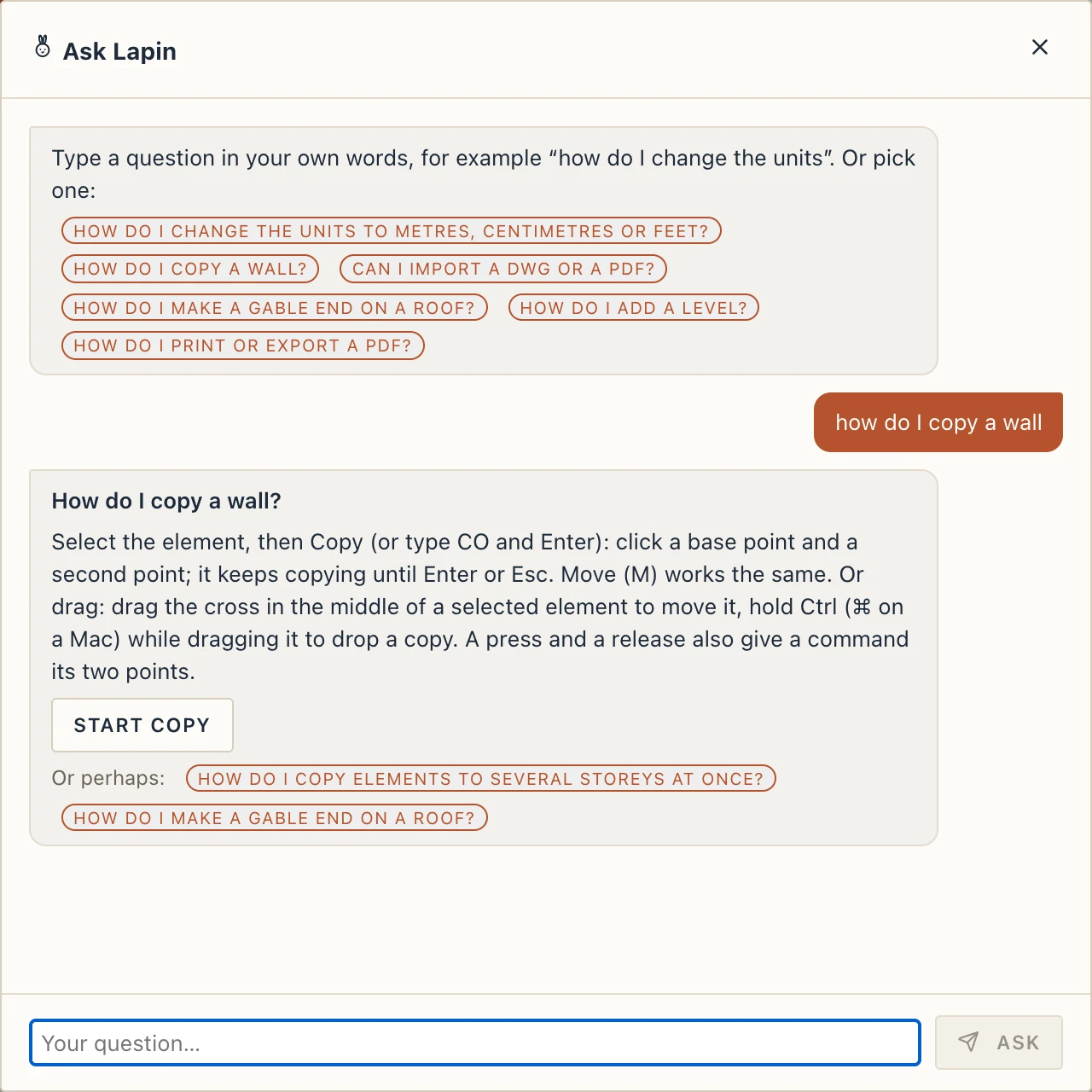
If Ask Me has no answer, Send the question sends it to us. We answer it, and the answer is added to Ask Me for everyone. Ask on the forum asks Lapin's users and fans instead: it opens a new topic on the forum with your question as its title.
The help menu
The ? button next to Ask Me opens the help menu:
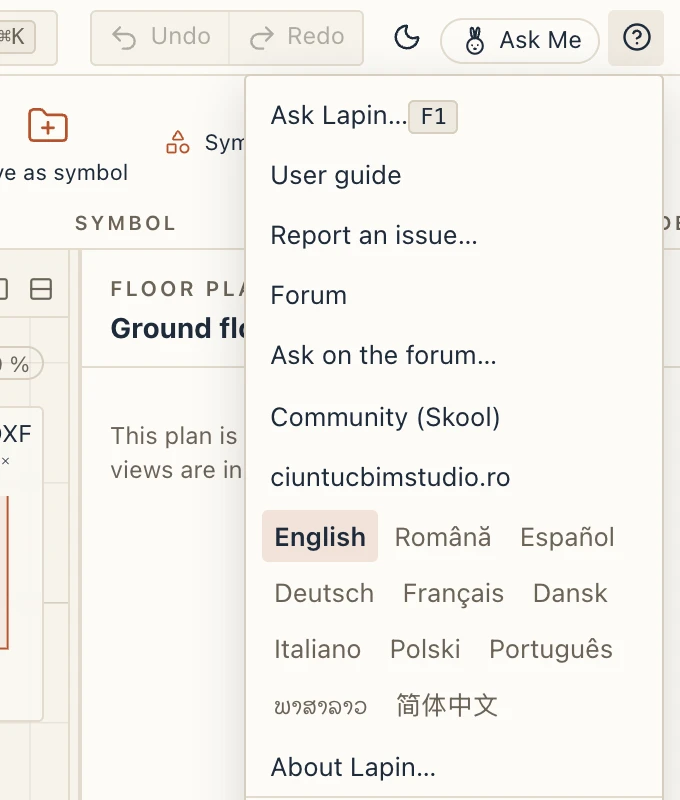
Ask Lapin… opens Ask Me.
User guide opens this guide, in the interface's language.
Report an issue… tells us what went wrong, or sends an idea or a question. Say what happened and what you expected, and add a screenshot if it helps. The app's version and its last error messages go with the report.
Messages… shows the replies to your reports. It appears once you have asked for a reply.
Forum opens Lapin's forum (forum.lapinbim.com), where users and fans talk, show their work and help each other. The forum is in English, but you can write in your own language.
Ask on the forum… opens a new topic on the forum, in Lapin's category, with the app's version filled in below your text. Nothing else about your computer or your project goes with it. You sign in on the forum and post the topic there.
Community (Skool) is where the courses and the team's other material are.
Check for updates… is in the desktop app only.
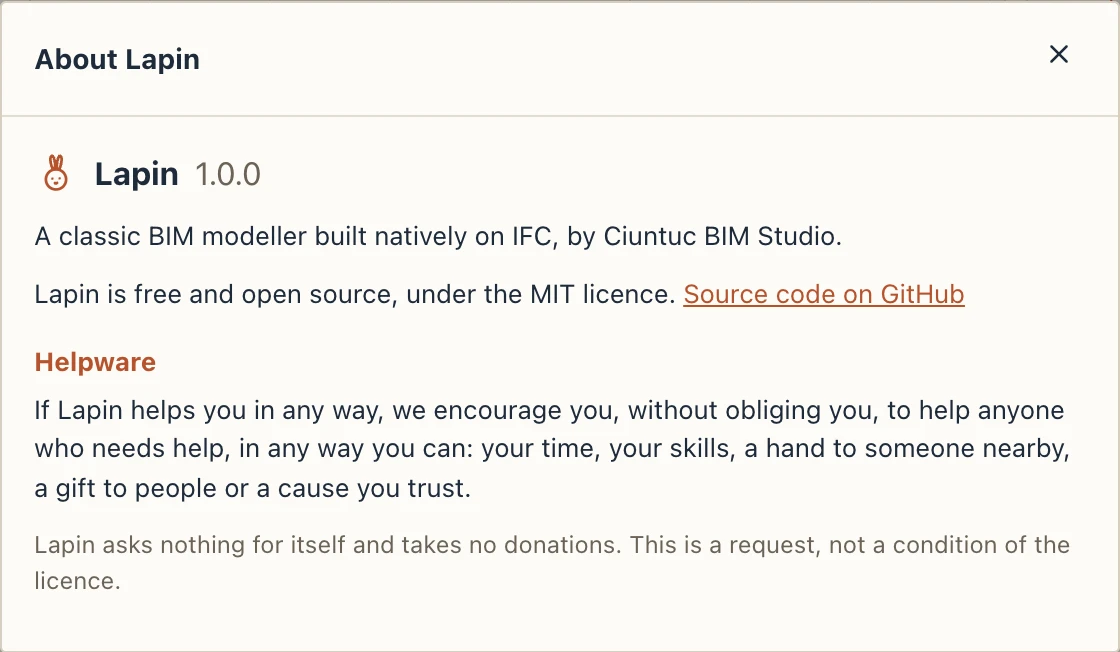
About Lapin… shows the version, the licence, a link to the source code, and what helpware means.
About Lapin English · Română · Español · Deutsch · Français · Dansk · Italiano · Polski · Português · ພາສາລາວ chooses the interface's language. Your choice is remembered on this computer. This guide is in the first nine (in Lao it opens in English), and User guide opens it in the one you chose; the menu at the top of each page of the guide switches it to another.
Replies to your reports
A report is anonymous unless you ask for an answer. To get one, tick I'd like a reply in the report form. You can add a Nickname (optional) so we know how to greet you.
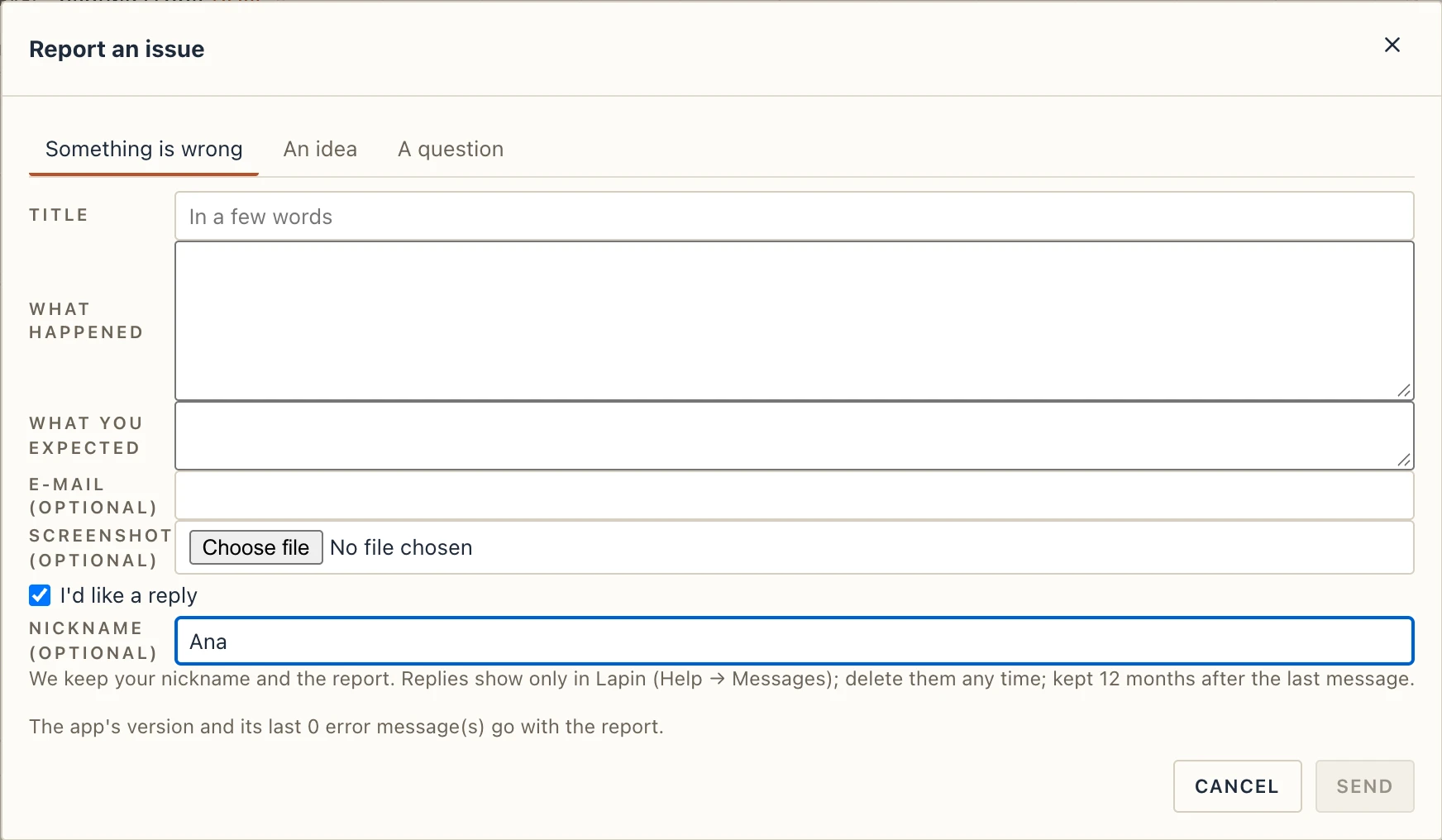
- What is kept. We keep your nickname and the report. We never need your name, your e-mail address or an account. Like every report, it carries the app's version and its last errors. The server also keeps a scrambled (hashed) form of your network address, only to limit how many reports come from one place. Replies show only in Lapin, never by e-mail. A conversation is kept for 12 months after its last message, then the nickname is removed from it.
- No account. The first time you ask for a reply, the app makes a private key and keeps it on this computer. Only the key's fingerprint goes with the report, never the key. The desktop app and the browser each have their own key.
- Reading replies. When a reply arrives, a number appears on the ? button and a notice tells you. ? → Messages… lists your reports, each with its conversation. Write your answer below a conversation and click Send. Answering a closed report opens it again. While replies are on, the app checks for new ones when it starts and every 15 minutes.
- Settings, at the bottom of Messages:
- Nickname: change the name shown on your reports.
- Stop replies: the app stops checking. Your key is kept, so Start replies again brings them back.
- Forget me…: removes your nickname and your key from all your reports on our server, and deletes the key from this computer. The reports and their messages stay, with no name attached, and you can no longer read or answer them.
- Use on another device: Show my code shows your key as a code to copy. On the other computer, paste it under A code from another device and click Use this code. Whoever has the code can read and answer your messages, so keep it like a password.
Updates
The desktop app looks for a newer version when it starts, and asks before it installs one. You can also check with ? → Check for updates…. The web version is always the latest.