User guide
Profile libraries
The profiles your work uses, whatever their standard — Lapin's small EN set, your own tables and IFC files, a firm's folders; drawn with their properties worked out, the file's values checked, copied into the project as they are used.
Lapin cannot ship every steel profile used in the world, so it ships a small European set and reads the rest from what you already have: a catalogue as a spreadsheet (the AISC Shapes Database, a producer's table, your firm's own), an IFC profile library (Bonsai's, for instance) or any IFC model, a closed outline drawn in Lapin or in a DXF. Manage → Profile libraries holds them all.
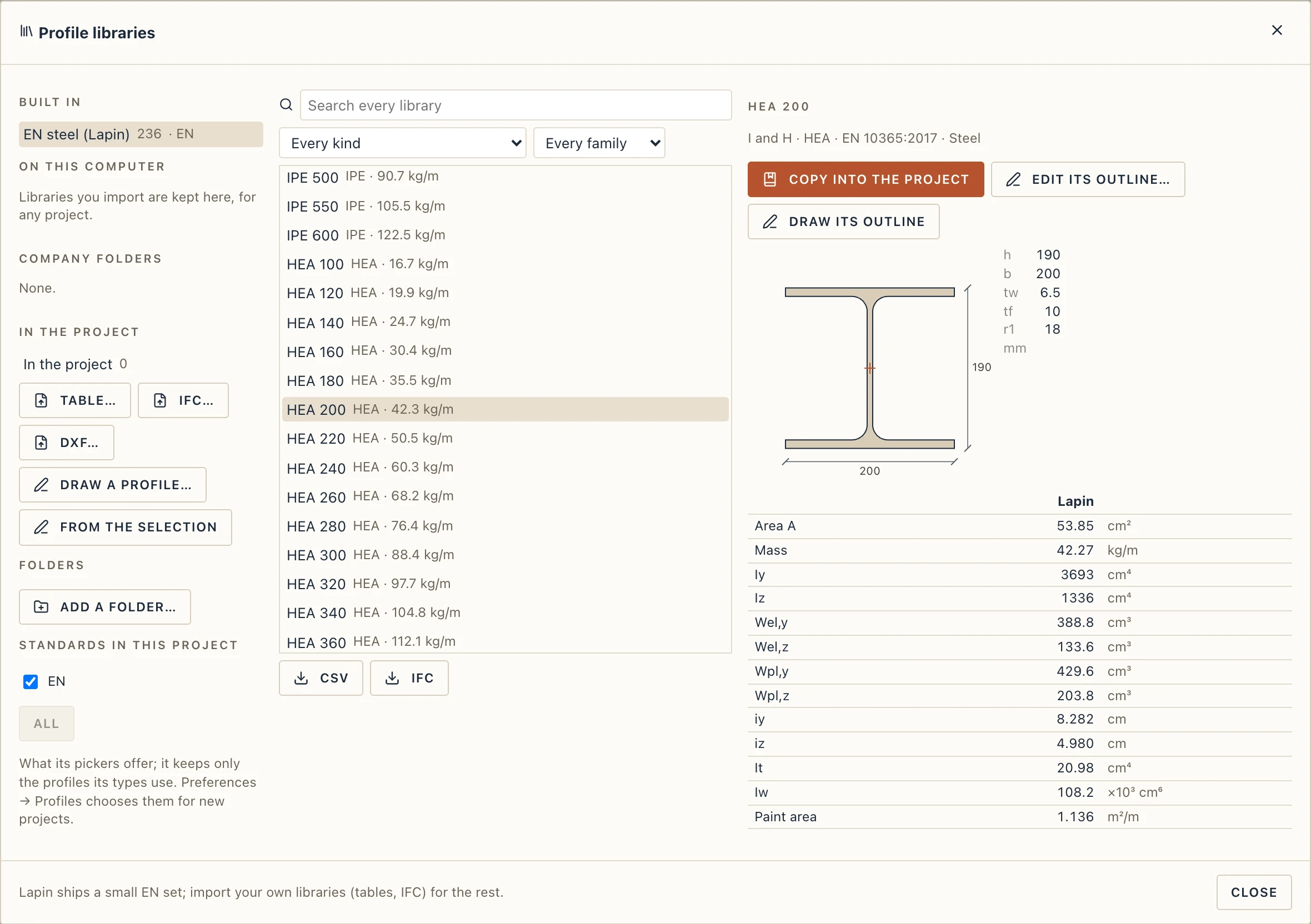
The libraries
- Built in: EN steel (Lapin): IPE, HEA, HEB, HEM, UPN, UPE, equal and unequal angles, hot-finished SHS, RHS and CHS in common sizes, and generic cold-formed C, Z and Σ. Standard dimensions only; every property is worked out by Lapin.
- On this computer: the libraries you import, for any project. The browser version keeps them too, in that browser.
- Company folders: in the desktop app, any number of local, network or synced folders of
.lapinprofilesfiles (Add a folder…; the same list is Preferences → Libraries, where every other library reads its files of the firm's folders too). A folder is read-only unless you tick writable; then the save button beside it writes the library chosen there, for your colleagues. - In the project: only the profiles the project uses are copied into it, with their library's name, so the file opens anywhere.
Type in the search box to look through every library at once by name, family, standard or kind; choose a profile to see it drawn with its dimensions and its properties.
Standards
Each profile is shown under its standard: EN for Lapin's set and any profile whose standard is a European norm (EN 10365, DIN EN, SR EN…), AISC / ASTM for American tables (a Standard column saying ASTM A6, for instance), BS, DIN, JIS, AS/NZS and the others by their names, and a library whose profiles say none — a firm's own — under its own name. A library on this computer can be told which one it is shown under (Shown under, beside its list).
The pickers list the project's own profiles first, then each standard under its heading. The chips at the top of the list hide or show a standard; your choice is kept on this computer, for every project (File → Preferences → Profiles too).
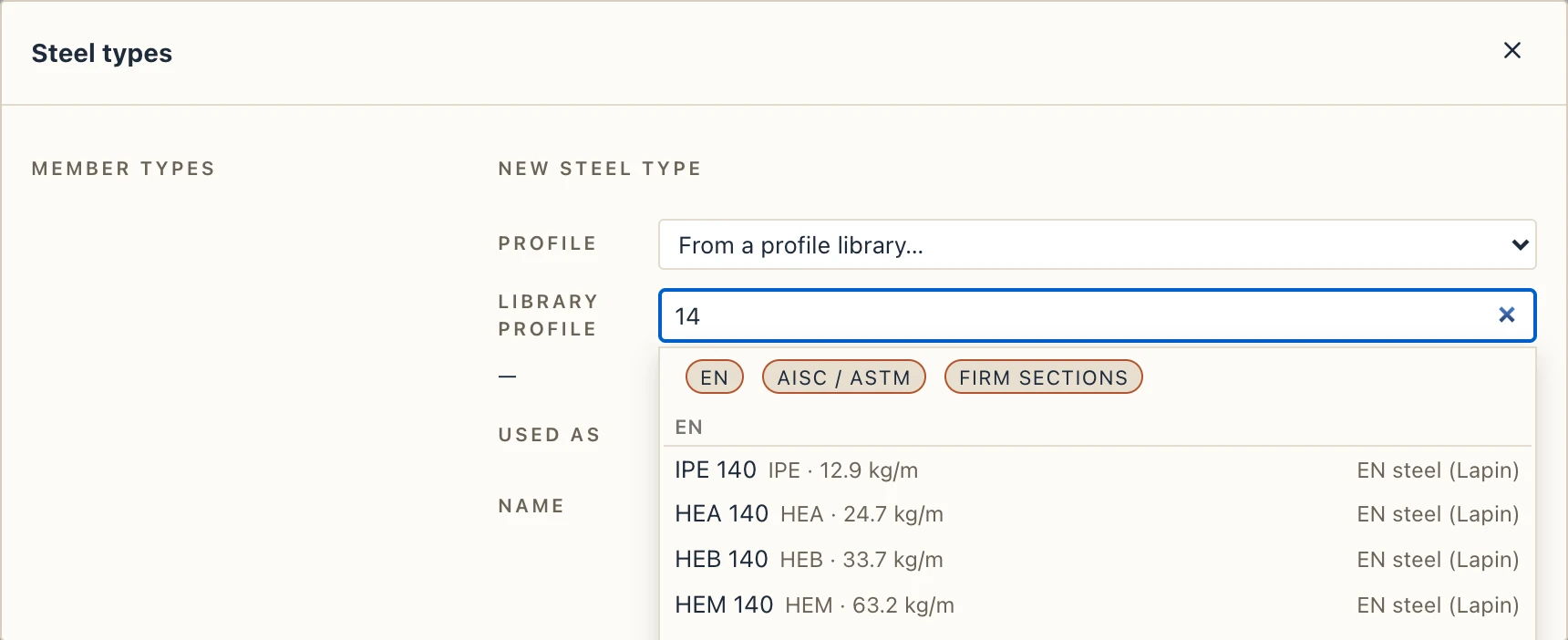
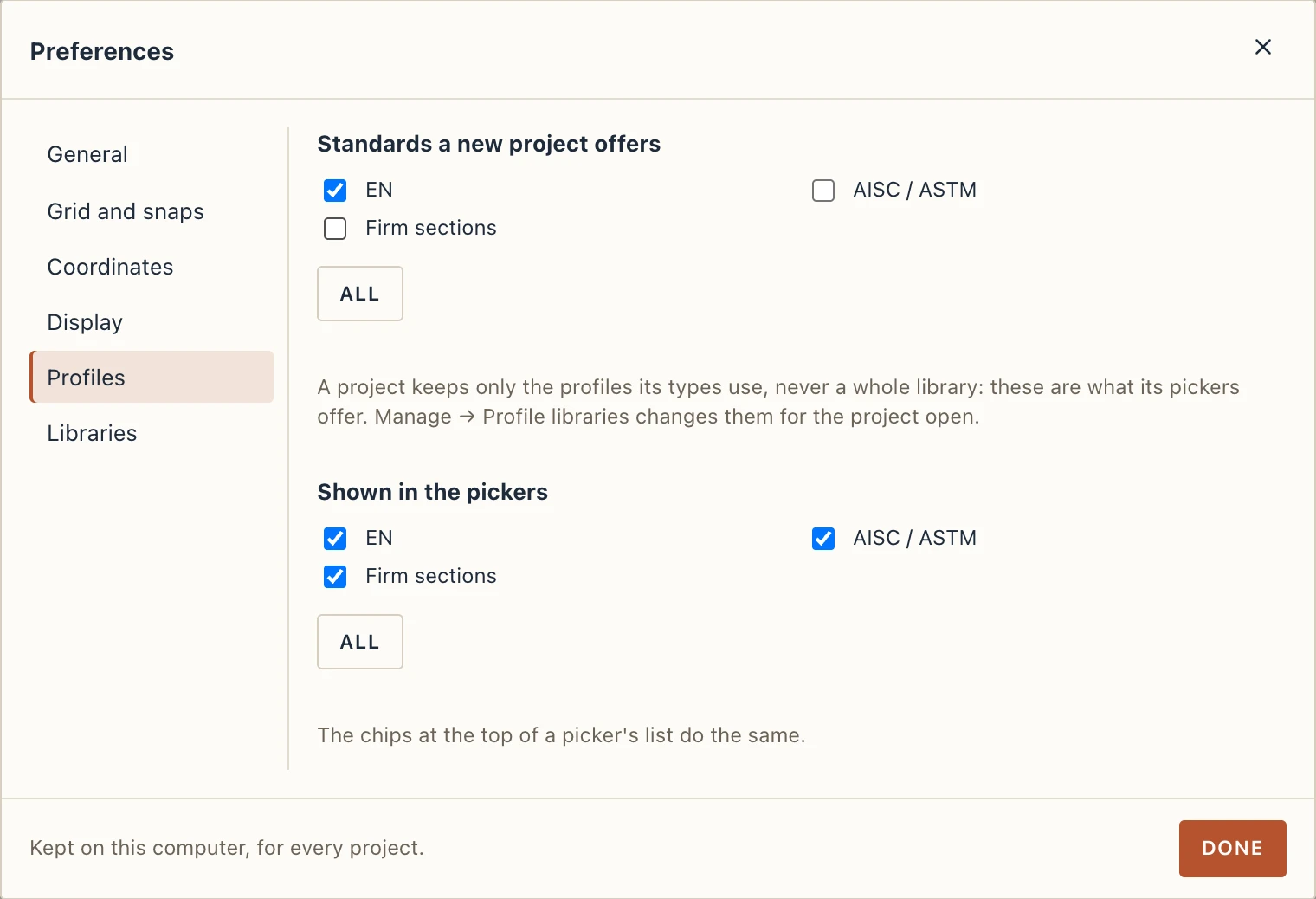
A project keeps only the profiles its types use, never a whole library, so a library you have weighs nothing in its file. What a project offers is its own choice: Standards in this project under the libraries ticks the standards its pickers show; the profiles already in it stay. File → Preferences → Profiles chooses the standards a new project starts with (every standard, unless you choose).
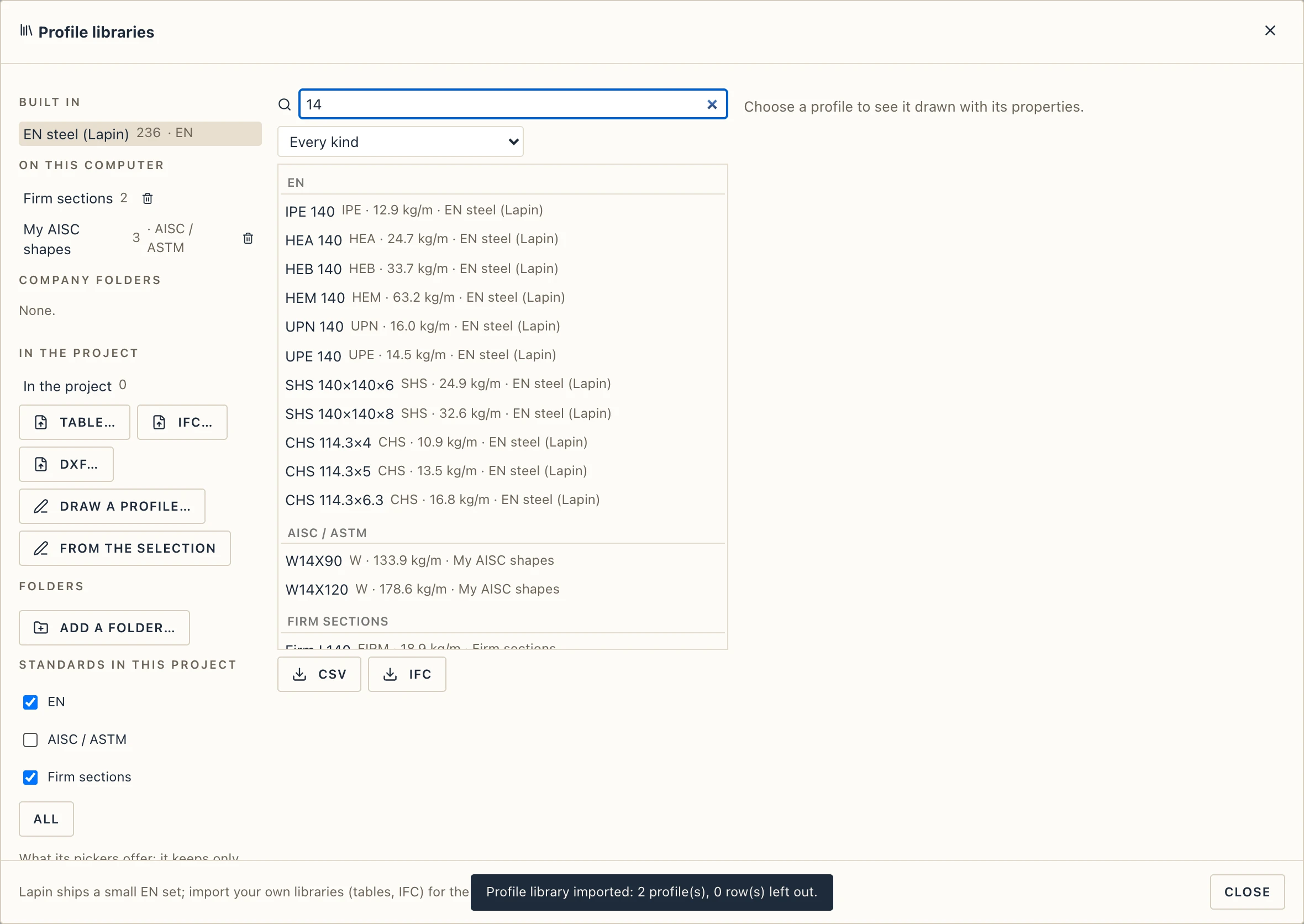
Lapin does not ship the AISC Shapes Database: AISC lets developers include it only under a licence agreement of its own, which an MIT program cannot pass on. Download it from AISC and import it with Table…: its columns are recognised.
Properties
From a profile's dimensions Lapin works out its area, Iy, Iz, the elastic and plastic moduli, the radii of gyration, the principal axes and their angle (angles, Z sections, any unsymmetric outline), the torsion constant It and the warping constant Iw where a formula exists, the mass per metre from its material's density and the paint area per metre. They agree with the published tables to about 1 % (It and Iw of rolled I sections to 3 %; Iw of a channel with sloping flanges only to 20 %). An arbitrary outline has no It or Iw unless its file gives them.
The values a file gives are kept and shown beside Lapin's. A difference over 2 % (area, mass), 3 % (inertias, moduli) or 10 % (It, Iw) is marked and goes on the check list of the import; a whole column off by a power of ten is said to be in another unit.
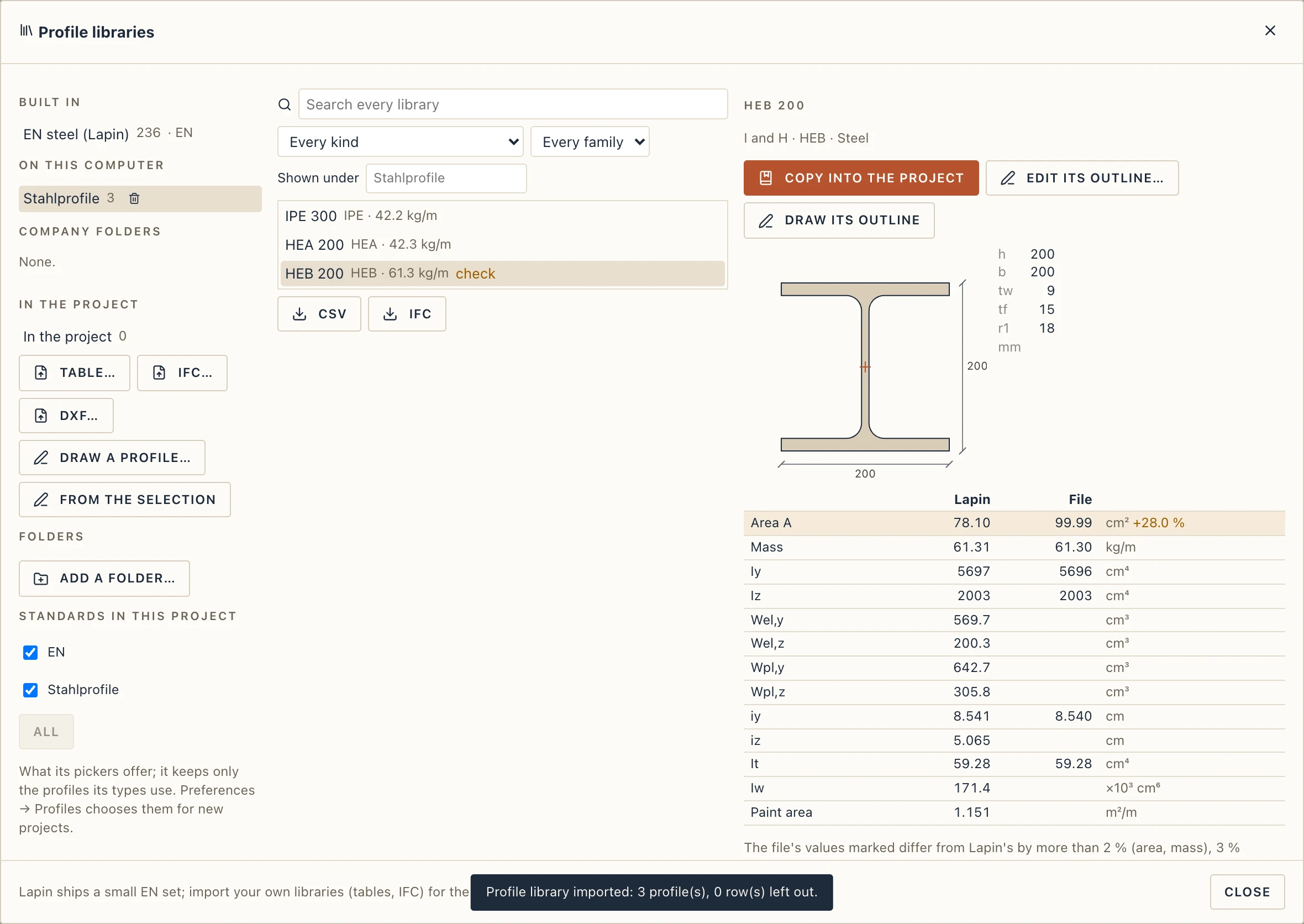
Importing a table
Table… reads a CSV or XLSX, one row a profile. Each column's meaning and unit are guessed from its heading in English, Romanian, German or French (h, d, Höhe, hauteur, înălțime; tw, s, Stegdicke; A, Iy, Wel, Wpl, It, Iw, G, kg/m…), units included (mm, cm, in, cm², cm⁴, in⁴, ×10³ cm⁶, lb/ft). A table with Ix and no Iz is read the American way, x the strong axis, in inches. Correct what is wrong in the dialog; Lapin remembers your choice for the next file laid out the same way.
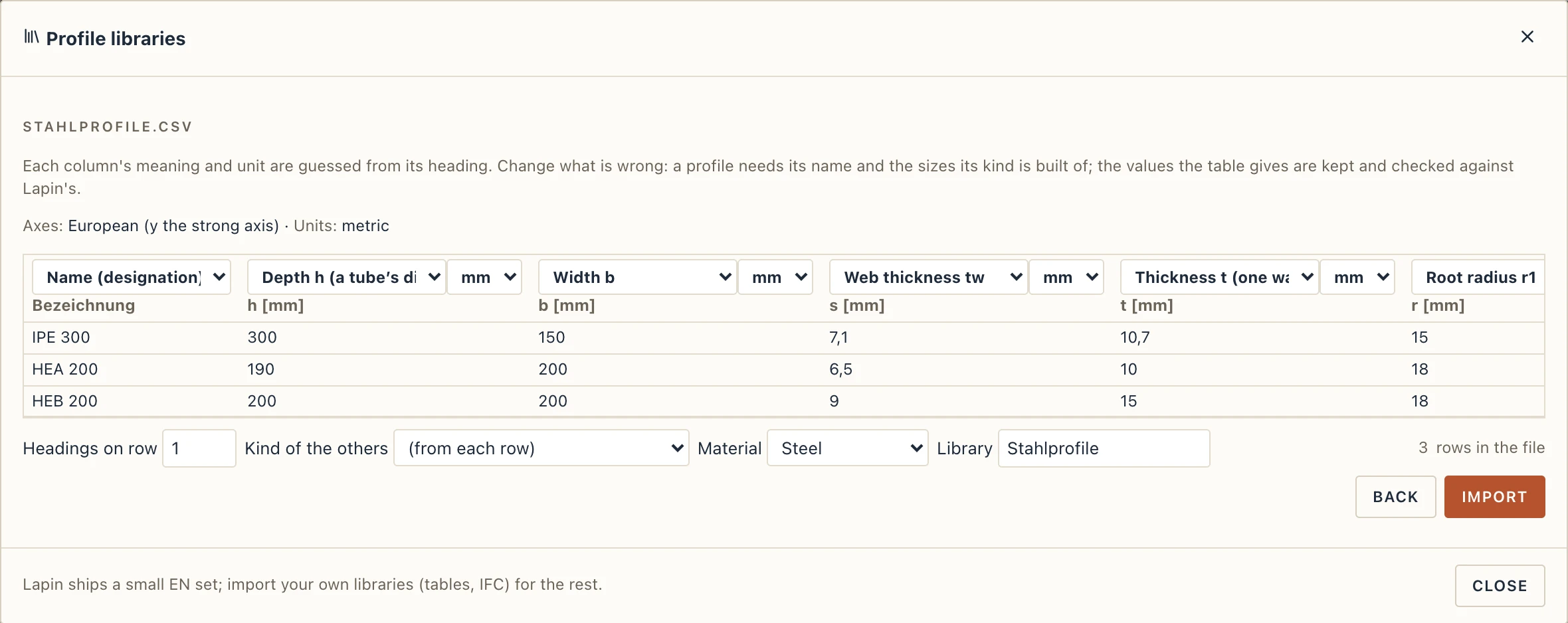
A row's kind comes from its type column (W, HP, UPN, HSS, PIPE…) or its name; for the others choose the kind in the dialog.
IFC
IFC… reads every profile definition of any IFC file: a library, or a model from Tekla, Revit or ArchiCAD, where the profiles its elements use are named after their types. I, asymmetric I, U, T, L, C, Z, hollow, rectangle, circle and ellipse keep their kind and sizes; arbitrary, composite and derived profiles become outlines. The mechanical properties of Pset_ProfileMechanical (and IFC2x3's profile properties) come with them; exporters disagree about their units and about which axis is Y, so Lapin settles both by the geometry. Centre-line and trapezium profiles are left out and said so.
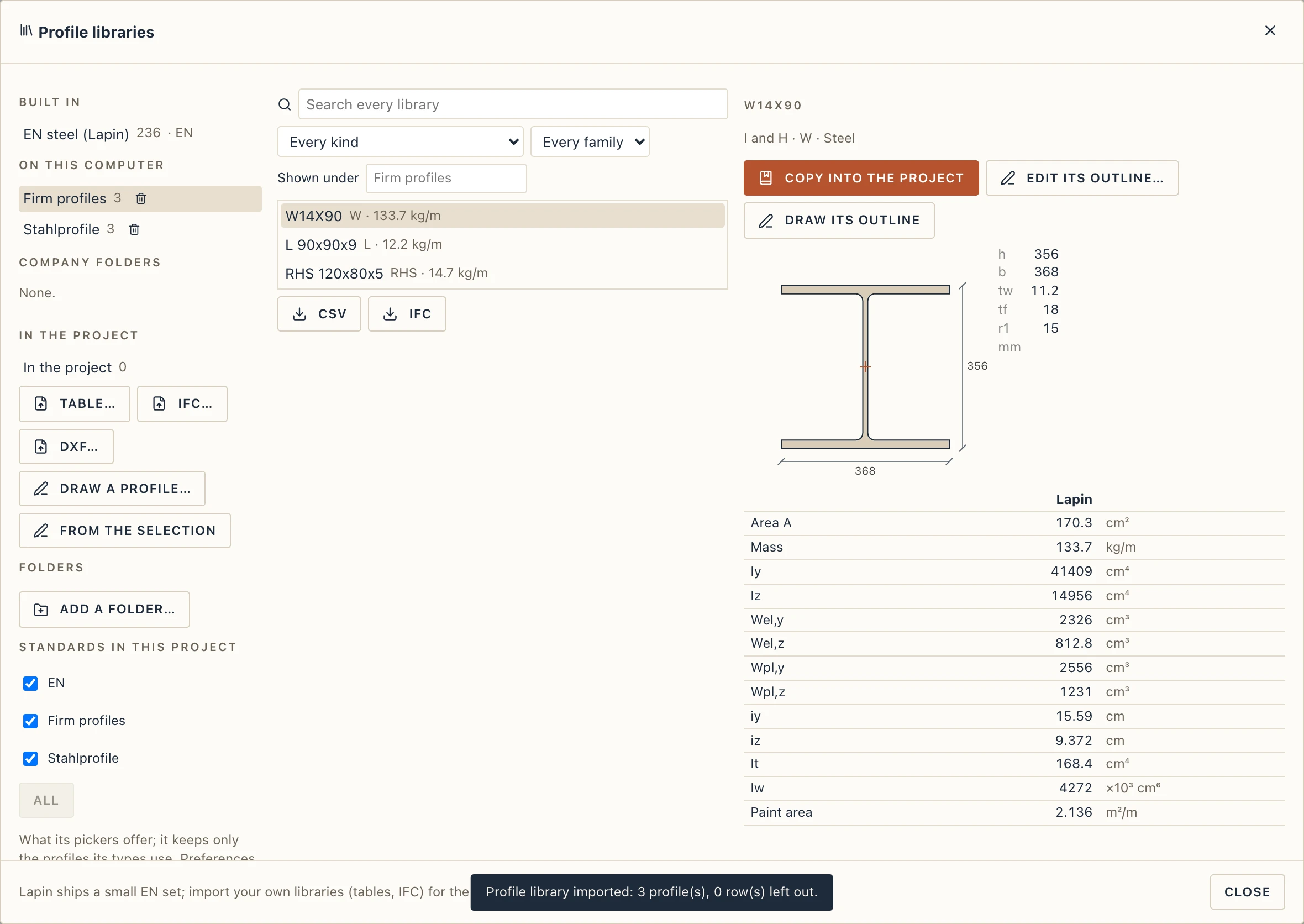
IFC and CSV under the list write the library chosen (or the project's profiles) as an IFC4 profile library or a table Lapin reads back.
Beams, columns and steel members are written in the model's IFC by their parametric profile too (IfcIShapeProfileDef, IfcLShapeProfileDef, …, rectangles and circles), with the profile's name and Pset_ProfileMechanical, so other tools see an IPE 300 and not a polyline. Outlines, Σ and lipped Z stay arbitrary profiles; a member cut by another stays the solid it is.
An outline as a profile
Draw the section with Drafting as closed polylines and circles (those inside another are its holes), select them and press From the selection, or read a producer's drawing with DXF…. Name it, choose its material and library, and keep it. This is how aluminium and PVC extrusions, precast sections and timber shapes get in: the same store, with their own material and density.
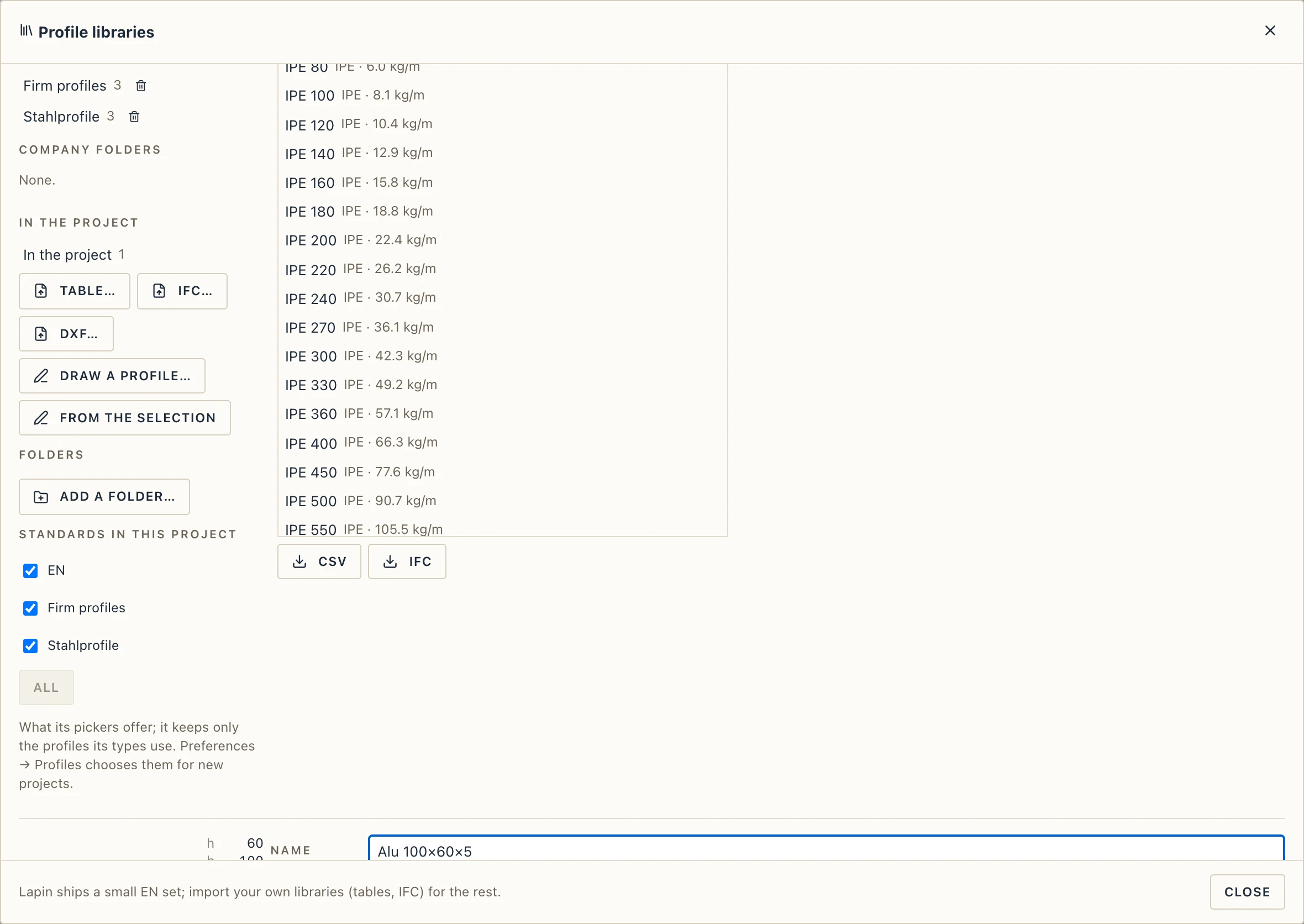
Draw its outline does the opposite: the chosen profile's outline as closed polylines in the view in front, for Studio to extrude or sweep.
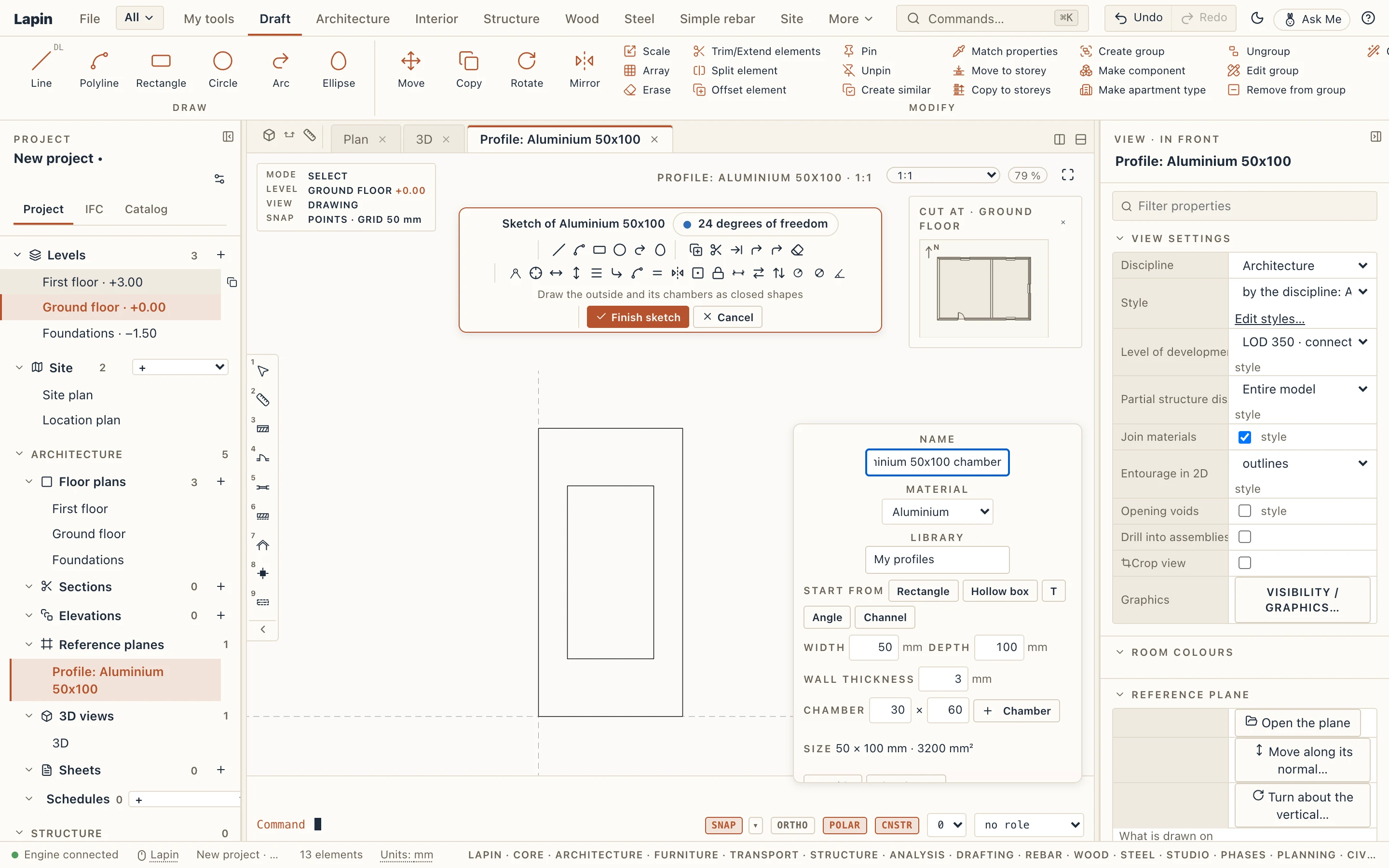
Draw a profile… opens the section on the sketch canvas: a sheet of its own in millimetres, the section's axes drawn as construction lines. Draw the outside and its chambers as closed shapes with Draft's tools on the bar (Rectangle, Polyline, Circle, Line and Arc end to end, Offset, Fillet, Trim…), move points by their grips, and dimension and constrain it as any sketch; curves are laid in short straight pieces. The side form beside it holds the profile's name, material and library, the shapes to start from (a rectangle, a hollow box, a T, an angle or a channel) with the sizes you give, a chamber added in the middle, its size and area, and the points of the outside or of a chamber in millimetres to type over. Finish sketch makes the profile (an outline that crosses itself or another, or one left open, is refused with the reason, and the sketch stays open) and goes back to the libraries to name and keep it like any outline; Cancel goes back without it. A product without Studio keeps the section editor in the dialog. Edit its outline… opens a profile you have on the same sketch (finished unchanged, it stays exactly as it was): kept again under its name, the project's copy is marked newer and Update from the library brings it to every type and every curtain wall member made of it. Chosen mullions and transoms take a profile of their own, turned, aligned and offset: see Walls.
Using a profile
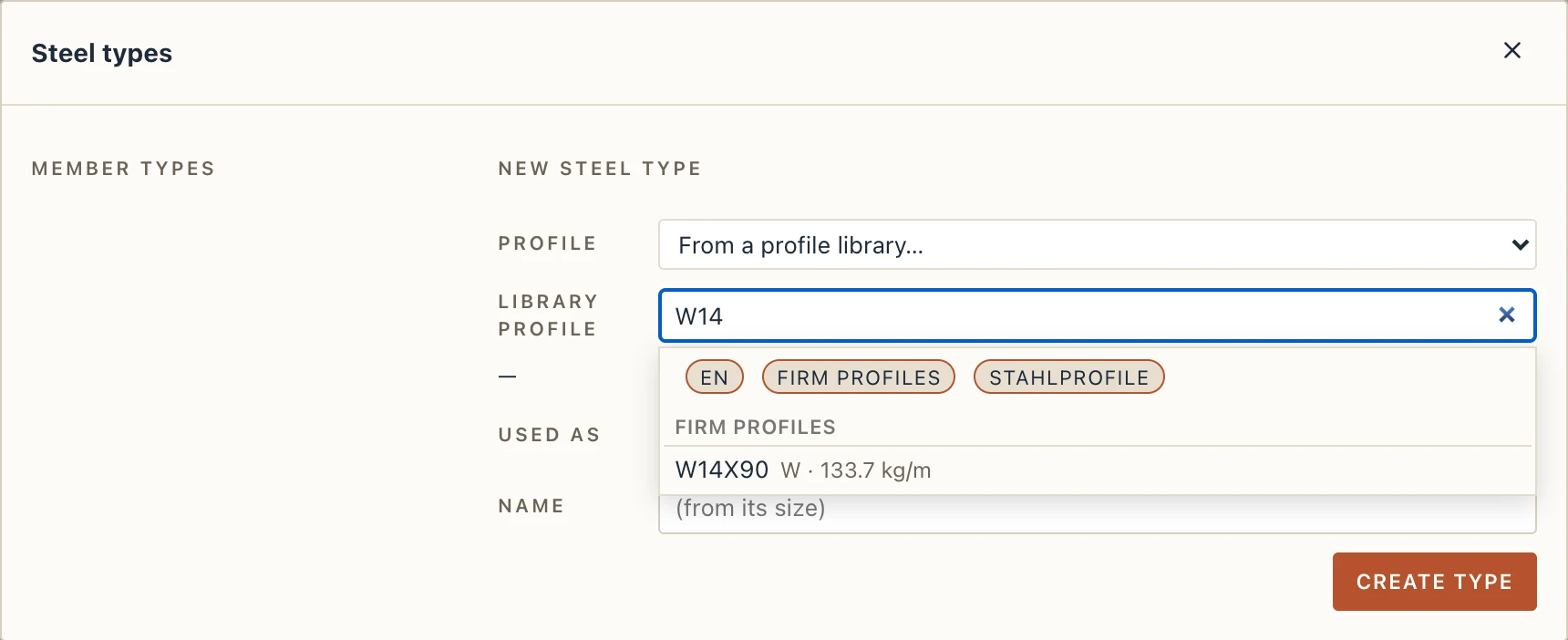
In Steel → Steel types, Structure → Structure types (columns and beams) and the portal frame hall's profiles, choose From a profile library… and type to search.
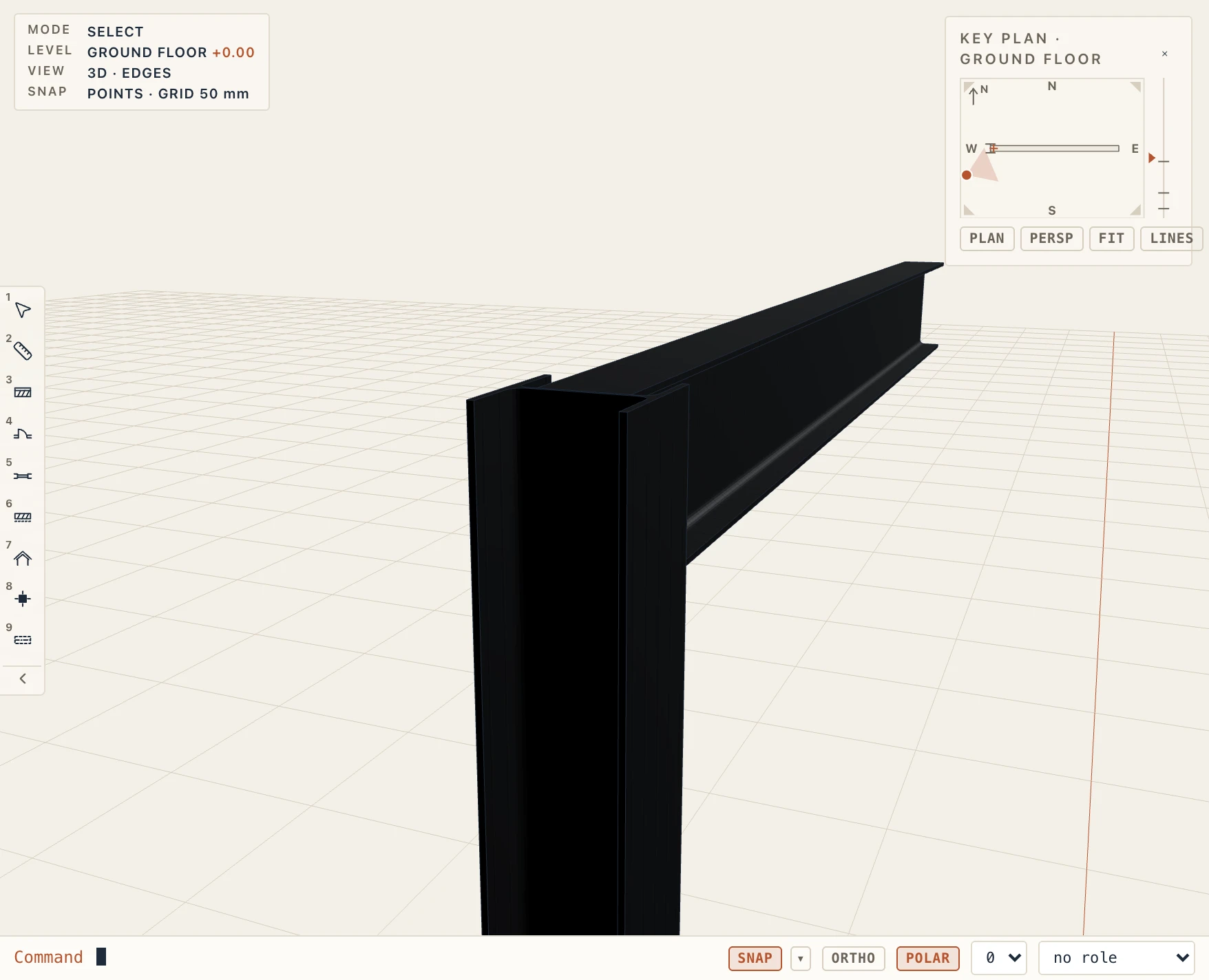
The profile is copied into the project and the type keeps it. Bodies are light, with sharp corners, at every level but one: a view at LOD 400 (a plan, a section, an elevation, a sheet or a 3D view) draws the real section, root fillets, toe radii, sloping flanges. Exports and picking keep the sharp body, but quantities, weights, takeoffs, the Steel members list and estimates use the section's real area (an IPE 300 is 53.81 cm², not the sharp outline's 51.88); a section with no radii changes nothing.
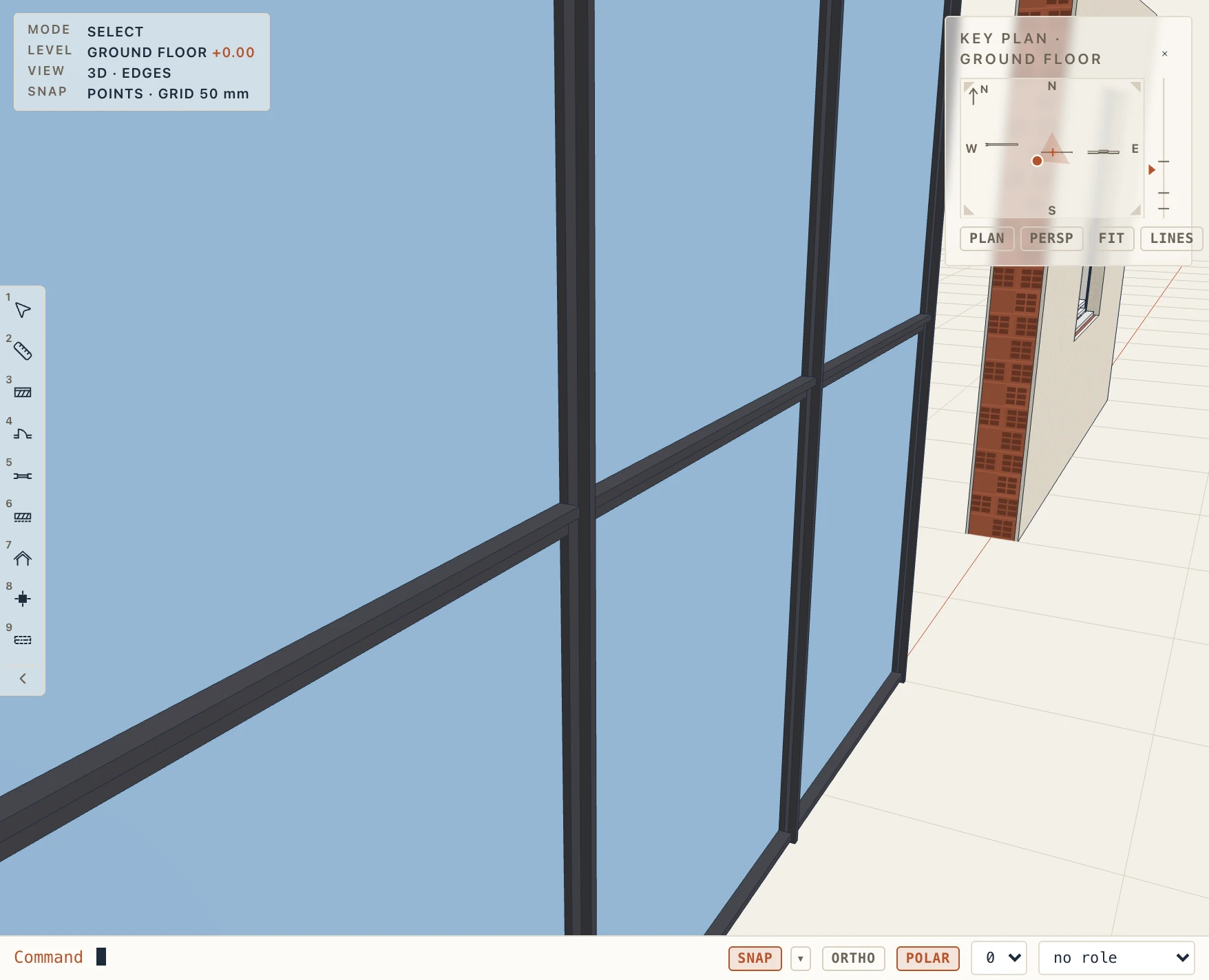
Elsewhere the profile gives what that tool can use: wall sweeps, reveals and strip footings take its outside as a 2D profile (From a profile library… in their list), and curtain wall mullions and transoms and door and window frames and sashes take its real outline, holes included, along each member, with its width and depth; the profile's x points across the member (towards the glass on a frame or sash), its y out of the building. Plain takes the outline off and keeps the size.
A library may change after you used it. A project's profile that differs from the one of the same name in its library is marked newer in library; Update from the library replaces it and every type made of it follows, as one undo step. Nothing changes until you ask. Projects made before keep their types as they are.