User guide
Python scripts
Drive Lapin with Python from the Script panel, a developer extra: a console and an editor that run your own Python, each Run one undo step.
Turn on Developer extras
Lapin can be driven with Python: every tool is a command, and a script sends the same commands. The Script panel is a developer extra, off until you turn it on, so nothing of it shows otherwise.
Open File → Preferences… and, on General, tick Developer extras.
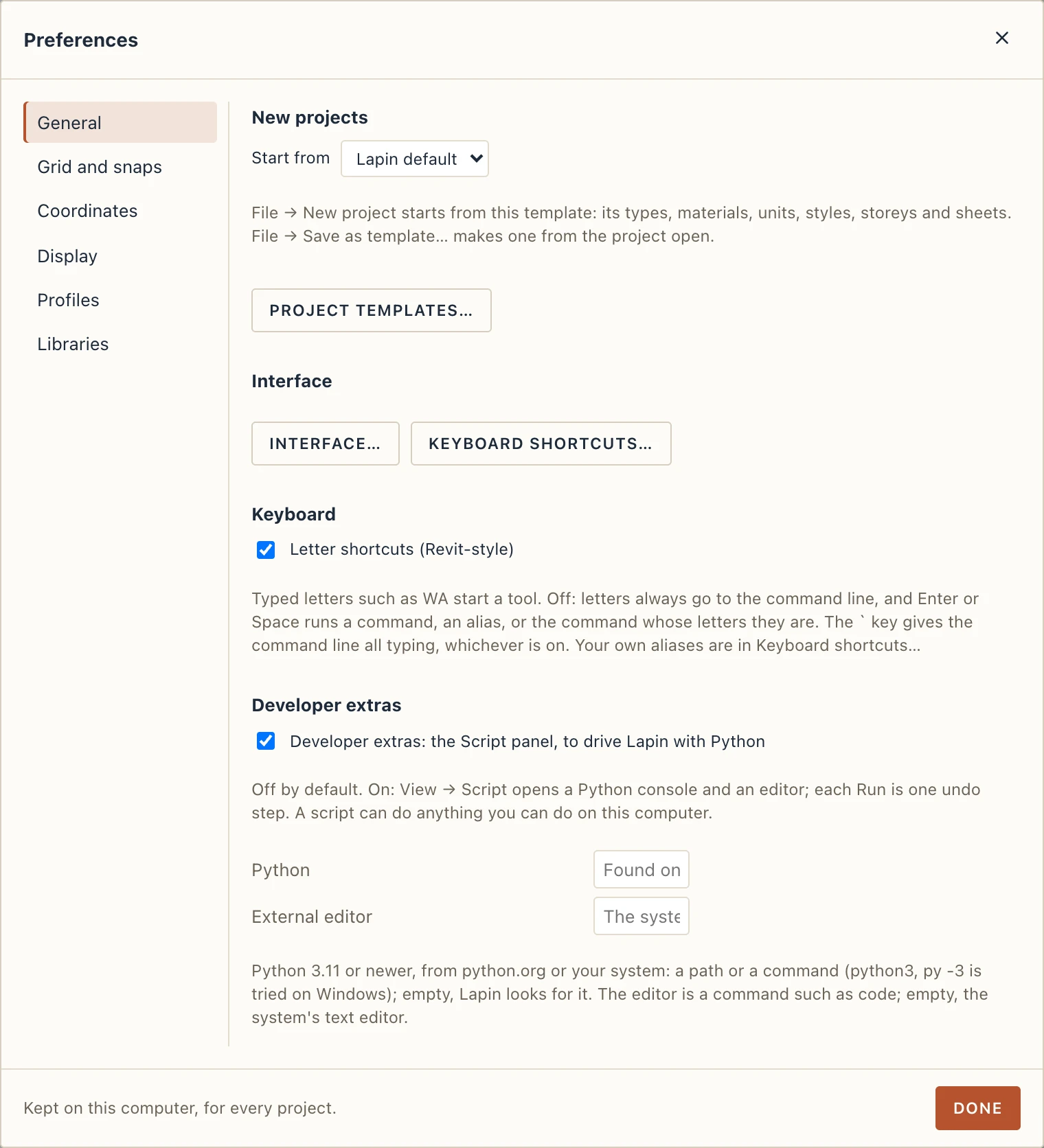
- Python: the Python the panel runs. Empty, Lapin looks for one on this computer (
python3,py -3on Windows, python.org's and Homebrew's). It must be Python 3.11 or newer; Lapin does not install Python. Get it from python.org if you have none, or type the path of the one you want (a virtual environment's, for example). - External editor: the editor Open in external editor uses, as a command (
codefor Visual Studio Code). Empty, the system's text editor.
Python runs in the desktop app only: in Lapin for the browser the panel says so.
The Script panel
Open View → Script. The panel opens along the bottom of the window; drag its top edge to make it taller. Its header says which Python it found, or why it found none.
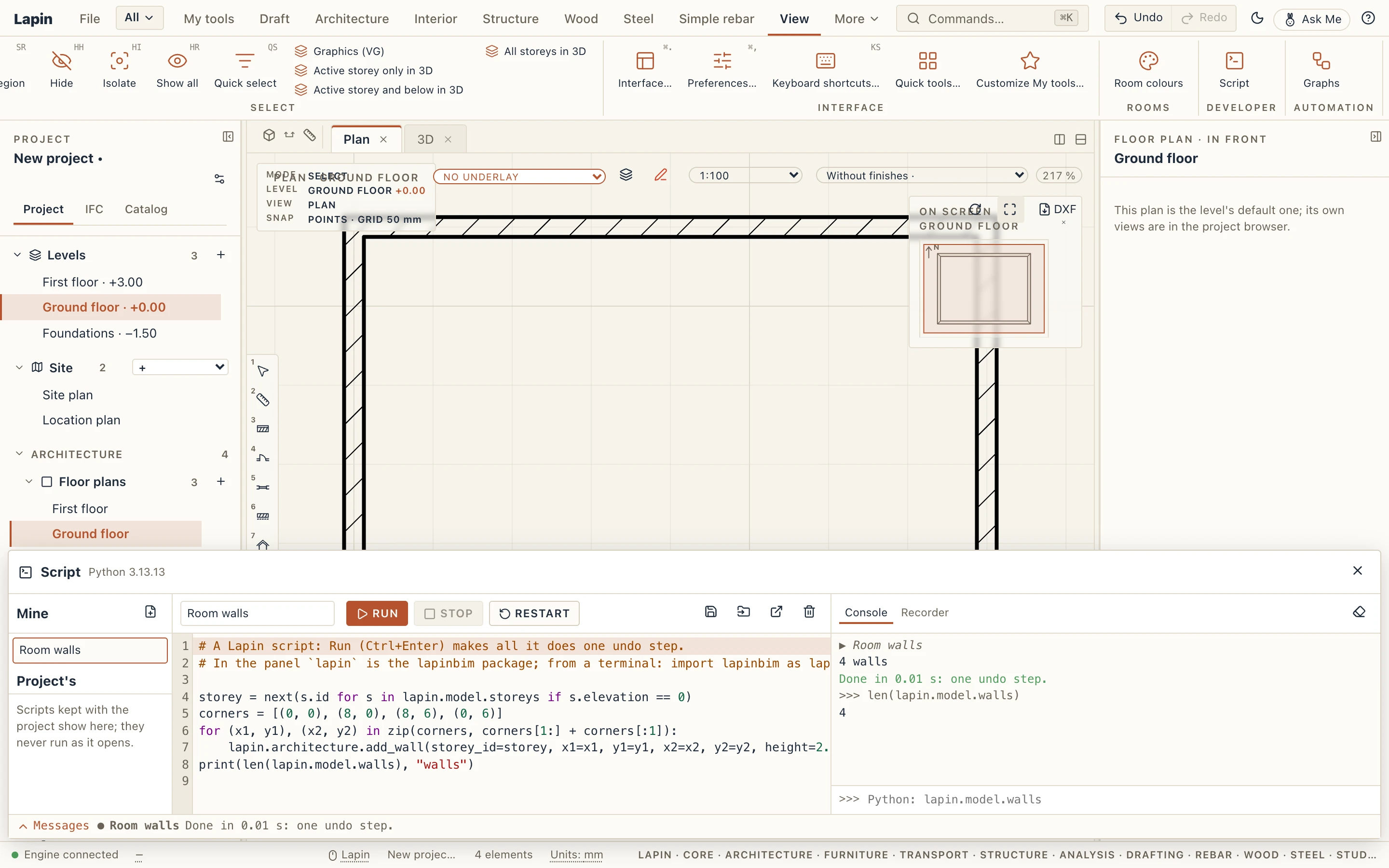
- Mine, on the left: your own scripts, plain
.pyfiles kept in Lapin's folder on this computer. Click one to open it; New script starts from an example. - The editor, in the middle: Python with its colours and indentation. Type
lapin.and it offers what Lapin has (the commands of every module of your edition, and its own calls);lapin.architecture.offers the architecture commands with their arguments. Give the script a name and Save it in Mine; Open in external editor opens its file in your editor, and what you save there comes back into the panel. - The console, on the right: what scripts print, their errors with the line they stopped at (marked in the editor), and a line to type Python in. Enter runs it, Shift+Enter starts a new line, Up and Down bring back the lines typed before. A name you set in the console stays for the next line and for the scripts you run.
In the panel, lapin is the lapinbim package already there. The same script runs from a terminal with import lapinbim as lapin, while Lapin is open.
storey = next(s.id for s in lapin.model.storeys if s.elevation == 0)
corners = [(0, 0), (8, 0), (8, 6), (0, 6)]
for (x1, y1), (x2, y2) in zip(corners, corners[1:] + corners[:1]):
    lapin.architecture.add_wall(storey_id=storey, x1=x1, y1=y1, x2=x2, y2=y2, height=2.8)
print(len(lapin.model.walls), "walls")
Lengths are in metres and angles in degrees, whatever unit the project shows.
Run, Stop, Restart, Undo
Run (Ctrl+Enter in the editor) runs the script. Everything it does is one undo step, named after the script: one Undo takes all of it away.
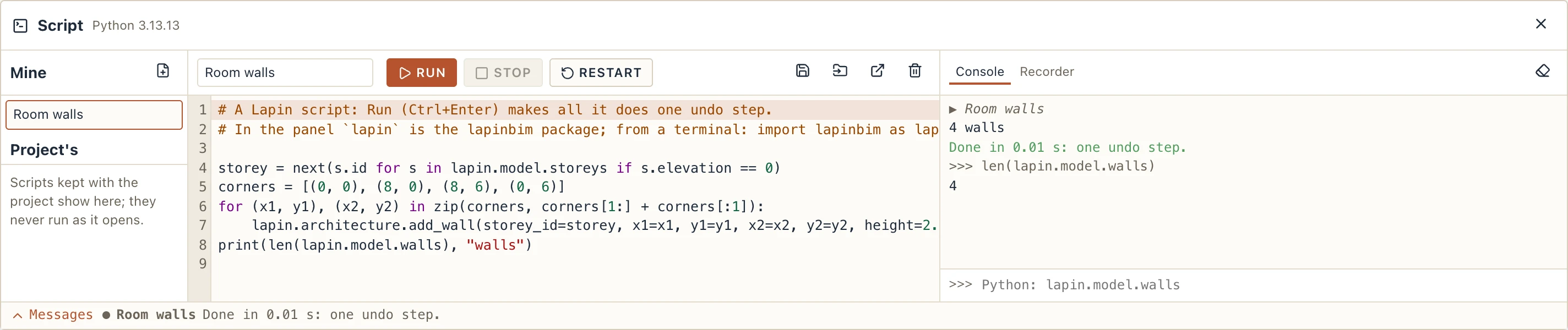
One Undo took the run's four walls away While a script runs, the model is the script's: a tool you use in the window is refused with A script is editing the model; views, selection and schedules go on.
A script that fails keeps nothing of what it did: the model is as it was before Run, and the console shows the error and its line.
Stop stops the script; nothing it did is kept. A script that does not stop within two seconds has its Python ended.
Restart starts Python again: the names the console kept are forgotten.
Record what you do as a script
The Recorder tab, beside the console, writes what you do in the window as Python, one line per step.
- Click Record. A red dot on the tab shows it is recording.
- Work as usual: draw walls, change a property, delete something. Each step shows at once as a line, for example
wall1 = lapin.architecture.add_wall(storey_id=storey1, x1=0, y1=0, x2=5, y2=0). - Click Stop, then Copy (to paste the script elsewhere) or Save as script (it goes into Mine and opens in the editor).
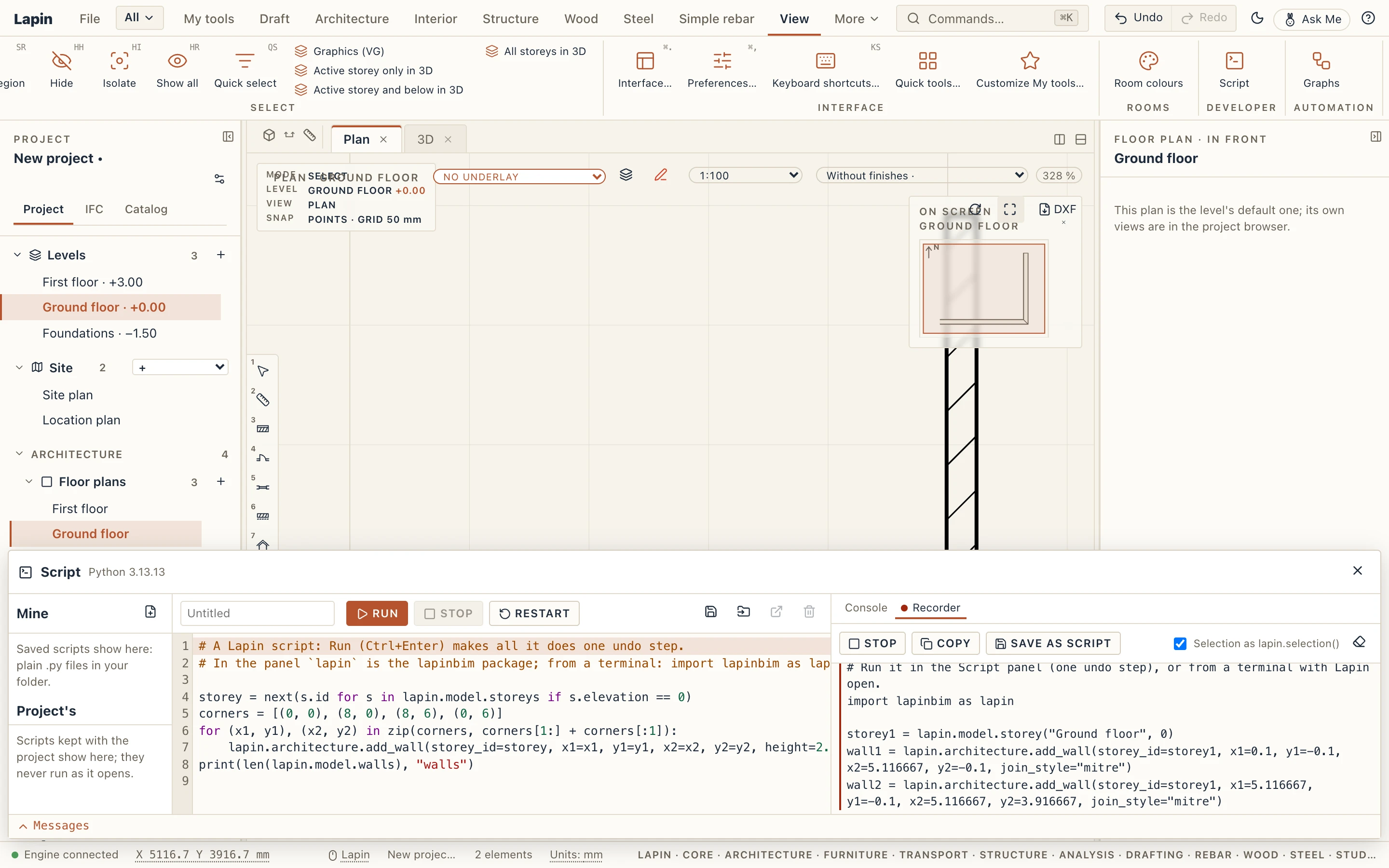
The script is written so it works on another project too:
- what a step made is kept in a variable (
wall1), and later steps use it (wall1.id); - the storey you drew on is found by its name, else by its elevation (
lapin.model.storey("Ground floor", 0)), and a type by its name (lapin.model.find("IfcWallType", "Brick 250")); - another element that was already in the project is named by its id (
lapin.model["…"]), so that line works only in this project; - with Selection as lapin.selection() ticked, a command on what you had selected is written
lapin.selection(): the script then works on what is selected when you run it.
An Undo while recording takes the last step out of the script, and Redo puts it back, so the script holds what you did in the end. What a script does is never recorded, nor are questions that change nothing (a schedule read, a measurement).
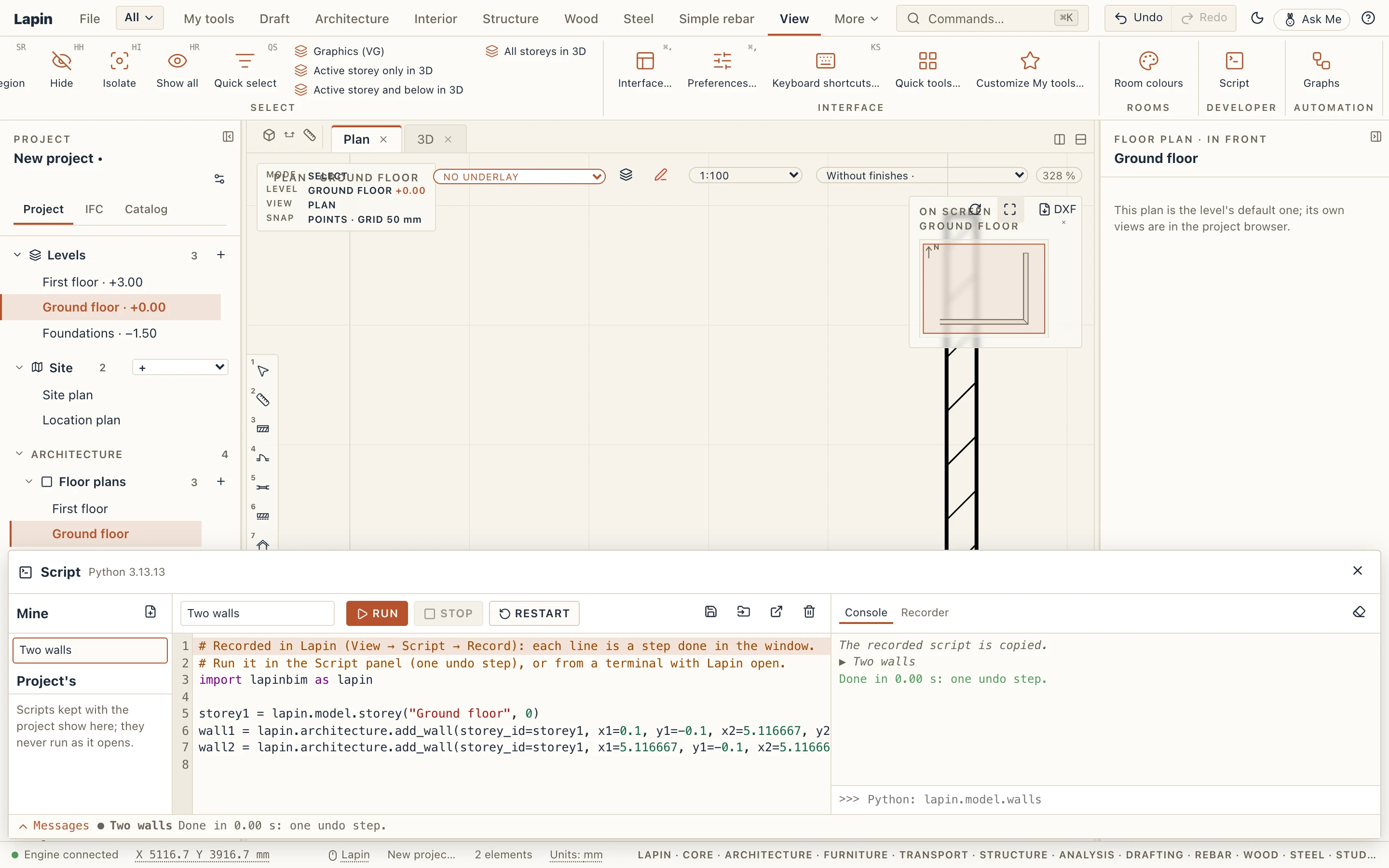
The project's scripts
A script can be kept in the project, so it travels with the file: open or write it in the editor and click Save in the project. It shows under Project's, on the left. Saving, renaming and deleting a project's script are each one undo step, and the project's versions keep its scripts. In the .lapin file each one is also a plain text file, scripts/<name>.py, so it can be read without Lapin.
A project's script never runs by itself, not when the project opens nor when it is saved. The first time you run it, and again whenever its code has changed, Lapin asks:
- Run once: it runs this time, and the next run asks again;
- Trust: it runs, and this code is remembered as trusted on this computer (a change to it asks again);
- Cancel: nothing runs.
A script you save in the project yourself is trusted as you save it. Your own scripts (Mine) never ask.
What is selected
lapin.selection() gives what is selected in the window, as elements:
for e in lapin.selection():
    print(e.name, e.type)
An element's fields read by their names and change by assignment: wall.height = 3 changes the wall (one undo step, or part of the Run). with lapin.step("Name"): makes several commands one undo step while each still answers at once, so a later one can use what an earlier one made.
A script as a tool
A script can be a tool: a button in My tools that runs it, for anyone, with Developer extras on or off. Say it in the script's first lines, its header:
# lapin: name="Perimeter walls", version="1.0.0", tool="Perimeter walls", icon="square", run="perimeter"
# lapin: tooltip="Four walls round a rectangle, one undo step"

def perimeter():
    v = lapin.ui.ask("Perimeter walls", {
        "width": lapin.ui.number(8.0, unit="m", min=0.5),
        "depth": lapin.ui.number(6.0, unit="m", min=0.5),
        "storey": lapin.ui.storey(),
    })
    if v is None:          # Cancel
        return
    w, d = v["width"], v["depth"]
    corners = [(0, 0), (w, 0), (w, d), (0, d)]
    for (x1, y1), (x2, y2) in zip(corners, corners[1:] + corners[:1]):
        lapin.architecture.add_wall(storey_id=v["storey"].id, x1=x1, y1=y1, x2=x2, y2=y2)
- tool: the button's name; run: the function it calls (without it the whole script runs); icon: one of Lapin's icons (
wall,door,stair…) or a common one (square,ruler,layers,grid,star…), else a letter (icon="P", or the name's first); tooltip: what the button says when you hover it. - Save the script in Mine (or in the project): its tool appears in My tools, in a group Scripts, without the script being run. Move it, make it small or take it out like any tool; Commands… (Ctrl+K) finds it too.

A click runs the script as one Run: everything it does is one undo step, named after the tool. lapin.ui.ask shows a dialog of Lapin's own, made from the fields the script names: a number with its unit, a text, a choice, a checkbox, an element (the one you select in the model meanwhile: Use selection), a storey, a type. OK gives the script the values; Cancel gives it nothing.
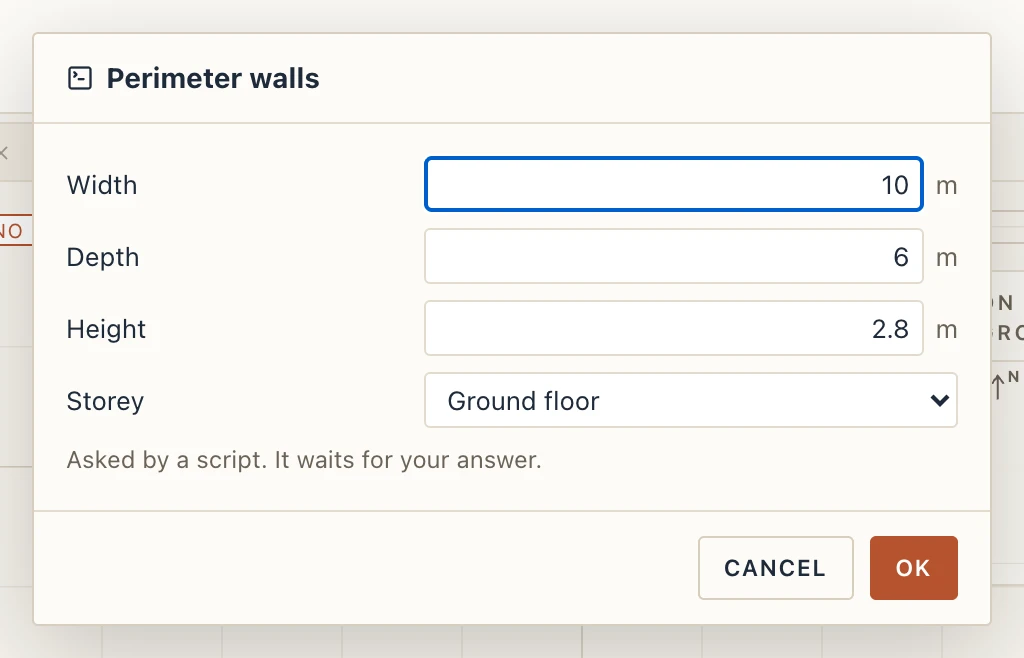
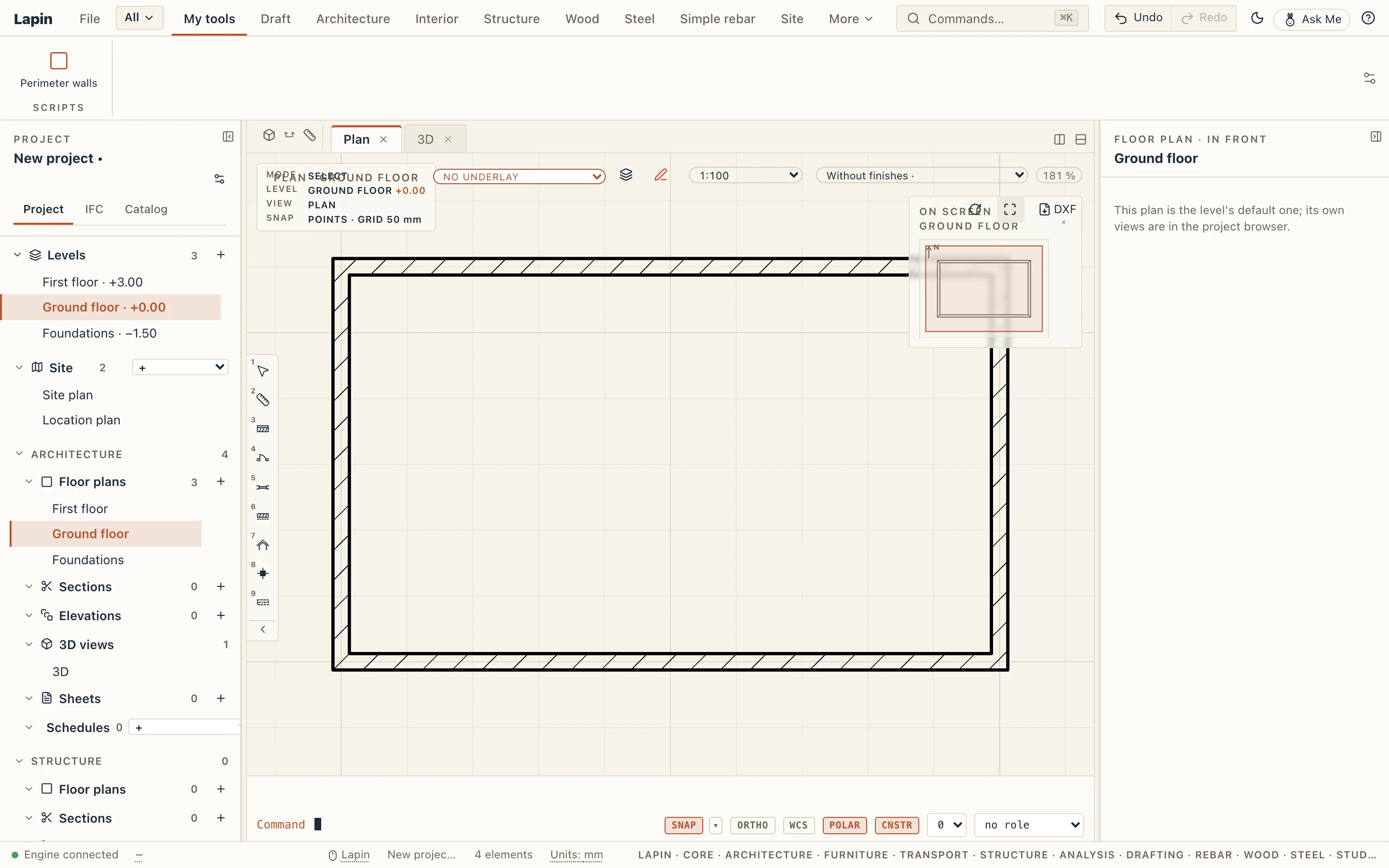
A script can also make tools as it runs: @lapin.ui.tool("Name", icon="ruler") above a function, run once from the panel, puts that tool in My tools.
Where tools come from:
- Mine: always;
- the project's scripts: only when you have trusted their code on this computer, so a project from someone else never puts a button in your ribbon; Forget trust in the panel takes them out;
- Lapin Extensions: a script you install shows its tool; the first click asks Run once / Trust / Cancel, and Run script in Extensions → Installed runs it too.
A script deleted, uninstalled or no longer trusted takes its tools out of My tools.
Panels, menus and palettes
A script can lay out its own part of My tools, all from code, and Lapin draws it; run the script once from the Script panel and what it registers appears:
with lapin.ui.panel("Walls"):                      # a group of My tools named Walls
    @lapin.ui.tool("Perimeter", icon="square", size="small")
    def perimeter(): ...

    with lapin.ui.menu("Openings", icon="door"):   # one button with a list of tools
        lapin.ui.tool("Door here", run=door)
        lapin.ui.tool("Window here", run=window)

    p = lapin.ui.palette("Wall tools", icon="wall")
    p.heading("New wall")
    p.field("length", lapin.ui.number(5.0, unit="m", min=0.5))
    p.field("height", lapin.ui.number(2.8, unit="m"))
    p.field("storey", lapin.ui.storey())

    @p.button("Make wall", icon="hammer")
    def make(v):                                   # v holds the palette's values
        lapin.architecture.add_wall(storey_id=v["storey"].id, x1=0, y1=0, x2=v["length"], y2=0, height=v["height"])
- A panel is a group of My tools with the script's name for it: its tools go there instead of Scripts, the first time they appear. In the header,
panel="Walls"does the same for the header's tool. - size="small" puts a tool small: a line with its icon, three stacked one above the other.
- A menu is one button that opens a list of its tools. Each of them is still a tool of its own: Commands… finds it and Customize My tools… can place it alone.
- A palette is a small floating panel that its button in My tools opens and closes: headings, texts, separators, fields (the same as in a question) and buttons (
with p.row():puts buttons side by side). Move it by its title; it stays open while you work, and remembers where it was and what you typed. A button is one Run, one undo step named after the button; its function gets the palette's values when it takes a parameter. The buttons wait while a script runs.

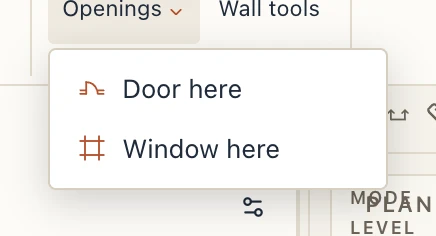
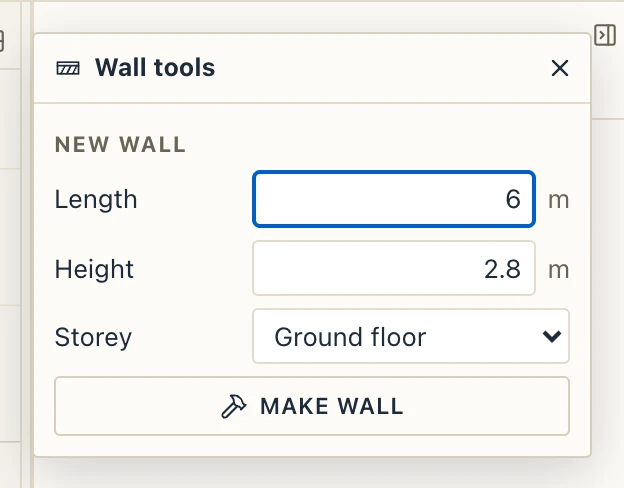
As for any tool, you can move them, make them small or take them out; once taken out, a tool stays out.
Messages
At the bottom of the Script panel, a Messages strip keeps one row per run: started, done with how long it took, stopped, or failed with the error's last line and, when Python's traceback gives them, the script's name and line (Walls:12). Click a failed row to open that script in the editor at that line, when it is the one open, one of Mine or one of the project's. It also records the runs started from My tools and from palette buttons, even while the panel is closed, so a tool that failed is reported when you open it. Open it with its arrow, filter by Errors, Warnings or All, copy the rows as plain text, or clear them. The console on the right is unchanged: it still shows everything a script prints.
Shapes made by a script
A script, or a program on your computer such as a Python script in VS Code, can make elements whose shape it computes: a truss over a room, a facade panel, a form another tool designs. They are ordinary elements: they show in plans, sections and 3D, are measured in schedules, exported to IFC, and you move, rotate, copy, hide or delete them as any other. Properties says Made by a script: and which one. Their shape belongs to the script: what would reshape one here is refused (This shape is made by a script; change it in the script, or move, rotate or cut it here.).
A script can follow what it is built from. Run from outside Lapin, it updates its elements itself when you change the room or wall it watches. A project's script that watches elements is run again by Lapin after your change, only if you trust it on this computer, as an undo step of its own named “