User guide
Sketch constraints
Hold a sketch's shapes together with constraints (horizontal, tangent, equal, fixed…) and dimensions, see how free it still is, and let a changed dimension move the solid built from it.
What constraints are
A sketch is the set of shapes drafted on one view: a plan, a section, an elevation or a reference plane. A constraint is a rule about those shapes that stays true while you edit: this side is horizontal, these two are equal, this point sits on that circle. A dimension is a constraint with a number: this side is 4 m. The sketch is solved by the engine every time something changes, so what the rules tie together moves together, and a solid, a sweep or a part built from the sketch follows.
Constraints belong to the sketch and are saved with the project. They are not written to IFC; the shapes, as solved, are.
The Constraints tools
Studio → Constraints (the second group of the Studio tab) has one tool for each kind, in two lists: Geometric ▾ and Dimensions ▾; their letters (CNC, CNH…) start them as before. Each one asks for what it needs in the view: click a point, an edge, a circle or an arc. The part under the cursor is lit and named (vertex, start, end, centre, edge, curve), and it snaps as drawing does. When the picks are complete, the constraint is made and the tool stays on for the next one; Esc ends it.

| Tool | You pick | Result |
|---|---|---|
| Coincident | two points | one point |
| Point on object | a point, then a line, circle or arc | the point stays on it |
| Horizontal, Vertical | a line, or two points | level, plumb |
| Parallel, Perpendicular | two lines | |
| Tangent | a line and an arc, two arcs, or two ends | touching, not crossing |
| Equal | two lines, or two circles or arcs | the same length or radius |
| Symmetric | two points, then a line or a point | mirrored about it |
| Midpoint | a point, then a line | at its middle |
| Fix | a point, a line, a circle or a whole polyline | held where it is |
If the second pick can be taken more than one way (two shapes meet at a corner), the click means the first shape's part that fits; click again on the other to take it. A pick that cannot make the constraint is refused in the command line with what it takes.
Typing a command works too: CNHORIZONTAL, CNFIX, CDIM… are on each tool's tooltip.
Dimensions
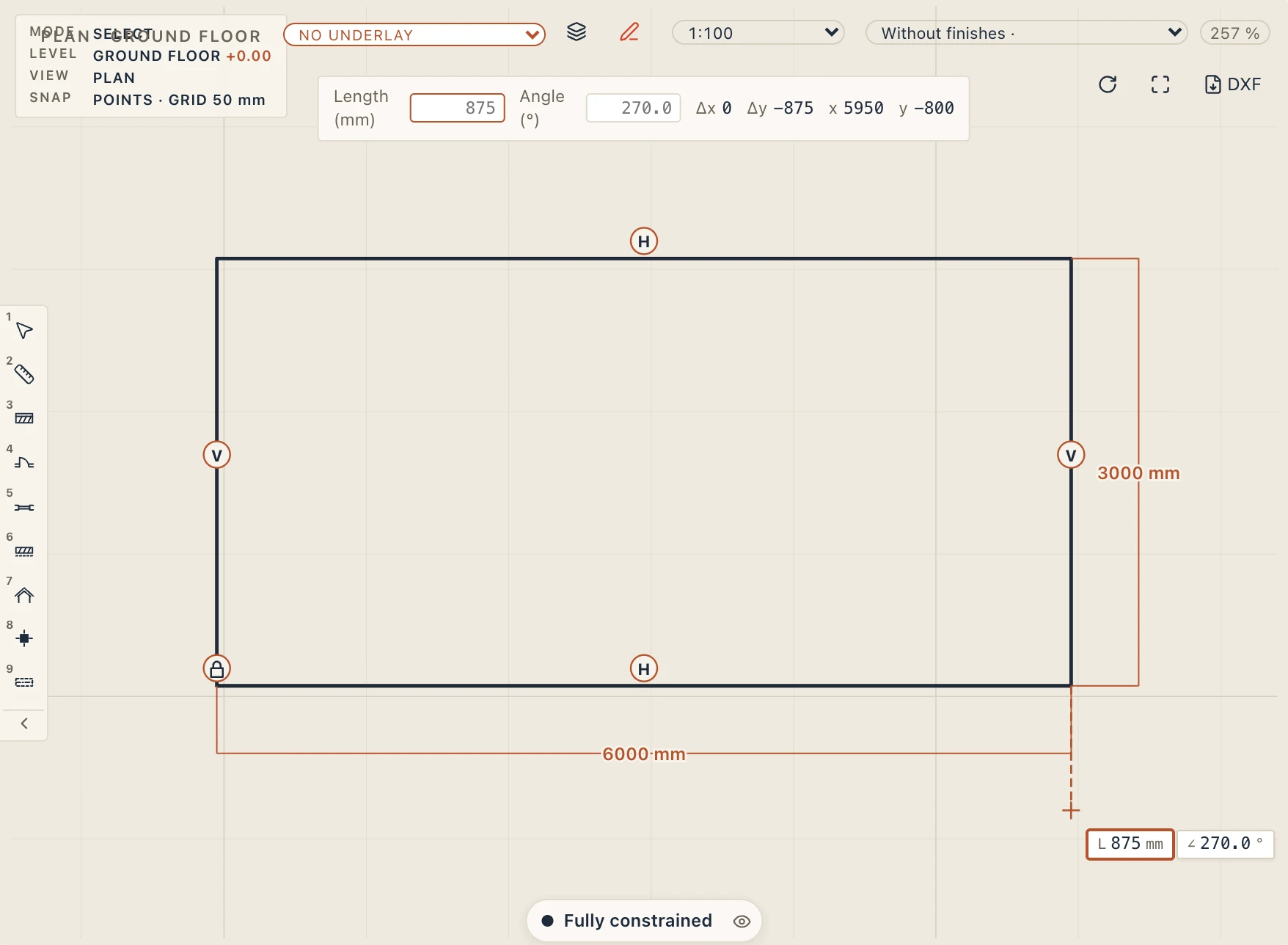
Dimension is the smart one: what you pick says what it measures. Two points, or a point and a line: the distance. One line: its length (press Enter), or a second line for the angle between them. A circle or an arc: its radius. Then type the value:
- a number, with its unit if you like (
4 m,250 mm,45°); =formula, in the parameters of the part whose recipe uses the sketch (=W / 2);- Enter to keep the size the shape has now;
Driven, for a reference: it measures and does not drive.
Keywords after a pick change the kind: X and Y for the horizontal or vertical distance, D for the diameter. Horizontal distance, Vertical distance, Radius, Diameter and Angle are the same tool for one kind each.
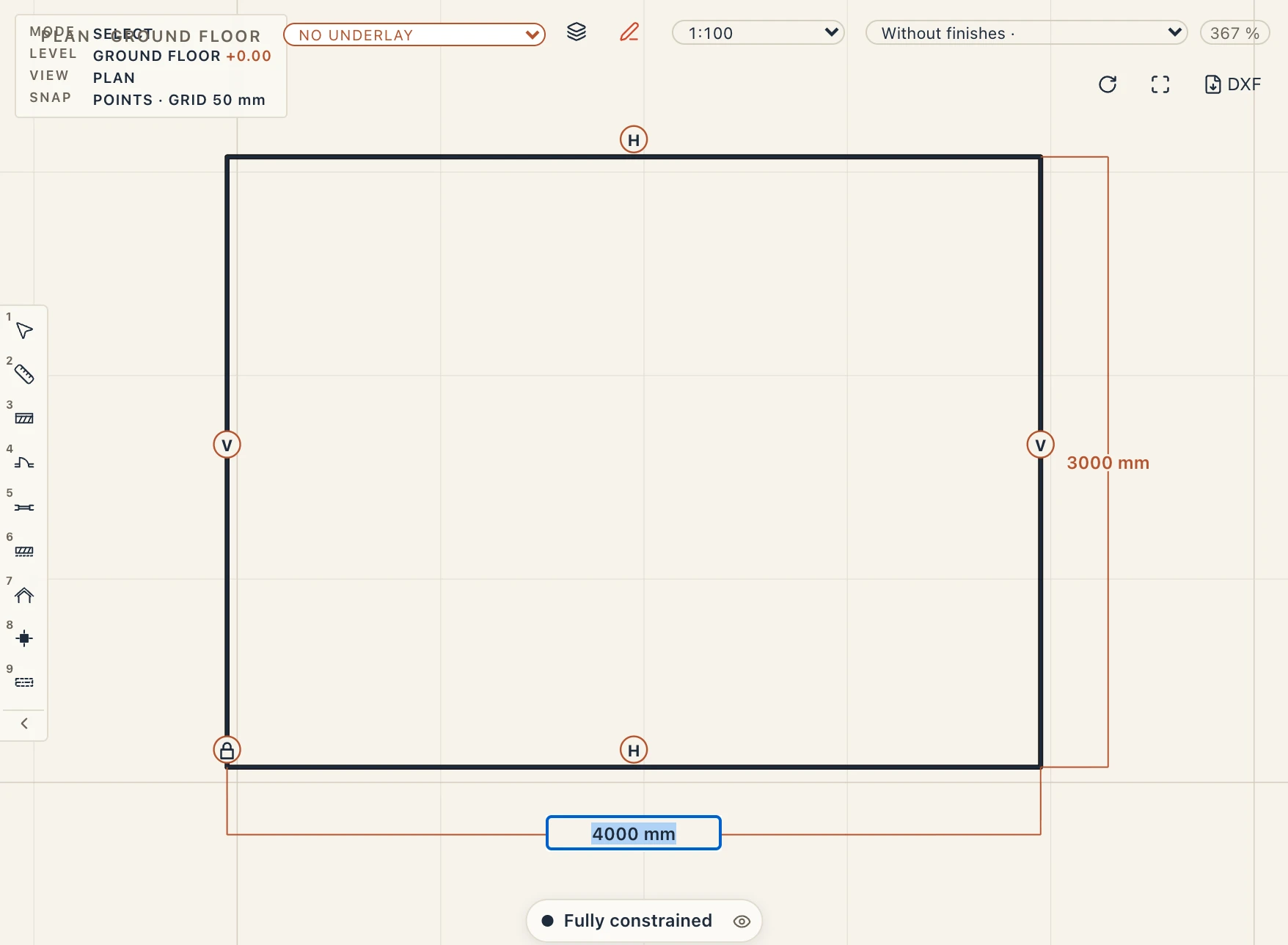
A dimension is drawn like a drafting dimension, with its value. A driven one is in parentheses and dashed. A formula's dimension shows its value, and its formula when you point at it. Angles are signed, counter-clockwise, in degrees.
Glyphs, selecting and editing
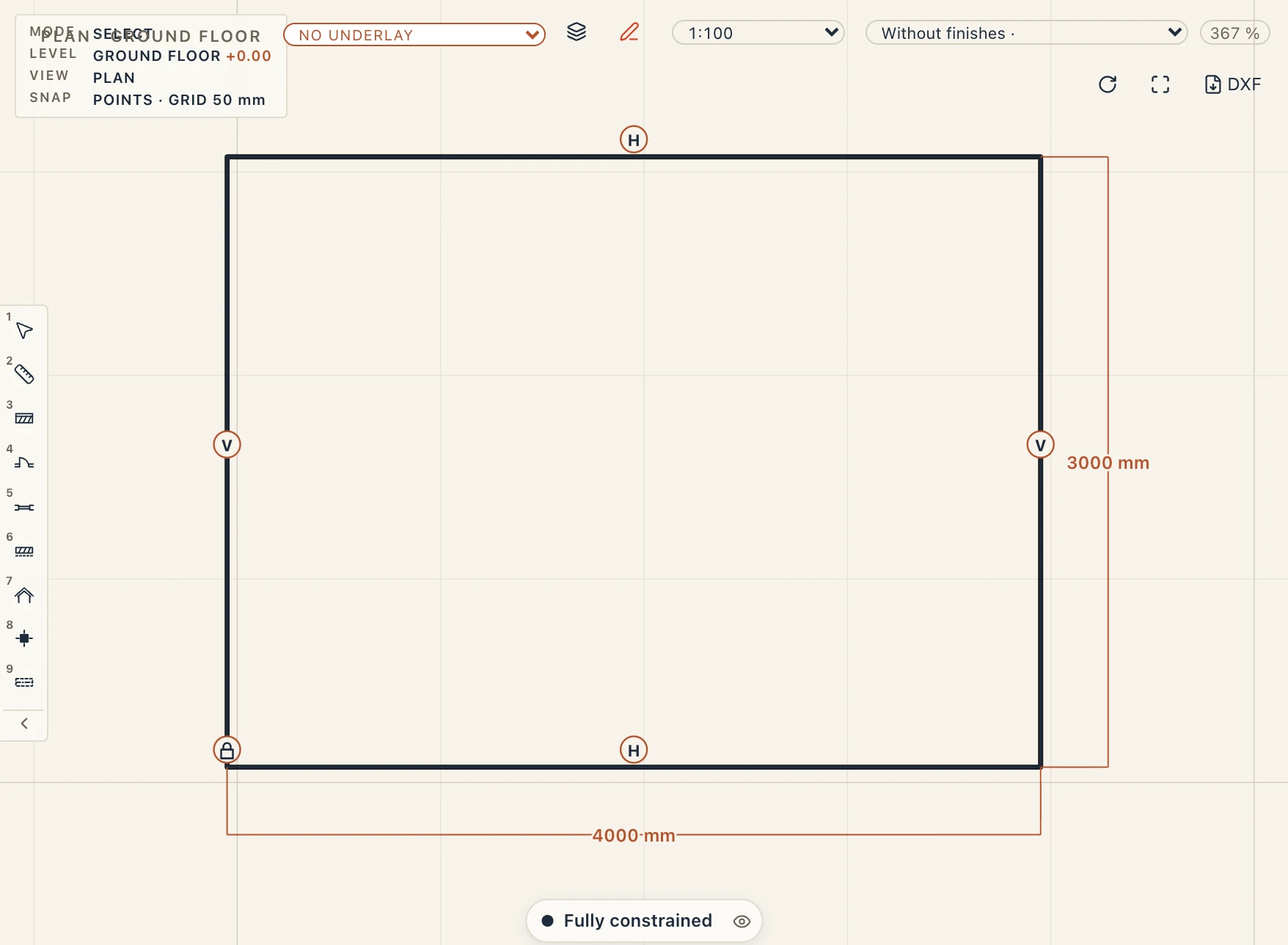
Each other constraint has a small glyph near what it holds: H, V, ∥, ⊥, a lock for fixed, and drawings for coincident, point on object, tangent and symmetric. Glyphs standing together fan out so none hides another.
- Click a glyph or a dimension to select it (Shift adds); Delete removes the selection, as one undo step.
- Double-click a dimension to edit its value in place, in the field that opens: a number or
=formula. A driven dimension becomes driving when you give it a value, unless that would over-constrain the sketch. - Drag a dimension by its value or its line to place it: it follows the cursor and stays where you let go, as one undo step. A dimension you have not placed stands outside its shapes, on the side away from them. A placed one keeps its place relative to what it measures, and moves, turns and mirrors with its shapes.
- A dimension you have placed can go back: select it and press A, or click the small A button beside its value (Automatic position); it stands outside its shapes again, as one undo step.
- The eye on the chip below hides the constraints in this view, and shows them again. It is remembered for the view.
How free the sketch is
A chip at the bottom of the view says what the solver found, while the view has constraints or a constraint tool is on:
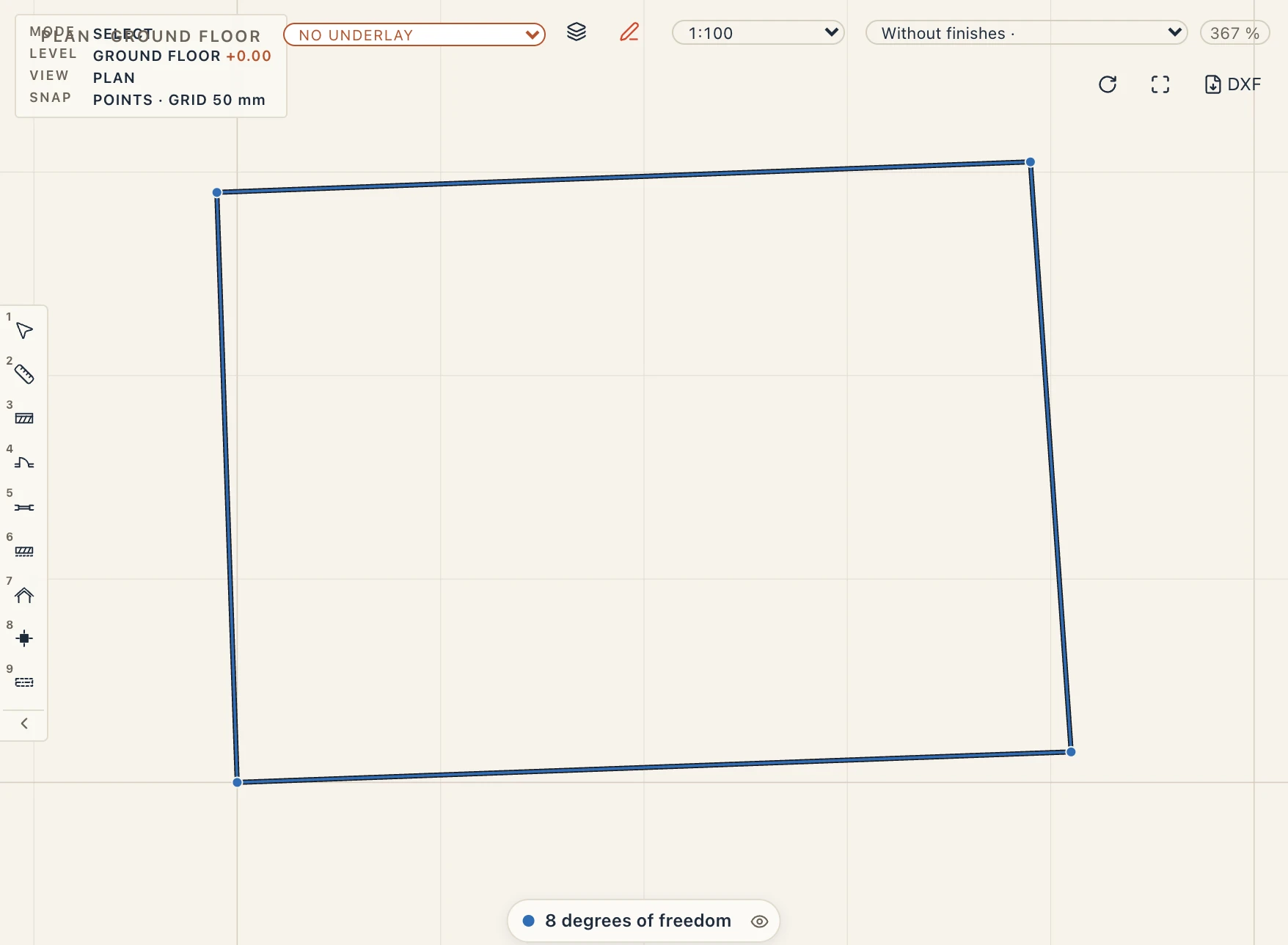
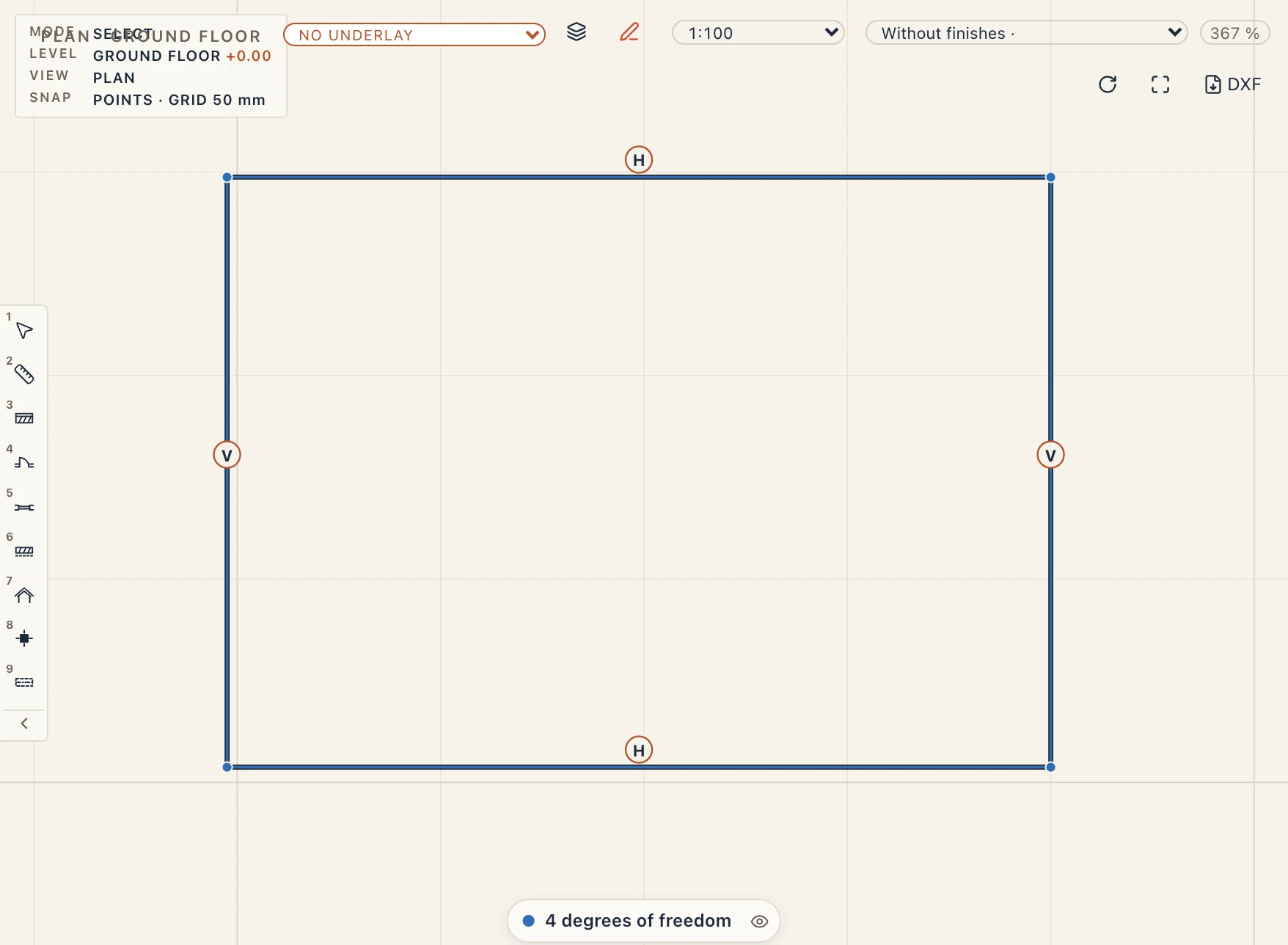
- N degrees of freedom: the sketch can still move or change in N ways. Its shapes that can still move are blue, and their free points have a blue dot.
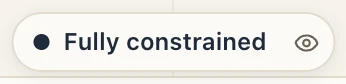
- Fully constrained: nothing moves. The shapes are drawn in ink.
- Conflicting constraints: two rules cannot both hold. The shapes and glyphs involved are red, and the last constraint you tried was refused with a message naming them.
- Redundant constraints: a rule that another already makes true; its glyph is amber. It does no harm, and can be deleted.
In the part's tree (Studio → Parts → Edit part), each sketch shows its number of constraints and the same words.
A dimension drives the solid
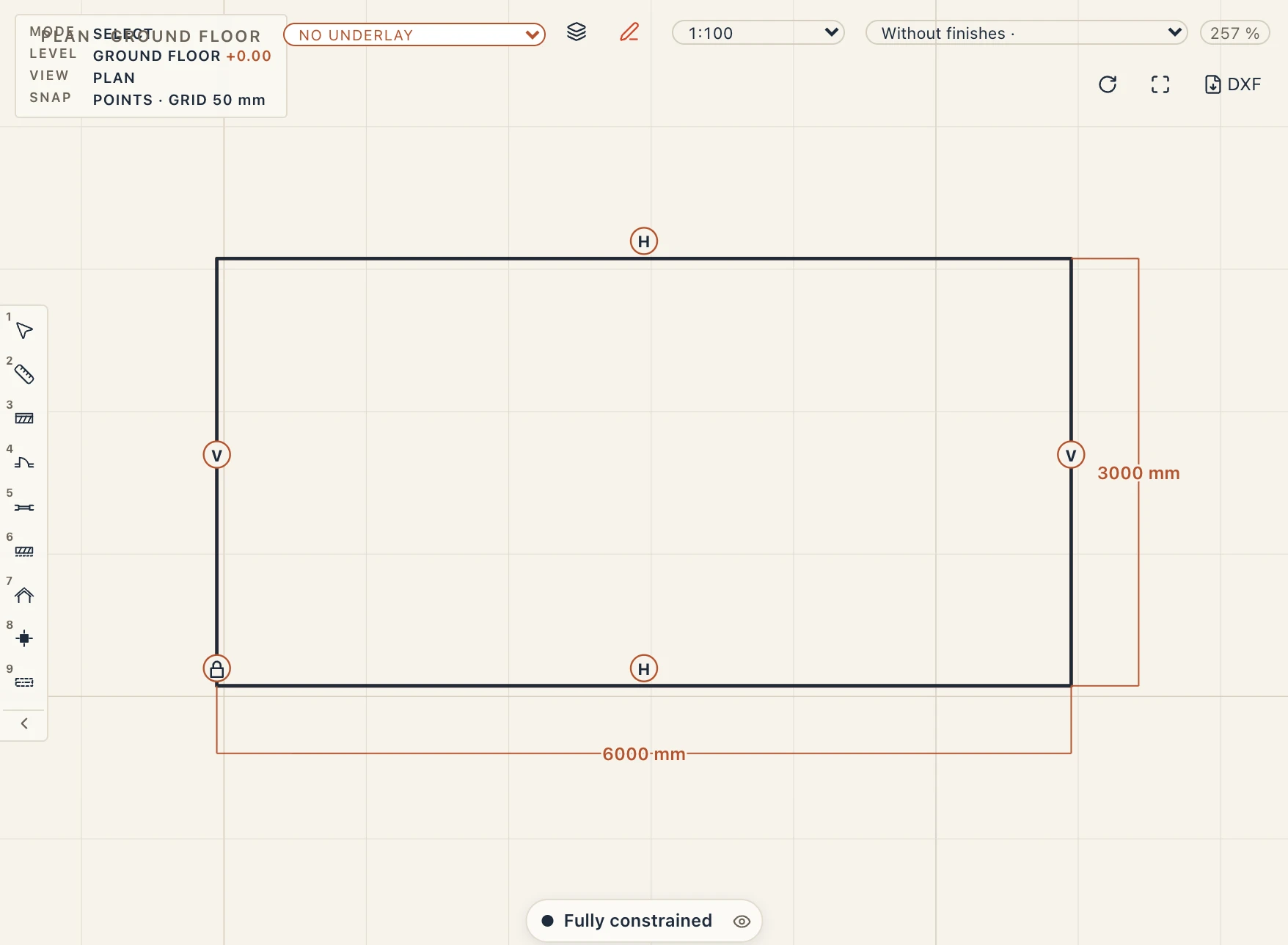
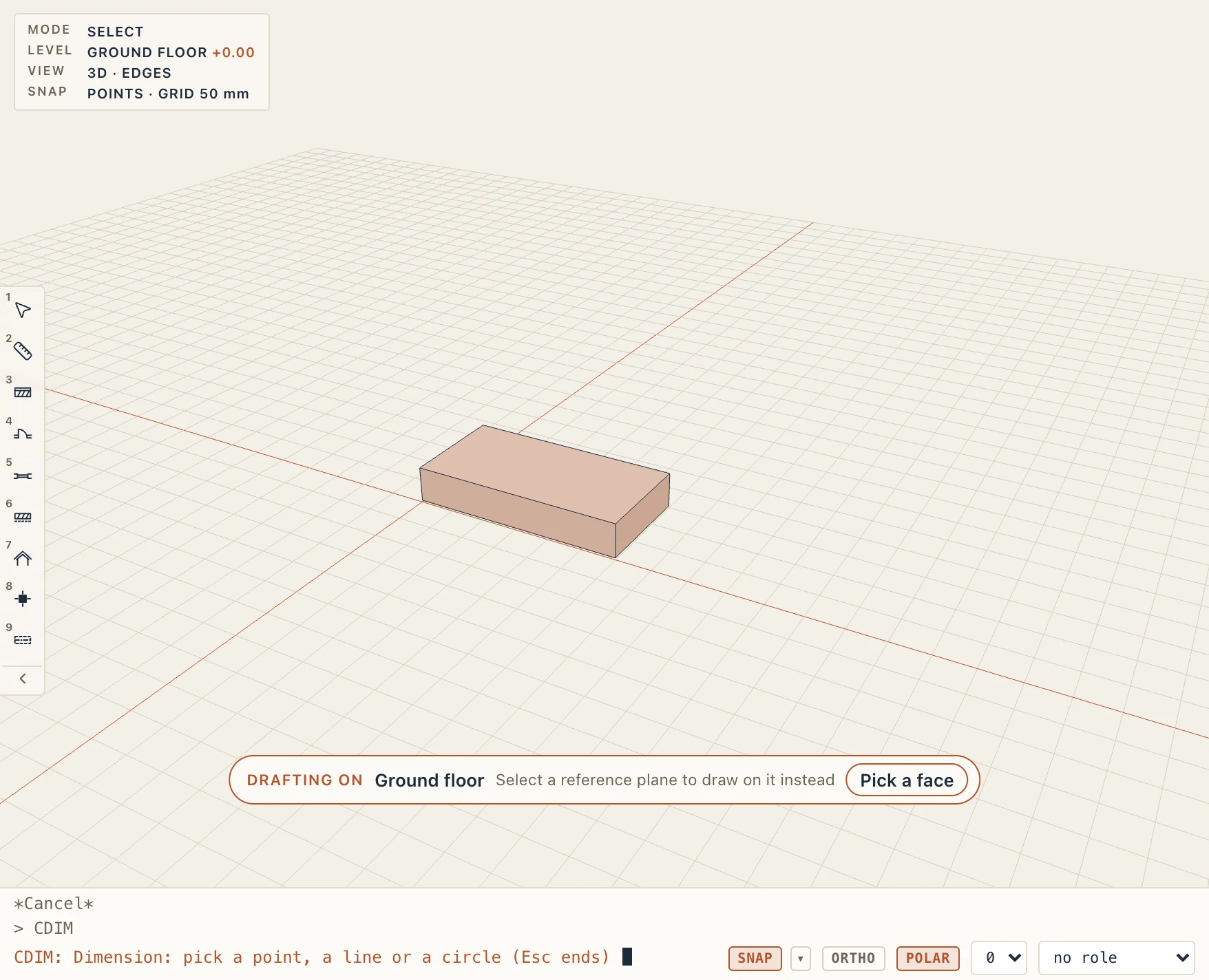
Change a dimension and the sketch follows, and so does everything built from it: here the width goes from 4 m to 6 m, and the extruded block with it.
Dragging
Drag a point of a constrained shape with its grip: the rest of the sketch follows the rules while you move, shown as you drag, and the result is one undo step on release. If the rules do not let that point go there (a fixed point, a dimension that would be broken), the drag shows in red with the reason and is refused. Other edits (move, trim, extend, offset, fillet) are solved the same way. A rule that cannot follow an edit (its shape was cut away) is removed with a notice saying which and why; it is never kept wrong.
Constraints while drawing
In a sketch (a view whose shapes build a Studio solid, a view that already has constraints, or when you draw with a role such as profile), what the inference finds as you click is kept as constraints, on by default:
- an endpoint or centre snap makes the point coincident with it; a midpoint snap makes it the midpoint of that edge; on edge, quadrant and intersection put the point on the object; perpendicular puts it on the edge and makes the side perpendicular to it;
- a side drawn along the ortho or a polar line is horizontal or vertical;
- a line drawn near another drafted line, in a direction within a few degrees of it, locks to it and shows a Parallel hint: the two sides are made parallel. A line begun on an arc or a circle and drawn along its tangent, or ending where it would just touch one, shows a Tangent hint and is made tangent to it (end to end when it begins at an end of the arc). Neither is offered with ortho on;
- a length or angle you type becomes a driving dimension; a typed radius a radius; a rectangle typed as
@width,heightkeeps both sizes as driving distances; - Arc → Tangent (or Enter at the first prompt) goes on from the end of the last line or arc you drew: only the end point is picked, the tangent it leaves along is shown, and the joint is made coincident and tangent end to end;
- a rule the solver refuses while you draw is left out of the drawing, not the drawing itself, and a notice says which and why (2 constraints left out: horizontal — …);
- a rectangle is made of two horizontal and two vertical sides, and a line begun where the last one ended is joined to it.
Hold Ctrl (⌘ on a Mac) on a click to place that point without constraints. The CNSTR switch in the command line turns the whole thing off and on. The shape and its constraints are one step: one Undo takes both away. A constraint that would conflict with the sketch is left out; the shape is drawn all the same.
Where to go next
The Parts page tells how a sketch becomes a part with parameters, which the formulas in dimensions use.