User guide
The model assistant
Ask a local AI model about your project, get short reports, and let it propose property values you approve. Desktop app only.
The Assistant answers questions about the open project in your own words: how many walls each storey has and how long they are, which doors are wider than 1 m, which ones still have no fire rating. It makes short reports as tables you can export, and it can propose property values (a fire rating, a status, your own parameters) that you review and apply.
It runs a language model on your computer, through Ollama. Nothing about your project leaves the machine, and nothing is sent to us or to anyone else.
What it can and cannot do
It can:
- read the project: storeys, elements, their types, materials, property sets and quantities, and the schedules;
- count, sum and average (lengths, areas, volumes, any quantity), grouped by storey, type or any property. Lapin computes the numbers; the model only reports them;
- propose property values, in IFC's standard sets (
Pset_DoorCommon.FireRating,Pset_WallCommon.IsExternal…) or in your own.
It cannot:
- draw, move, reshape, create or delete anything. It does not change the geometry;
- run commands or write code;
- apply anything by itself. Each value it proposes waits for you.
A local model can misunderstand a question. Read its answer, and check the proposed values before you apply them.
Set it up
Install Ollama from ollama.com and start it (the Ollama app, or
ollama servein a terminal).Install a model. The one we tested best is qwen3-coder:30b (fast and reliable with Lapin's tools, needs about 20 GB of memory):
ollama pull qwen3-coder:30bOn a computer with less memory, gemma4:12b works too, more slowly.
In Lapin, open the Assistant: the Assistant tab beside Properties on the right, View → Assistant, or Ctrl+K and type Assistant.
Lapin finds Ollama at http://127.0.0.1:11434 and picks the best model you have. The gear button at the top of the panel shows the Ollama address, the model to use and whether Ollama is running. Only an Ollama on this computer is accepted.
Ask
Type a question and press Enter (Shift+Enter for a new line). Ask in English, Romanian or another language: the answer comes in the same one.
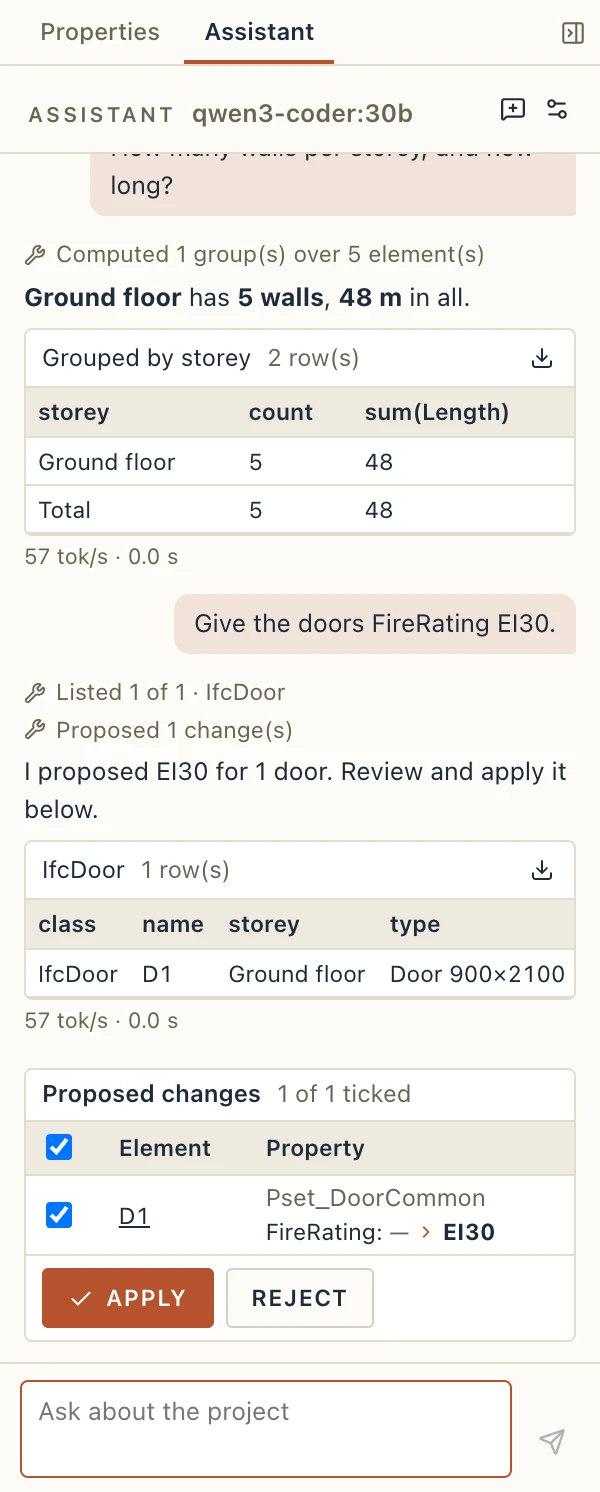
While it works, the panel shows each step in one line, for example Listed 12 of 12 · IfcDoor or Computed 2 group(s) over 40 element(s). Hover over a step to see exactly what it asked. Stop ends the answer; New chat starts over.
Lists and totals also appear as tables under the answer. The download button on a table saves it as a CSV file, for a spreadsheet.
Some questions to start with:
- How many walls are there per storey, and their total length?
- List the windows on the first floor with their width and height.
- Which doors have no fire rating?
Approve the values it proposes
Ask, for example, Doors wider than 1 m: give them FireRating EI30. The assistant finds the doors and proposes the values. They appear under Proposed changes: each element, the property set and name, its value now and the new one, with a tick box.
- Untick what you do not want; the box in the header ticks or unticks all.
- Click an element's name to select it in the views.
- Apply writes the ticked values, all together, as one step: Ctrl+Z takes them all back.
- Reject drops them.
The values go into the elements' parameters, shown in the Properties panel with their set, and into the IFC export: a standard property joins its set (Pset_DoorCommon), your own go into a set of their own.
The rules the assistant follows (and Lapin checks): a standard IFC set (starting with Pset_) takes only its own property names, on the elements it is meant for; a set of your own never starts with Pset_.