User guide
Files, versions and recovery
Save and open projects, start new ones from your own templates, get back unsaved work after a crash, and keep versions inside the project file.
Saving and opening
File → Save (Ctrl S) writes a .lapin file, and File → Open… (Ctrl O) opens one.
- Desktop app. The file is saved where you choose.
- Browser, Chrome and Edge. Lapin saves to the same file each time.
- Browser, Safari and Firefox. Each save asks for the file's name in a small box, with the project's name filled in, and downloads the file.
Every export and every file Lapin saves asks for its name first, with the project's name as the suggestion: the desktop's save dialog, in Chrome and Edge the browser's own save dialog, in other browsers Lapin's box.
A .lapin file holds the whole project: the model, the views, the sheets, the materials with their own images, and the versions.
Project templates
A template is a project's set-up without its model, so the types and settings you make once start every new project. File → Save as template… keeps the project open under a name: its wall, floor, door, window, stair, ceiling and structure types, its materials and profiles, its units and drafting standards (text, dimension and tag styles, layers), its view styles, storeys, views, sheets and title blocks, and of its information what belongs to the office (the designer, who signs). It keeps no element (no wall, no drawing, no room), no issue or remark, no estimate or schedule, and not the job's own information (its number, client, site and permit).
For a project already started, File → Import types from a project… brings only the types you choose from another .lapin, with their materials, and leaves that file as it was: see Types from another project.
File → New from template… (also on the start screen) lists the templates, Lapin default first. New project on a row starts a project from it: it has no file yet and GlobalIds of its own. Choose a template on the left of its row, or in File → Preferences… → General → New projects, and File → New project starts from it every time; Lapin default goes back to Lapin's own start.
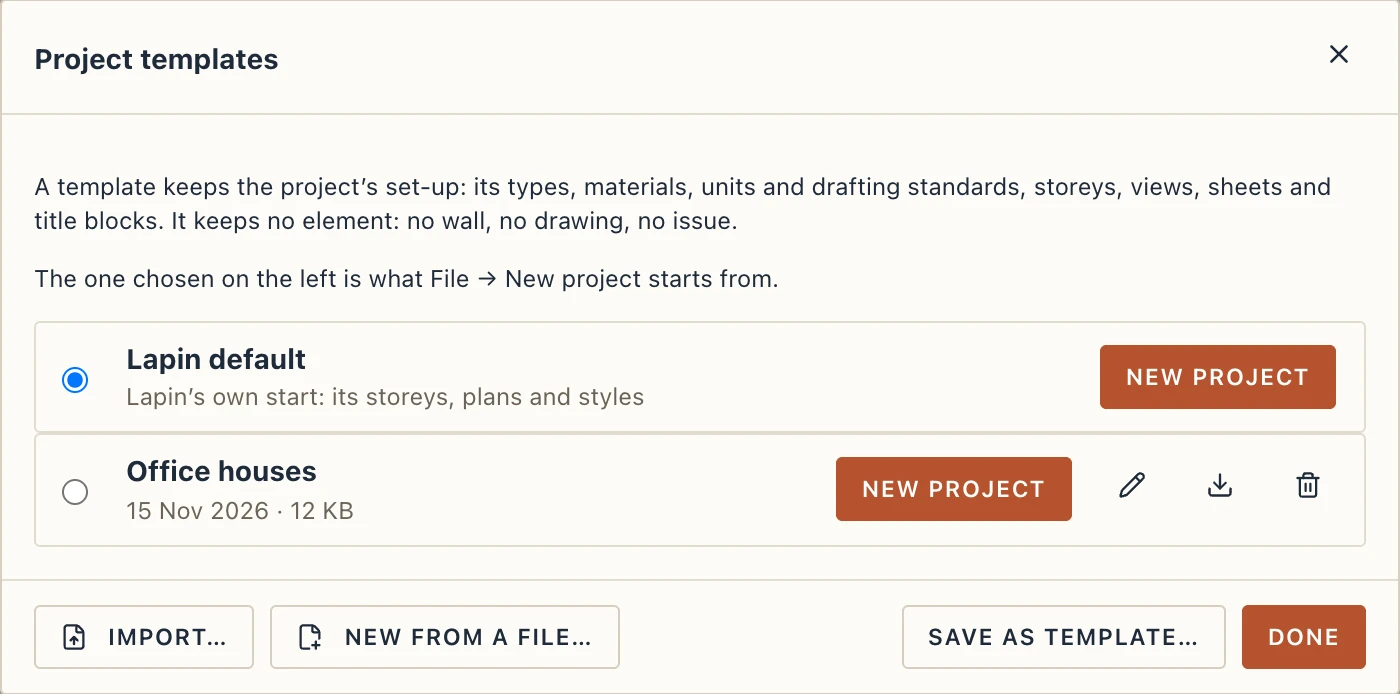
- Desktop app. Templates are
.lapinfiles in your Lapin folder, kept with your preferences. - Browser. Templates are kept in the browser: export them to keep a file.
Export saves a template as a .lapin file to copy to another computer or share with an office, and Import… takes one in. Any project's .lapin file works too: its model is left out. New from a file… starts a project from such a file without keeping it.
Recovering unsaved work
Lapin keeps your unsaved work as you go. If the app or the computer stops before you save, the start screen offers to recover it the next time.
Versions
A version is the project as it is at the moment you save it as one: before a client meeting, or at the end of a design stage. Open File → Save version… or Manage → Versions.
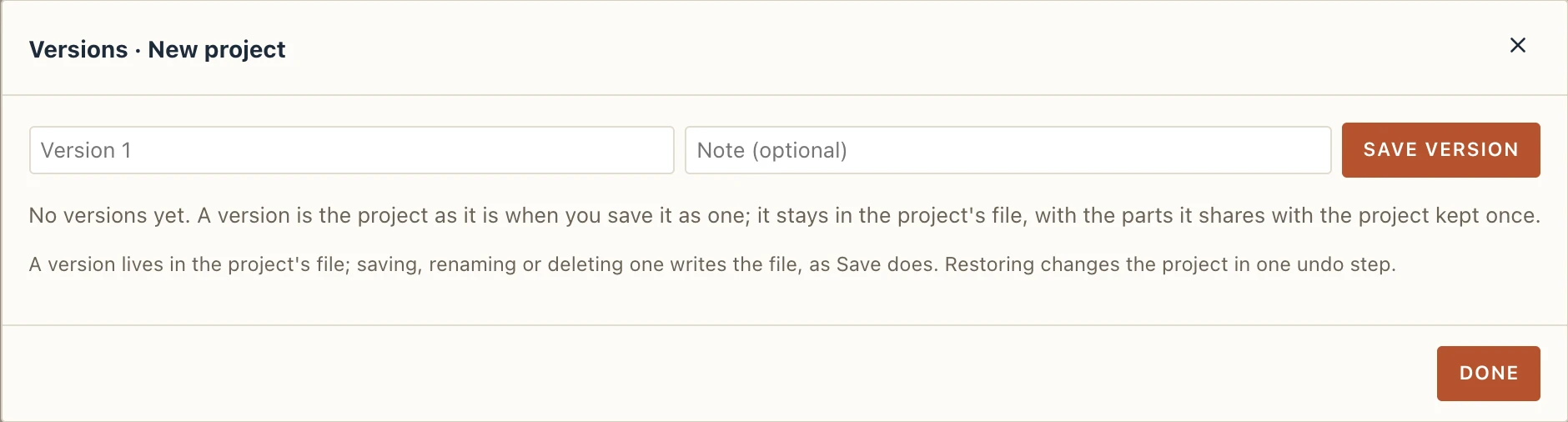
Versions live inside the project's file, and the parts a version shares with the project are kept only once. From the list you can:
- rename a version;
- update it to the current state, with a revision;
- compare it with the project, element by element;
- restore it, as one step you can undo;
- export it or open it separately;
- delete it.
Undo
Ctrl Z undoes, and Ctrl Y or Ctrl ⇧ Z redoes. The Undo and Redo buttons in the top bar, right of Commands…, do the same in every interface mode, and their tooltip says what they undo; File → Undo and File → Redo, and the command palette (Ctrl K, type "undo"), too.