User guide
Documents
The project's written parts — the technical report, the specification, the drawing list — made from templates, filled from the model, edited on the page, styled as your company's, and exported to DOCX, ODT and PDF without any other program.
What a document is
A project is more than its drawings: it has its written parts too, a technical report, a specification, a list of the drawings. In Lapin these are documents: each one starts from a template and is filled from the project — its information, its areas, its storeys and rooms, its wall types, its schedules and its sheets. What only you know (the structure, the fire safety, the site organisation) you write in the document's inputs. A document follows the model: change a wall type or add a room, and the document says so the next time you open it.
Lapin writes the files itself, in DOCX, ODT and PDF, with no Word or LibreOffice on your computer, in the desktop app and in the browser.
Project information
Manage → Project information… holds what the documents ask of the project: its name, number and phase, the client and their address, the site's address, cadastral number and land book, the designer and their address, the chief architect, who drew it and who checked it. Write them once: every document reads them, and the sheets' title blocks take who drew and who checked from here when a sheet does not say. Each field is saved when you leave it.
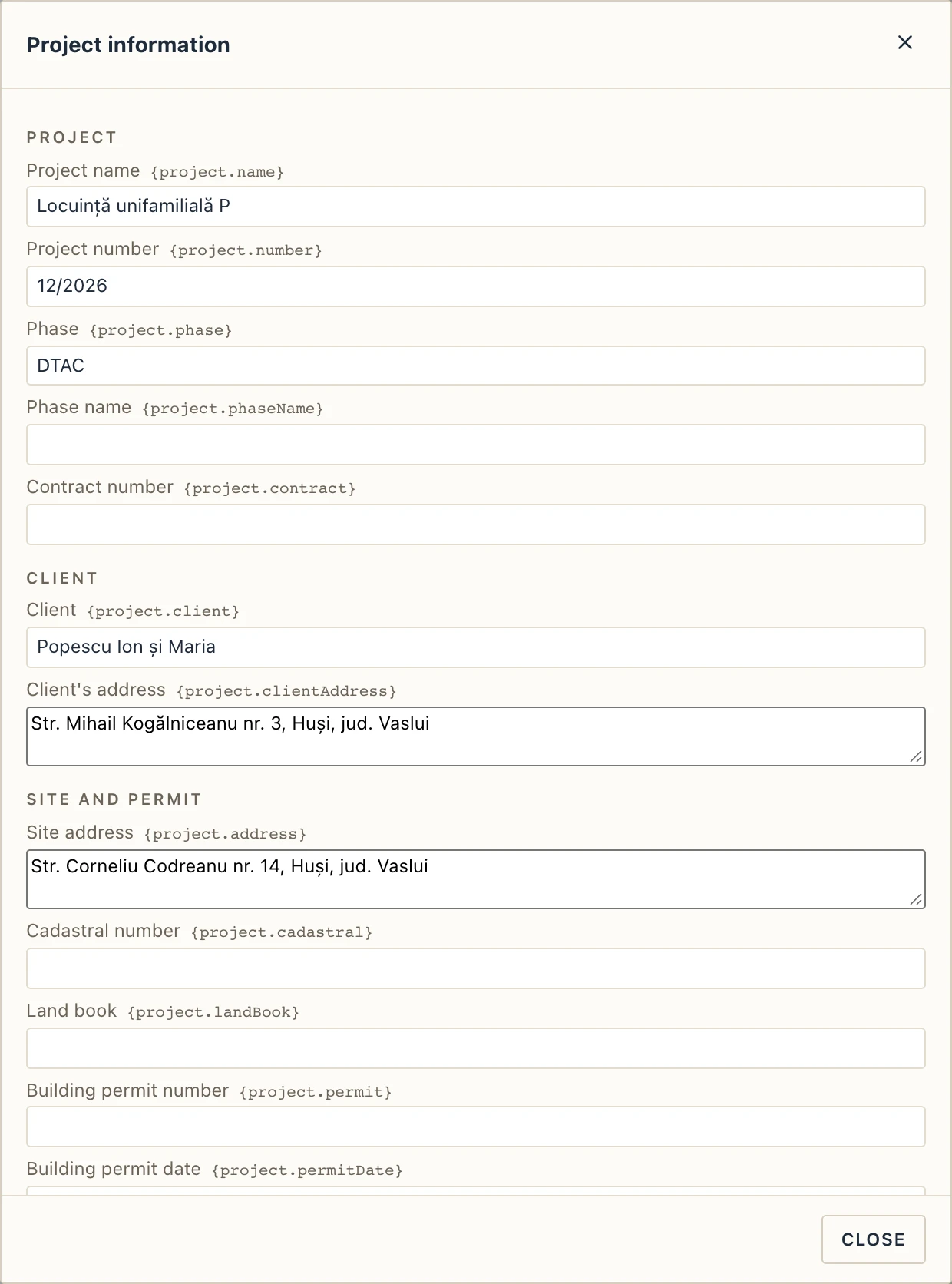
The same fields are in the Documents dialog's Project information tab.
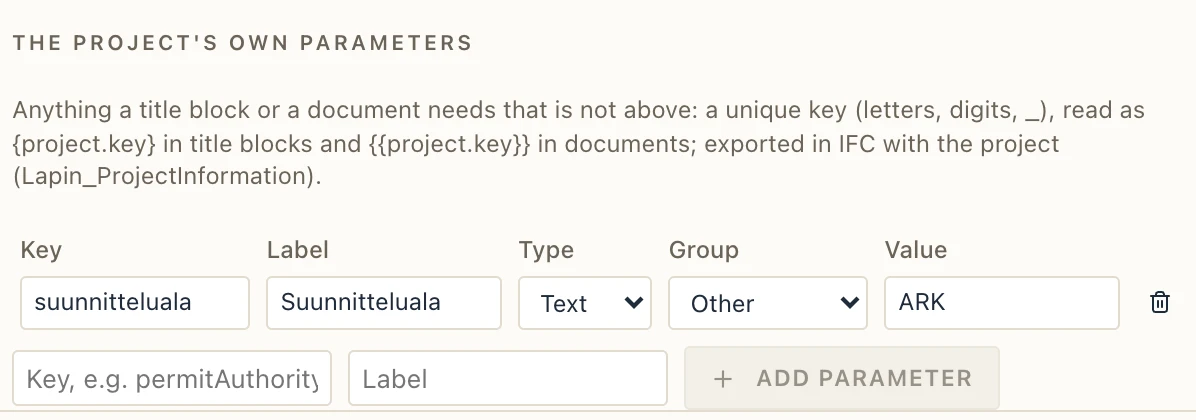
Since a title block asks more than a document, the fields are grouped — the project, the client, the site and its building permit, the designer (company, address, registration number, phone, e-mail) and the people who sign (project manager, chief architect, structural and MEP engineers, drawn, checked and approved by). What is still missing goes under The project's own parameters: a unique key, a label, a type (text, number or date), a group and a value. A title block reads it as {project.key}, a document as {{project.key}}, and IFC exports all of it with the project in its Lapin_ProjectInformation property set (and reads it back).
Making a document
Manage → Documents… (or the + beside Documents in the project browser) opens the project's documents. On the left are the documents already made and, under New from template, the templates; click one and the new document is made and filled at once.
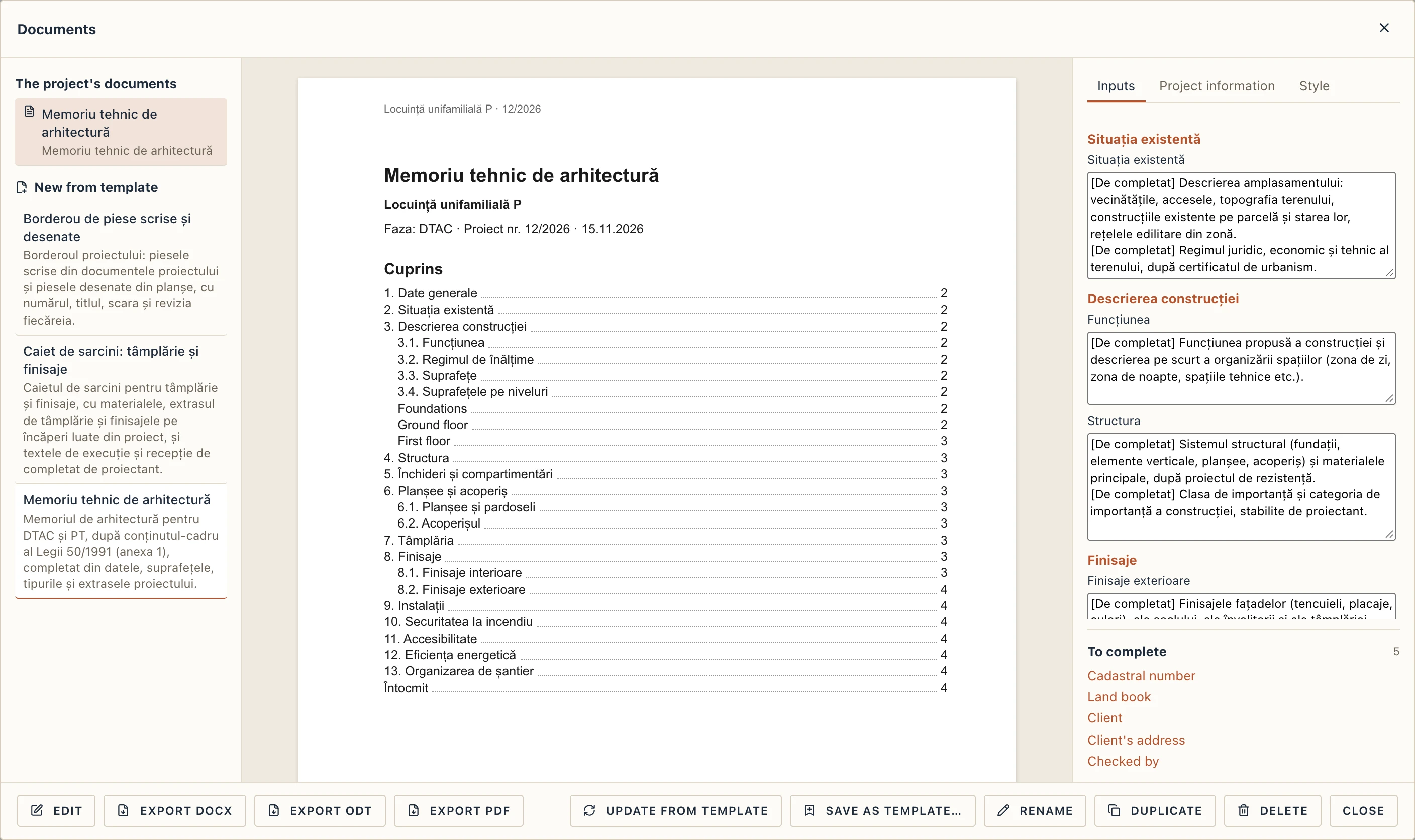
In the middle is the document as it will print, page after page, with its table of contents, its tables and its numbers. A field the project does not have yet is marked where it stands. The project browser lists the documents under Documents; a click opens the dialog on one.
Inputs
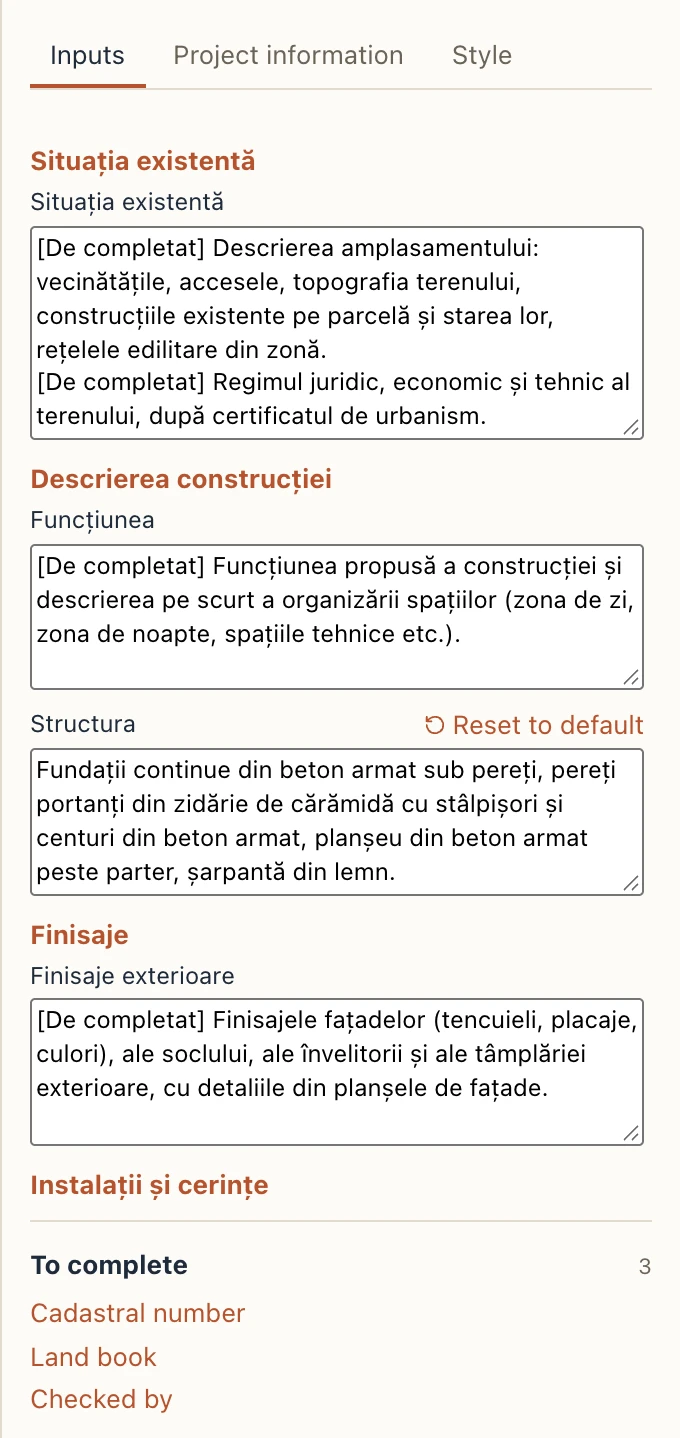
The Inputs tab has the texts only the designer can write, grouped as the document's chapters. In the Romanian templates each one starts with a hint marked [De completat] (to be completed) that says what goes there. Type over it: the preview follows a moment after you stop typing. Reset to default brings the template's text back.
To complete
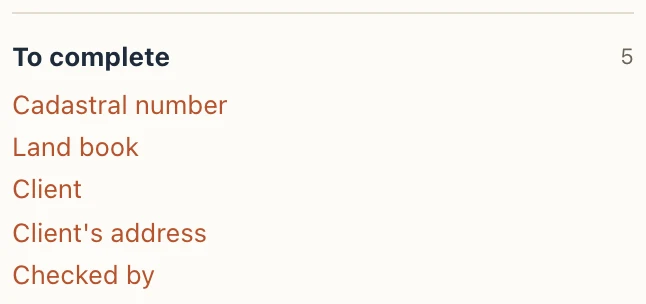
To complete lists what the document still lacks: a project field left empty, a value the model does not have. Click one to see where it is in the document and to go to the field that fills it (a project field opens the Project information tab). The list empties as you fill it.
Updating, renaming, copying
- Update from template takes the template's text and layout again, for a document made before the template changed. Your inputs are kept.
- Rename, Duplicate and Delete work on the document shown. A deletion is one undo step.
Editing a document
Edit, at the bottom of the Documents dialog, turns the page in the middle into an editor of the document's own text; Preview shows it on its pages again. What you change belongs to this document only: the template stays as it was (Save as template…, below, keeps your changes as a template).
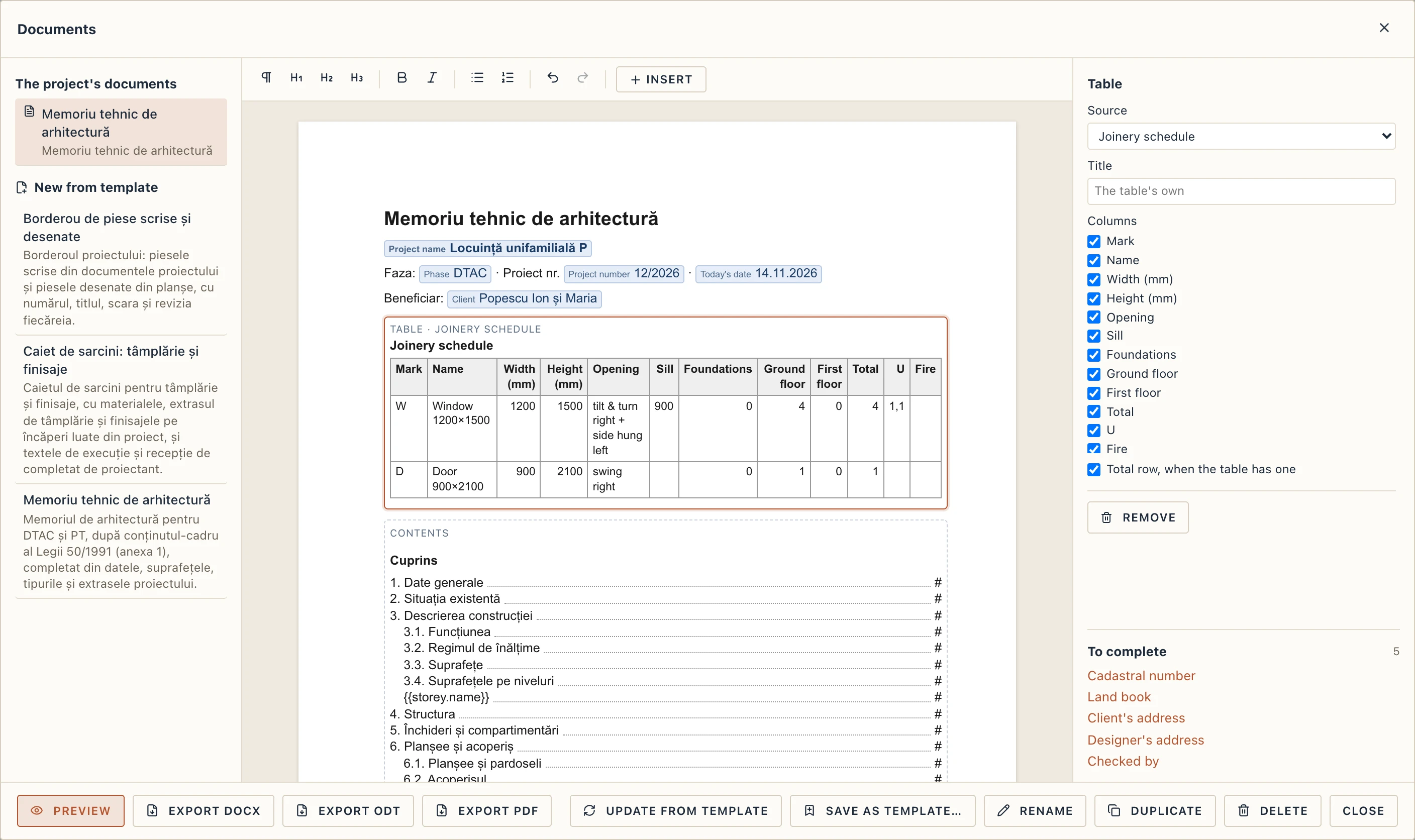
- The toolbar has the text's styles: Paragraph, Heading 1–3, bold, italic, bulleted and numbered lists, undo and redo. The usual keys work too (Ctrl+B, Ctrl+I, Ctrl+Z inside the editor).
- Fields show as chips with their name and their value now, for example the client, Popescu Ion și Maria. A field the project does not fill yet is orange.
- The project's blocks — a table, a picture, the contents — are drawn with their real content. Click one to select it: its settings show on the right, in place of the tabs.
Saving is automatic: a moment after you stop typing, and when you go back to Preview, each change is one undo step of the project.
Insert
Insert puts at the cursor:
Field…: a field of the project, searched by its name; the list shows each field's value. Inside a repeat, the fields of its items are offered too (a storey's name, a room's area).
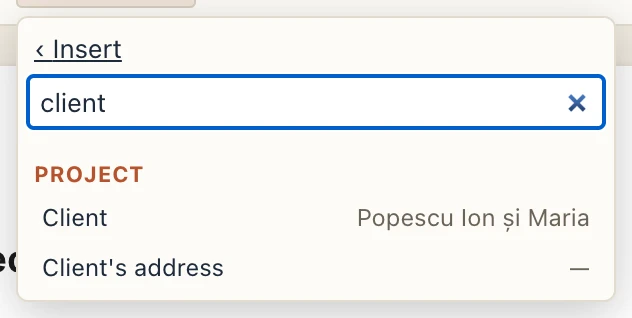
Insert → Field…: "client" searched, the fields with their values Table from project…: a schedule or a list of the project (the joinery schedule, the rooms, the materials…). In its settings: the Source, the Title, the columns to show and the total row.
Picture of a view…: a plan, section, elevation or 3D view. In its settings: Scale 1: or Width (mm) (never wider than the text) and a Caption.
Key–value fields: a two-column table of labels and values; a value may hold fields, as
{{project.name}}.Repeat over…: the text inside is written once for each item of a collection: the storeys, the rooms, the roofs, the materials, the sheets, the documents… A band over it says For each and how many items there are; its ‹ › step through the item the editor shows while you write. In its settings, Only the items where keeps some of them, and Text when there are none adds what is written when there are none.
Condition…: the text inside is written only when a field has a value (or, ticked, only when it is empty). Otherwise: text when it does not hold adds a second part, written in its place.
Text to complete…: a new input, with its label, group and default text; you write its text in the Inputs tab, in preview.
Contents and Page break.
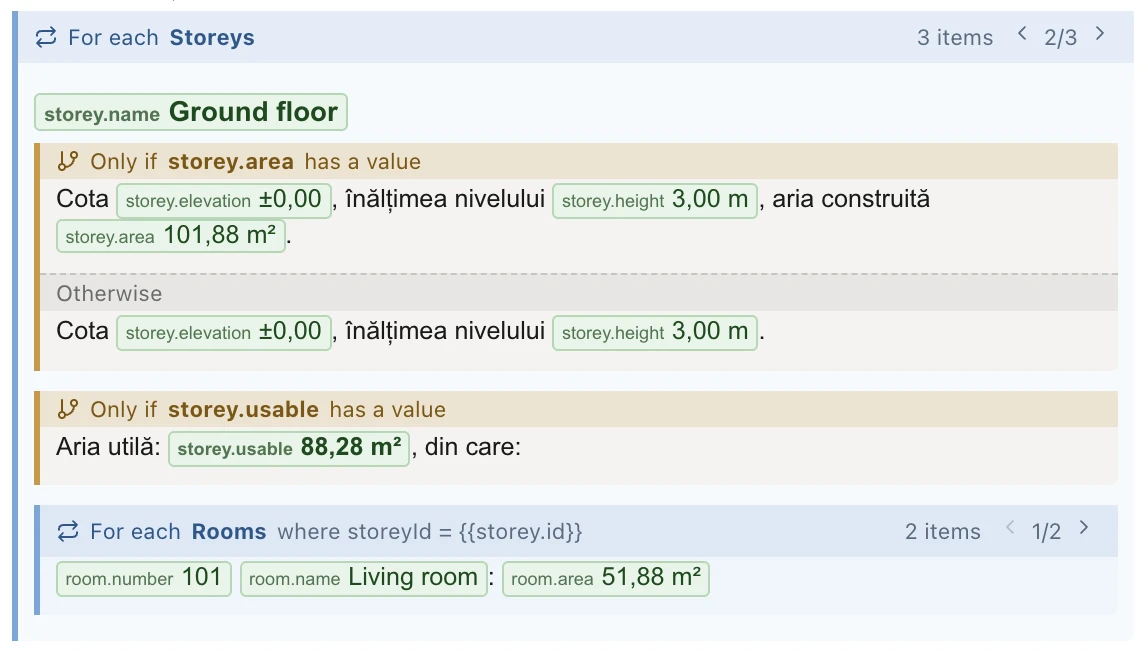
In a block's settings, Remove takes it away; for a repeat or a condition, Keep the content only takes away the band and keeps what is in it.
Templates
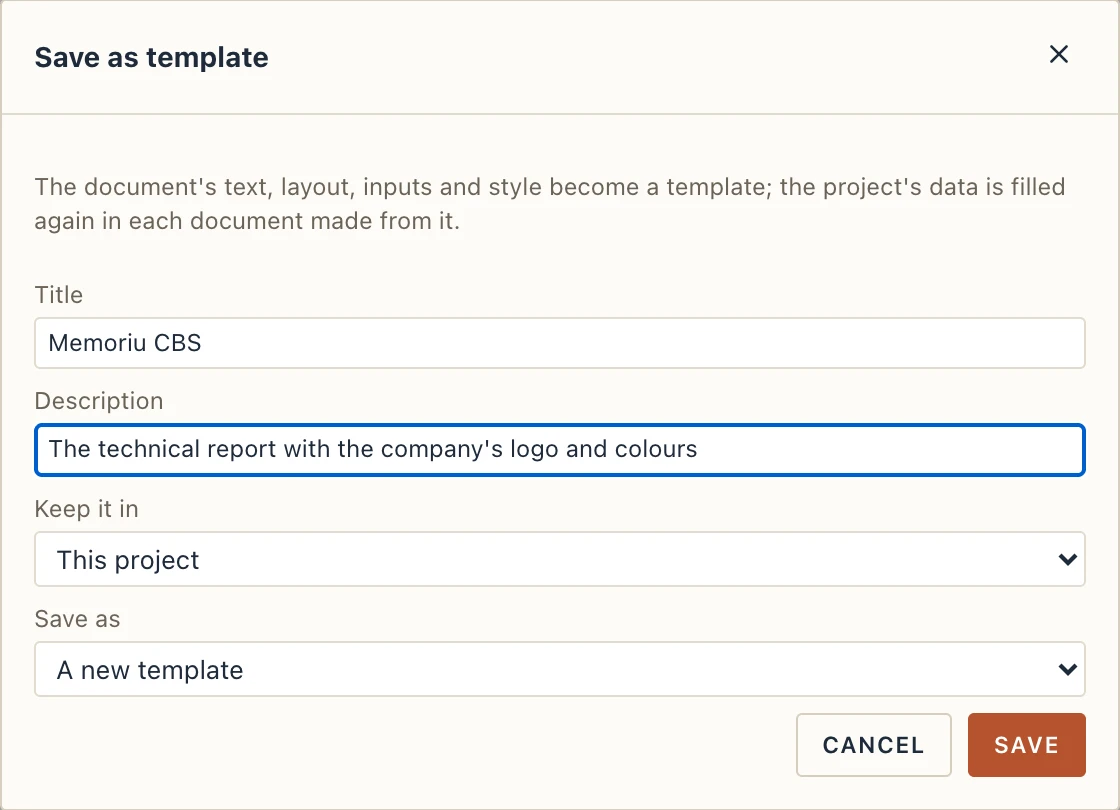
Save as template… keeps the document's text, layout, inputs and style as a template. Give it a title and a description and choose where to keep it:
- This project: it goes with the project file, to whoever opens it.
- This computer's library: every project on this computer offers it.
- Both.
Save as can replace a template you saved before; documents already made from it keep their text until Update from template. The new template is offered at once under New from template.
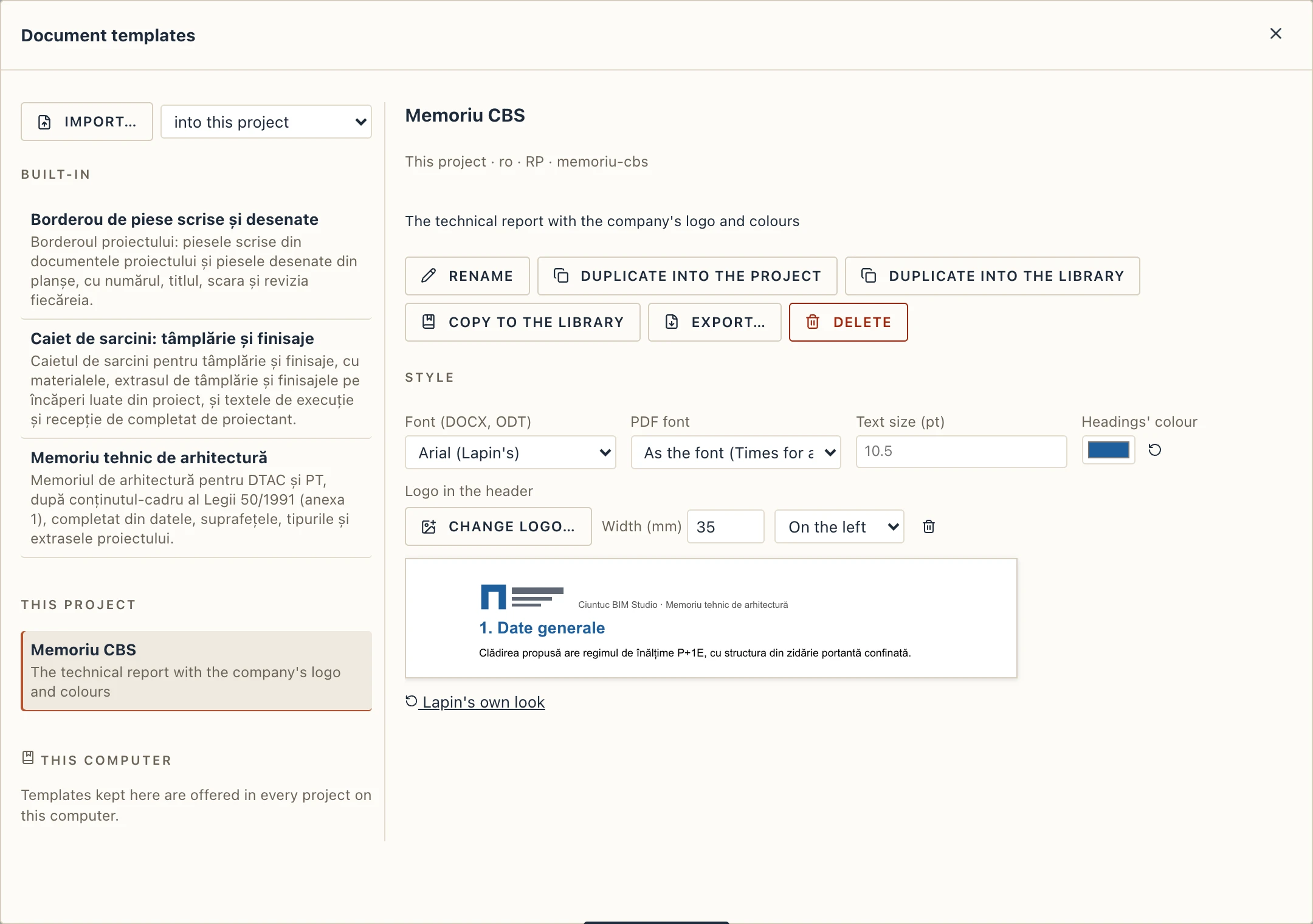
Manage → Document templates… lists the templates in three groups: Built-in (Lapin's), This project and This computer. For the one chosen:
- Rename and Delete (a project template's deletion is one undo step; documents made from it keep their text).
- Duplicate into the project or Duplicate into the library: a built-in template is changed only through a copy.
- Copy to the library or Copy to the project, to move one from one place to the other.
- Export… writes the template as a
.jsonfile; Import… reads one into this project or into this computer's library. This is how colleagues share a company's templates.
Company style
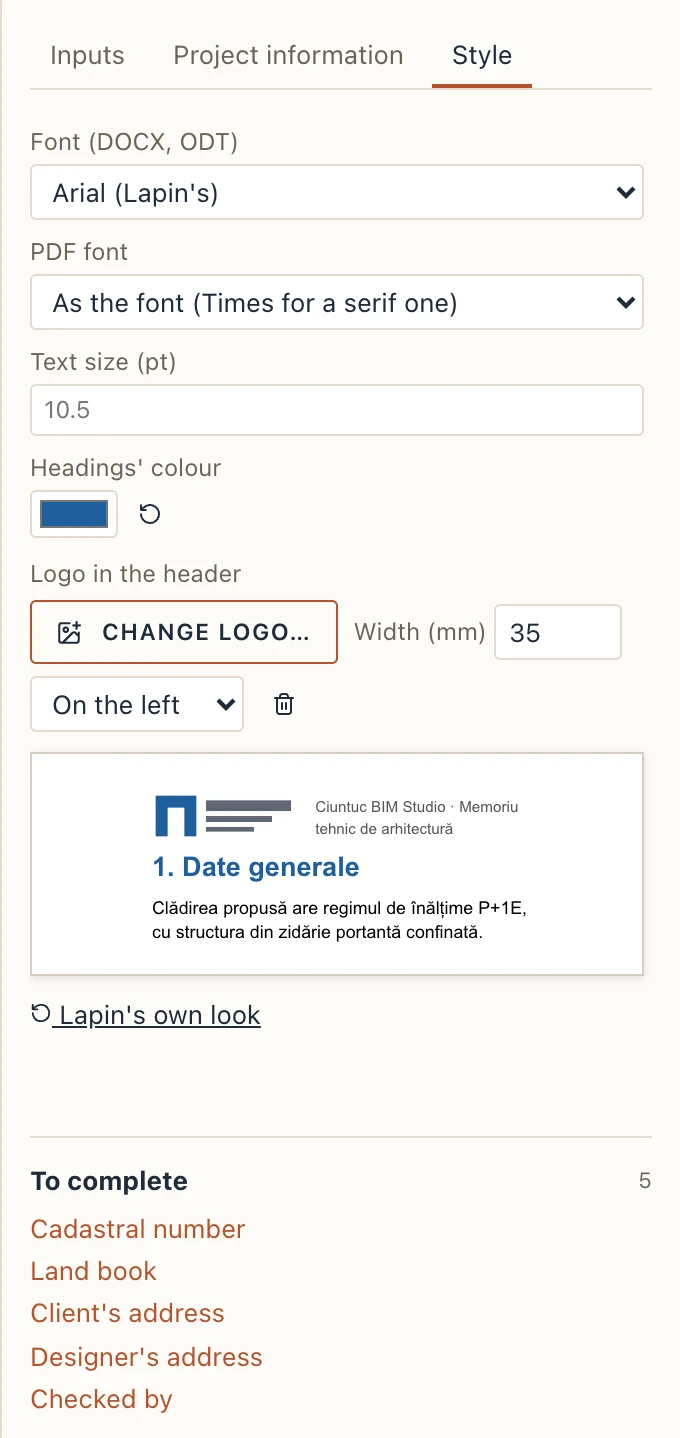
A document, and a template of the project or of the library, has a style of its own: the Style tab of the Documents dialog for the document shown, the Style part of Manage → Document templates… for a template. Built-in templates keep Lapin's look: duplicate one to give it yours.
- Font (DOCX, ODT): Arial (Lapin's), Calibri, Times New Roman, Georgia, Verdana or Liberation Sans.
- PDF font: Helvetica or Times, the PDF's own fonts; by default the one closest to the font above.
- Text size (pt): the body text's size, from 6 to 24 pt.
- Headings' colour.
- Logo in the header: Choose logo… takes a PNG or JPEG (under 1 MB); set its Width (mm) and whether it stands On the left or On the right. It is written in DOCX, ODT and PDF alike.
A sample under the fields shows the page's top as the files will. Lapin's own look takes the style away. Each change is one undo step.
Exporting
- Export DOCX and Export ODT write a file you can open and edit in Word or LibreOffice, with its headings as the program's own styles, its table of contents and page numbers as fields, and the project's pictures.
- Export PDF writes the document laid out by Lapin, ready to print or send.
A field still empty is left blank in the files, so check To complete before you export.
Issuing documents
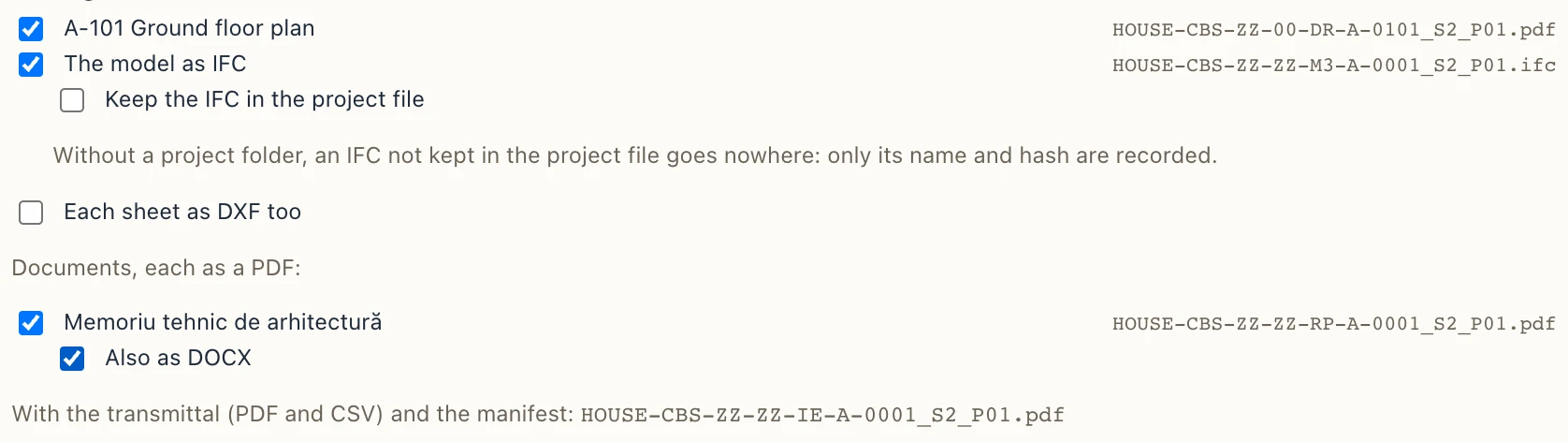
Manage → Issue… takes the documents with the sheets and the model (see Project folder and issues). Under Documents, each as a PDF: every document is ticked at first; tick Also as DOCX for an editable copy too. Each file is named by the ISO 19650 convention (RP for a report, SP for a specification), hashed and listed in the transmittal, and the document takes the issue's revision and status.
The templates
Lapin comes with three templates, in Romanian for now:
- Memoriu tehnic de arhitectură (the architectural technical report, after Law 50/1991): the general data from Project information; the height regime (for example
P+1E) and the maximum height; the areas — built, gross, usable and basement — in total and per storey; the rooms of each storey with their areas; the walls by type, with their layers; the floors and roofs; the joinery schedule; the room finishes; inputs for the existing site, the use, the structure, the facades, the services, fire safety, accessibility, energy efficiency and the site organisation. - Caiet de sarcini: tâmplărie și finisaje (the specification for joinery and finishes): the project's materials by category, the joinery schedule with its counts, the finishes room by room, and inputs for the general terms, the requirements, the execution and the acceptance, with default texts to adapt.
- Borderou de piese scrise și desenate (the list of written and drawn parts): the project's documents and its sheets, with their numbers, titles, scales and revisions.
Start from one of them and change it in the editor, then Save as template… to have your own.
For AI assistants
An assistant connected through Lapin's MCP bridge can make a document, fill its inputs and export it with lapin_document_export: see Lapin and AI agents.