User guide
Cost estimate
The estimate from the model: your price lists imported from CSV or Excel, articles on types and rules on materials, quantities from the takeoff times unit prices split into material, labour, equipment and transport, overheads, profit and VAT, RON or EUR; the Romanian forms F3, F2 and C6 to C9 on sheets, in Excel and PDF; IFC cost schedules.
The Construction tab

The cost groups are on the Construction tab, after the work schedule's (the tab was called Quantities, then Cost). They keep the quantities and add the estimate:
- Quantity takeoff, Schedules… and Export XLSX: the model's quantities (see Schedules and charts).
- Price lists…: your prices, imported from a CSV or Excel file (below).
- Map articles…: which article prices each type and each material (below).
- Estimate…: opens the estimate under the view (it is made the first time).
- Form on sheet, Estimate XLSX and Estimate PDF: the estimate and its forms on a sheet, in a workbook or in a PDF (below).
- Cost over time: the estimate laid on the work schedule, the S-curve and the month table (below).
The estimate is worked out from the model every time it changes. A wall you draw now is in the estimate at once, with its quantities. Only the prices, the articles on the types, the rules and your own lines are stored.
Price lists
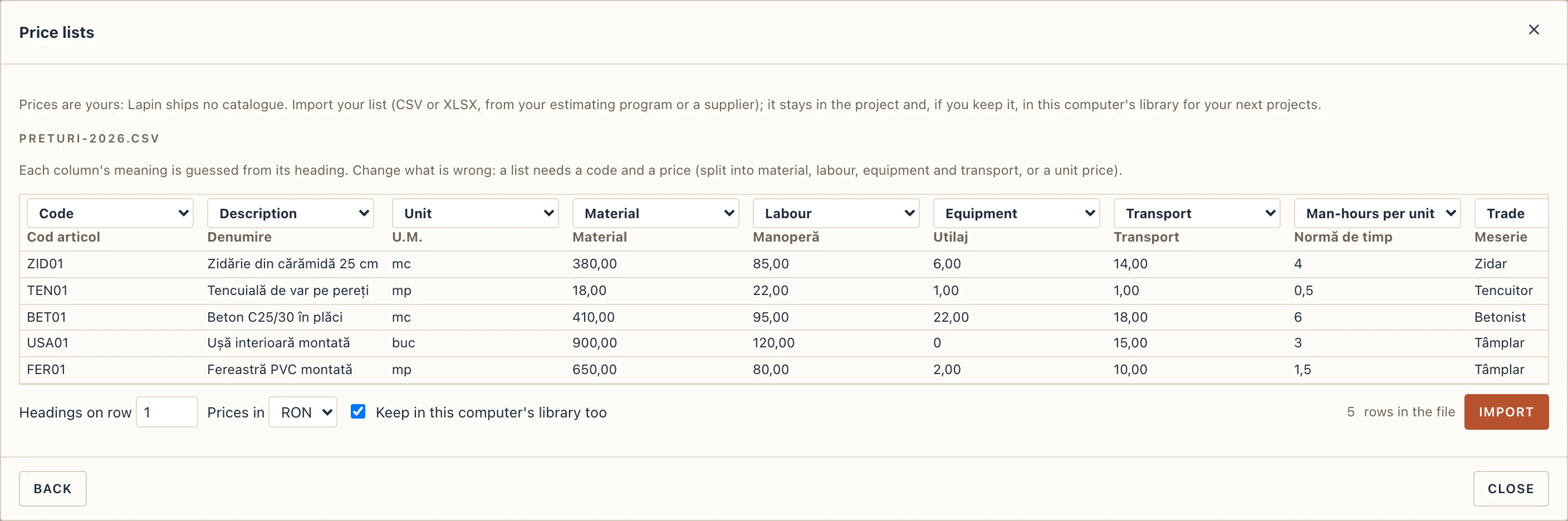
Prices are yours: Lapin ships no catalogue of prices or norms. Construction → Price lists… → Import… reads a CSV or XLSX file, for example an export from your estimating program or a supplier's list. Lapin shows the file's first rows under their headings. Above each column is what Lapin guessed it holds, from the heading, in English or Romanian:
- Code and Description (Cod, Simbol, Denumire), Unit (U.M.: m³ or mc, m² or mp, m, pcs or buc, kg, t, 100 m²).
- The unit price split into Material, Labour, Equipment and Transport (Material, Manoperă, Utilaj, Transport), or a single Unit price (not split), which then counts as material.
- Optional: Man-hours per unit (Normă de timp) and Trade (Meserie), for the labour list (C6).
- Optional: the article's resources, rows that name the article they belong to (Article it belongs to), their Kind of resource (M, Man, U, T) and their Consumption per unit. An article given only by its resources is priced by them, and the resource lists (C7 to C9) list them one by one.
Change any column that was guessed wrong, choose the row the headings are on and whether the prices are in RON or EUR, then click Import. The list goes into the project. With Keep in this computer's library too ticked, it also stays on this computer: under On this computer, Add to the project brings it into your next project.
Template saves a CSV with the columns and a few rows of Lapin's own rough values, marked indicative: fill it in with your prices and import it. Use the indicative values puts those rough values in the project as a list, so you can try the estimate before you have yours. Replace them before you send an estimate to anyone.
Articles on types, rules on materials
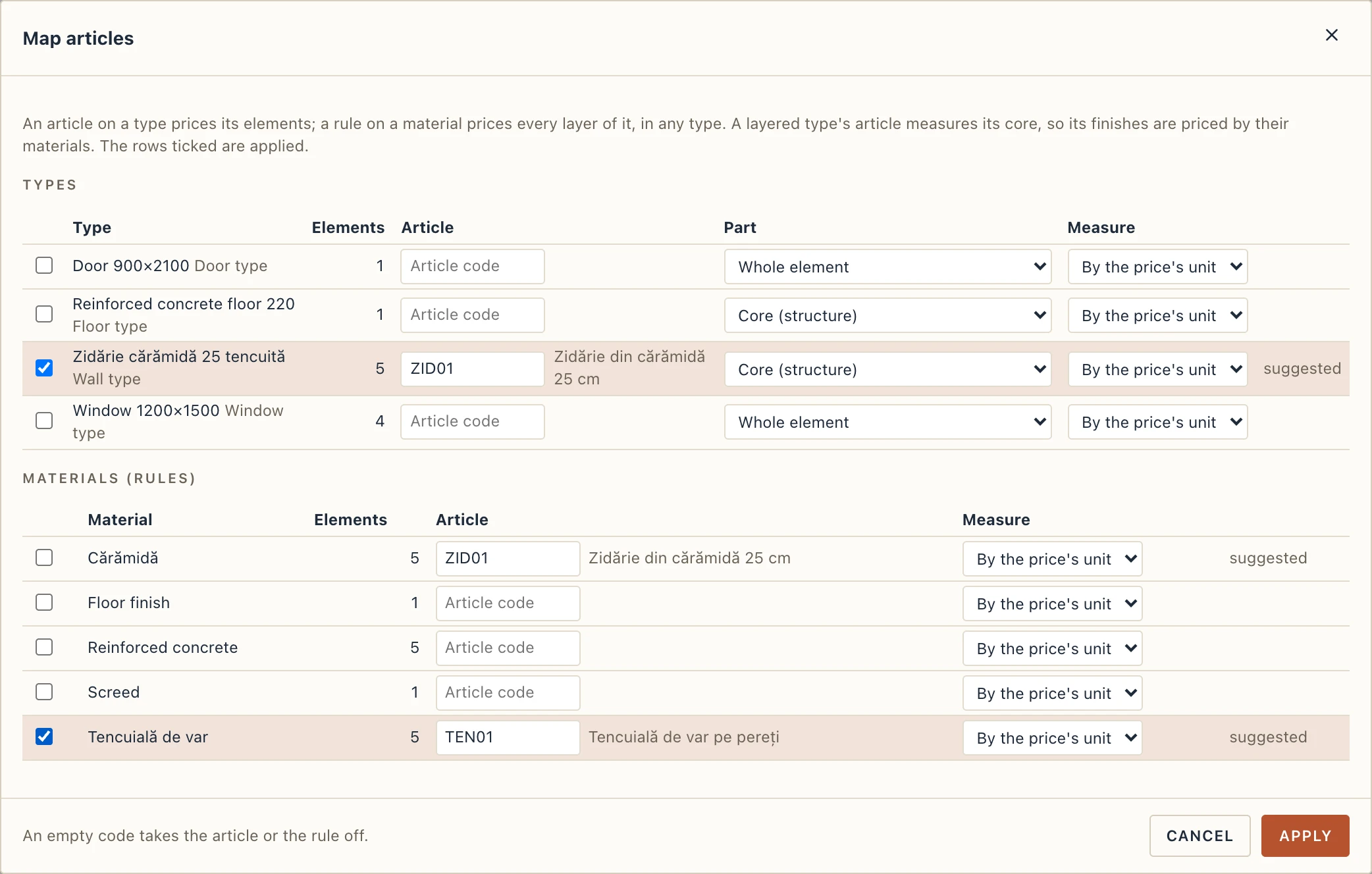
An estimate line comes from an article: a code from your price list. There are two ways to give elements an article:
- On a type. Every element of the type is priced by it. The article says what it measures: the whole element or a part of it (a layered type's core, or its finishes), and by which measure (by the price's unit, or net or gross volume, net or gross area, length, count, weight). It can also add a factor and the waste (%).
- On a material (a rule). Every layer of that material, in any type, is priced by it: one rule for the lime plaster prices the plaster of all your walls.
The type's article comes first. A layer its type's articles already measure is not priced again by a rule. An article on the whole element prices all of it, so the rules stand aside. For a layered wall, give the type an article on its core (the masonry by volume), and rules for its finishes (the plaster by area). The wall is then priced layer by layer: the masonry under Walls, the plaster under Finishes and insulation.
Construction → Map articles… lists the project's types that elements use, and the materials of their layers. Each row starts with the article it has, or the one you chose for a type or material of the same name in an earlier project, or the one Lapin suggests: a code written in its name, or the article sharing the most words with it (zidărie, BCA, tencuială, C25/30). For a layered type it proposes the core. Type or pick a code, choose the part and the measure, tick the rows you want and click Apply: one step to undo. Your choices are remembered on this computer for your next projects.
The formwork and scaffolding types of the site works (the Site tab) already had an article code (decision 152): it is an article on the type, measured by the price's unit.
The phases count: an element that was there before the works (made in an existing phase) is not priced. A demolished one is priced only by its type's article whose part is Its demolition (only when demolished), under the chapter Demolition.
The estimate
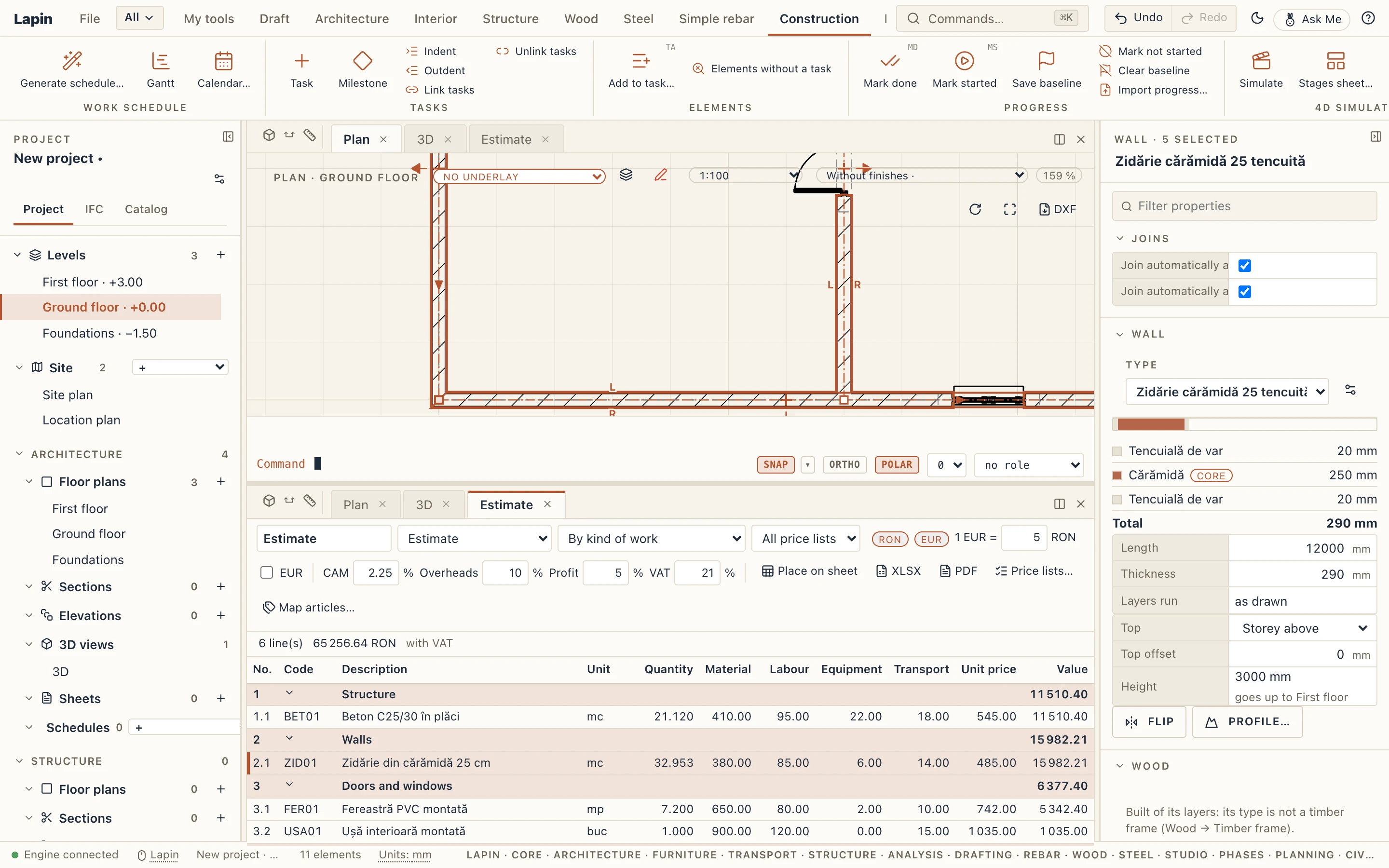
Construction → Estimate… opens the estimate under the view, like the Gantt. Its lines are grouped in chapters by kind of work: earthworks, foundations, structure, walls, roof, doors and windows, finishes and insulation, installations, site works, other. An article can name a chapter of its own. By storey and kind of work puts the storey before each chapter.
Each line shows the code, the description and unit from the price list, the quantity from the model (the same as the takeoff's), the unit price split into Material, Labour, Equipment and Transport, the unit price and the value. Click a line to select its elements in the views. Select elements in a view, and their lines are marked in the estimate.
Under the lines are the totals, as Romanian estimates lay them out:
- Direct costs: the sum of the lines.
- Contributions on labour (CAM): 2.25 % of the labour, by default.
- Overheads (cheltuieli indirecte): 10 % of the direct costs with the contributions, by default.
- Profit: 5 % of the direct costs and the overheads, by default.
- Total without VAT, the VAT (21 % by default) and the Total with VAT.
Change any rate in the toolbar. Every value is rounded to two decimals, as an estimate prints it.
The estimate is in RON or EUR. 1 EUR = is the project's rate: a price list in the other currency is converted at it, and the box beside it shows every value in the other currency too.
The toolbar also warns about what is not priced: N type(s) unpriced (click it to open Map articles), and the codes no price list has. A line of your own adds work the model does not have (the site fence, a provision): type its code, description, unit, quantity and prices. A line with a code and no prices takes them from the price list.
The Romanian forms
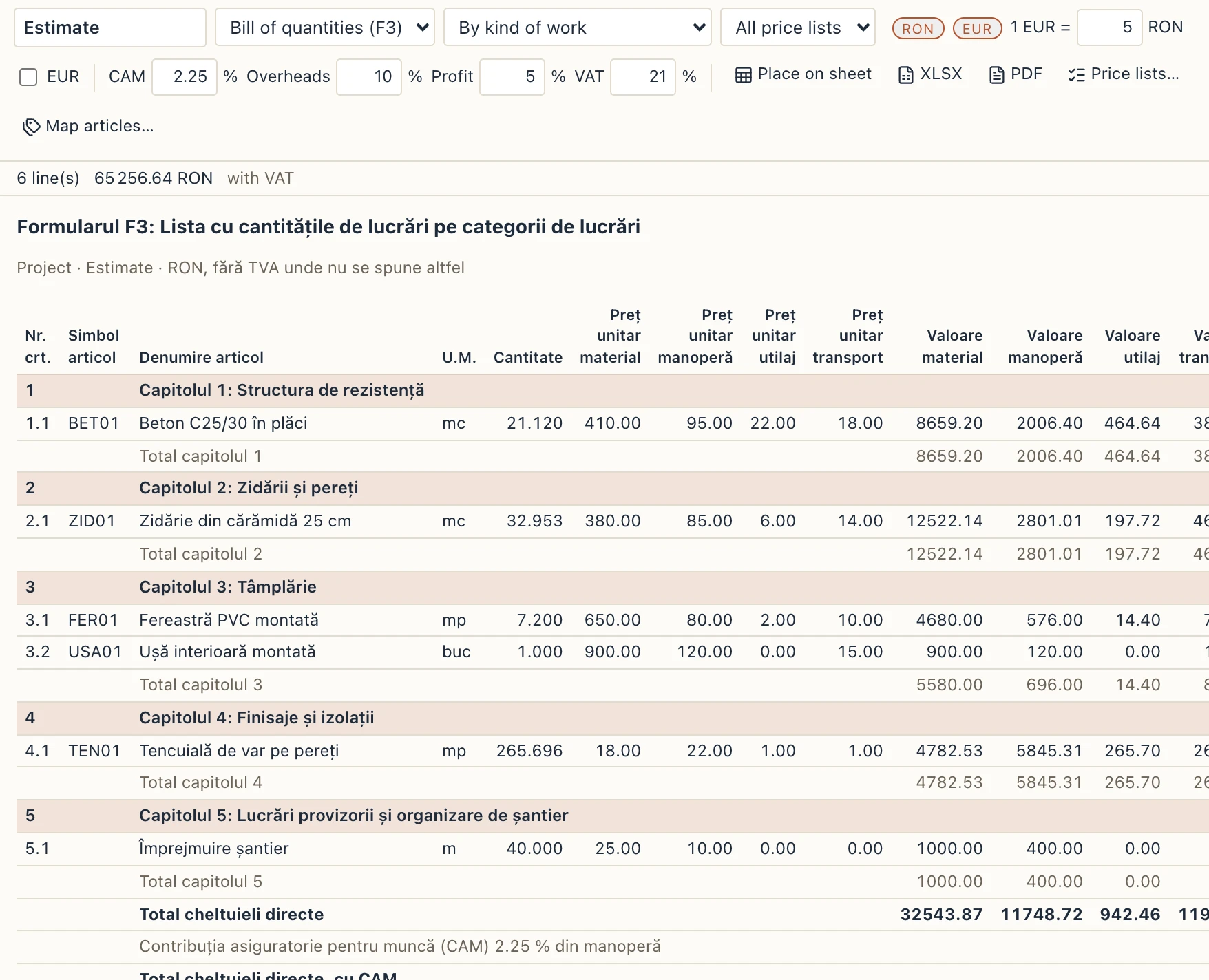
The list above the estimate shows the estimate itself or one of its forms. They are groupings of the same estimate, so they add up to the same totals. They are headed in Romanian, as they are submitted in Romania:
- Bill of quantities (F3): Lista cu cantitățile de lucrări pe categorii de lucrări, chapter by chapter, the unit prices and the values split into material, labour, equipment and transport, and the totals under them.
- Object estimate (F2): Deviz pe obiect, each chapter's value without VAT, its VAT and its value with VAT.
- Labour (C6): the hours and value by trade (from the price list's trade and man-hours, or its labour resources).
- Materials (C7), Equipment (C8) and Transport (C9): the resources with their quantities, unit prices and values. An article without resources counts as one resource of its own.
The forms follow common practice under the methodology of Order 863/2008. Check them against what your client or the funding programme asks for: ask us if you need another layout.
Place on sheet puts the table shown on a new sheet, ready to print with the others. XLSX saves the estimate and every form in one workbook, a sheet each. PDF saves them as a PDF, landscape A4, ready to print.
Cost over time
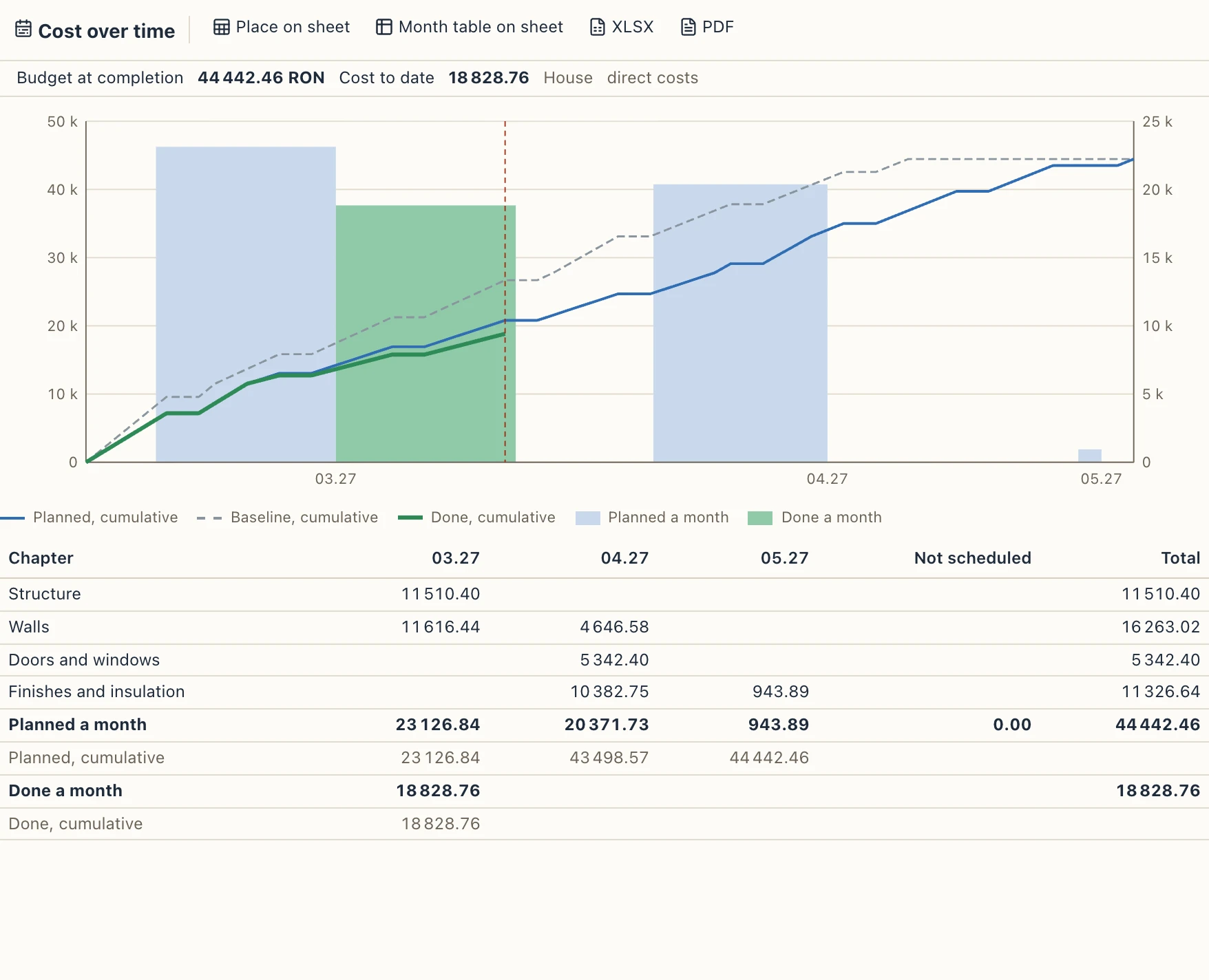
With a work schedule in the project (the Construction tab), the estimate is laid on it with no linking of its own. Each line's value is shared by its elements, and each element's share goes to the tasks that build the part the line measures: the masonry's article to the task that takes the walls' core, the plaster's to the one that takes their finishes. An article on the whole element, built in two tasks, is shared between them alike. A line of your own goes to the task you choose beside its description (In no task by default). A task's cost is spread evenly over its working days, so nothing is spent on a weekend, a holiday or, for a wet task, in the winter break.
Construction → Cost over time opens, under the view:
- the S-curve: the planned cumulative cost over the schedule, the baseline's (dashed) when one is saved, and the work done (thick) up to the status date: each task's cost times its % complete, spread from its actual start;
- the months' bars, against the right-hand scale: planned and done;
- above it, the budget at completion (the estimate's direct costs), the cost to date and what is not scheduled, if anything: lines whose elements no task builds (click it to open the estimate);
- under it, the month table: each chapter's cost a month, what is not scheduled and its total.
The values are direct costs, as the estimate's lines are. The Gantt shows each task's cost in its Cost column (see Planning).
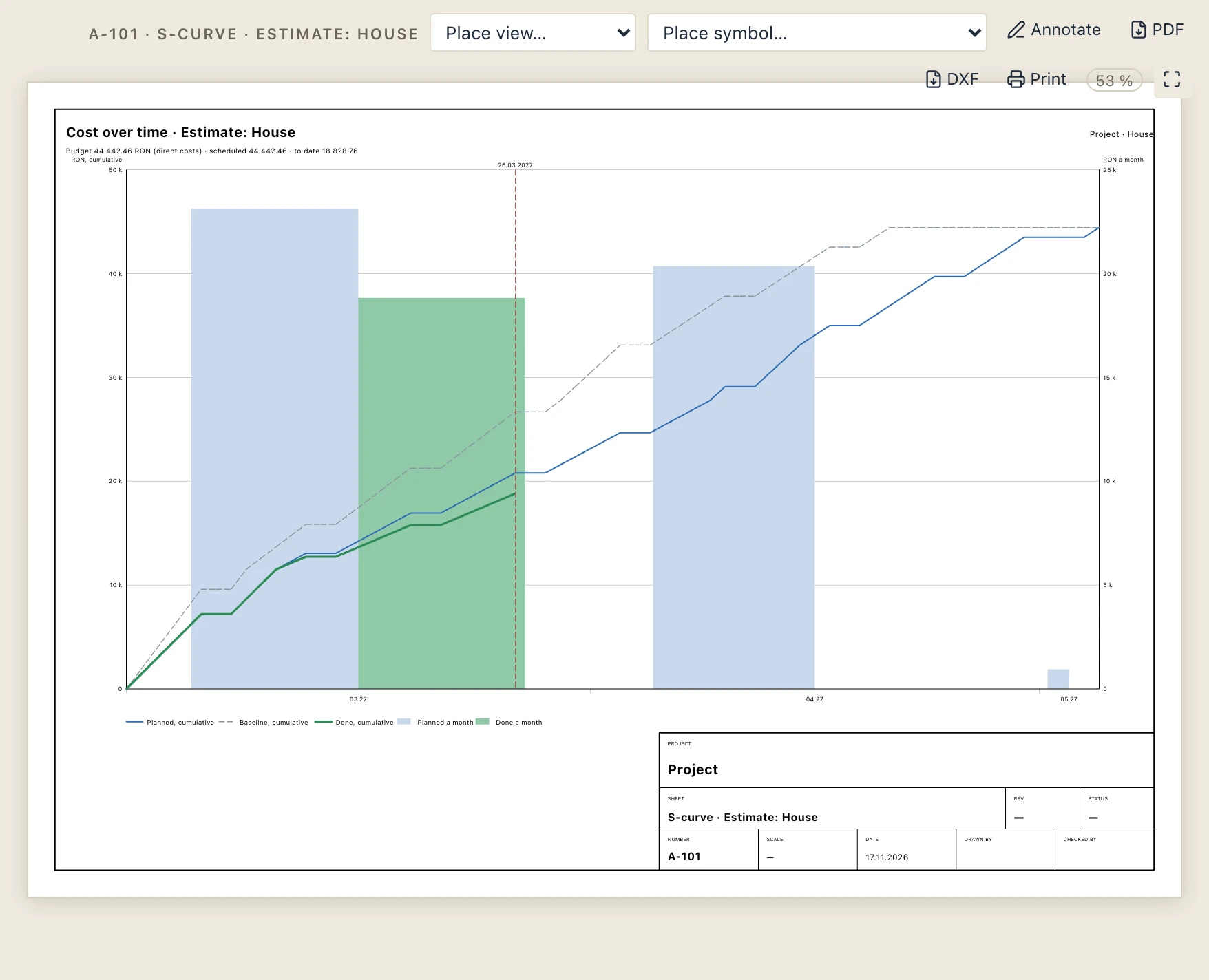
Place on sheet puts the curve on a new sheet, drawn as vectors with its legend. Month table on sheet places the month table, which is also the form Cost per month in the estimate's list: the chapters month by month, then the direct costs, the totals without VAT and with VAT (shared in proportion), the cumulative costs and, with progress, the work done. Each row adds up to the estimate's total. XLSX saves the curve day by day, the month table and the tasks' costs in a workbook; PDF saves the curve and the month table.
Manage → Versions → Compare says, beside the elements and the schedule, what changed in the estimate: the total with VAT, the direct costs and the difference, each chapter whose cost changed, and the lines added, removed or changed (their quantity and value).
Monthly progress billing (situații de lucrări), earned value and several baselines are for the premium edition.
IFC
File → Export IFC… writes the estimate as an IfcCostSchedule: its chapters and lines as IfcCostItems, each line's quantity and its unit prices as four IfcCostValues (Material, Labour, Equipment, Transport), the elements each line measures assigned to it (IfcRelAssignsToControl), the currency as the project's IfcMonetaryUnit. Imported, an estimate keeps the lines as the file has them, with the same totals. Tick Lines from the model to add the lines your model gives.
With a work schedule, each line is also assigned to the tasks it is done in (IfcRelAssignsToControl to their IfcTasks). Imported, the lines keep their tasks, so the S-curve comes back the same.