User guide
Project folder and issues
Issue sheets and the model as ISO 19650 asks, kept in the project file and, when you have one, a project folder, named by the convention, with a transmittal, after the checks a drawing office does.
The project folder
Manage → Project folder sets the folder the project is also issued into: a folder on your computer, a network share, or a SharePoint or OneDrive folder synced to disk. The folder is optional: every issue and its files are kept in the project file itself, so a project without a folder issues all the same, in the desktop app and in the browser. Lapin asks for no account and talks to no server: it writes files, and whatever syncs the folder is your office's. The path is kept in the project, so it travels with the file; a folder that is not on this computer is a warning, not an error. Setting a folder needs the desktop app.
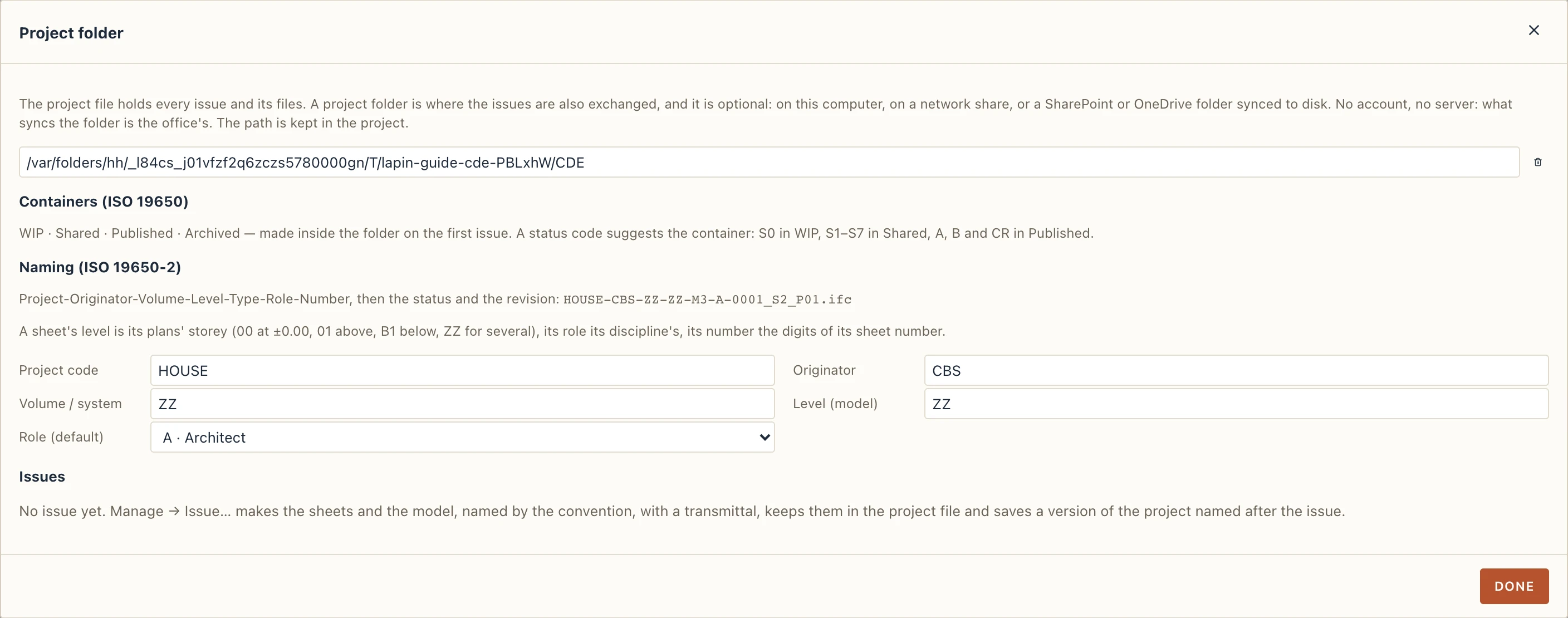
Inside the folder Lapin makes the four ISO 19650 containers on the first issue: WIP, Shared, Published and Archived. A status code suggests the container: S0 goes to WIP, S1–S7 to Shared, A, B and CR to Published.
Naming
Files are named after ISO 19650-2: Project-Originator-Volume-Level-Type-Role-Number, then the status and the revision, for example PRJ-ORG-ZZ-00-DR-A-0101_S2_P01.pdf. In the Project folder dialog you set the project code, the originator (your office), the volume, and the default level and role. The rest comes from the project:
- a sheet's level is the storey its plans draw (
00at ±0.00,01above,B1below,ZZwhen it draws several or none); - its role is its discipline's (architecture A, structure S, MEP M, civil C);
- its number is the digits of its sheet number (
A-101becomes0101); - the model is
M3, the transmittalIE.
Checks
Manage → Check runs the rules a drawing office checks by eye before an issue, over the whole project. A blocking finding stops an issue; a warning can be overridden. Click a finding to go to the sheet, the view or the element.
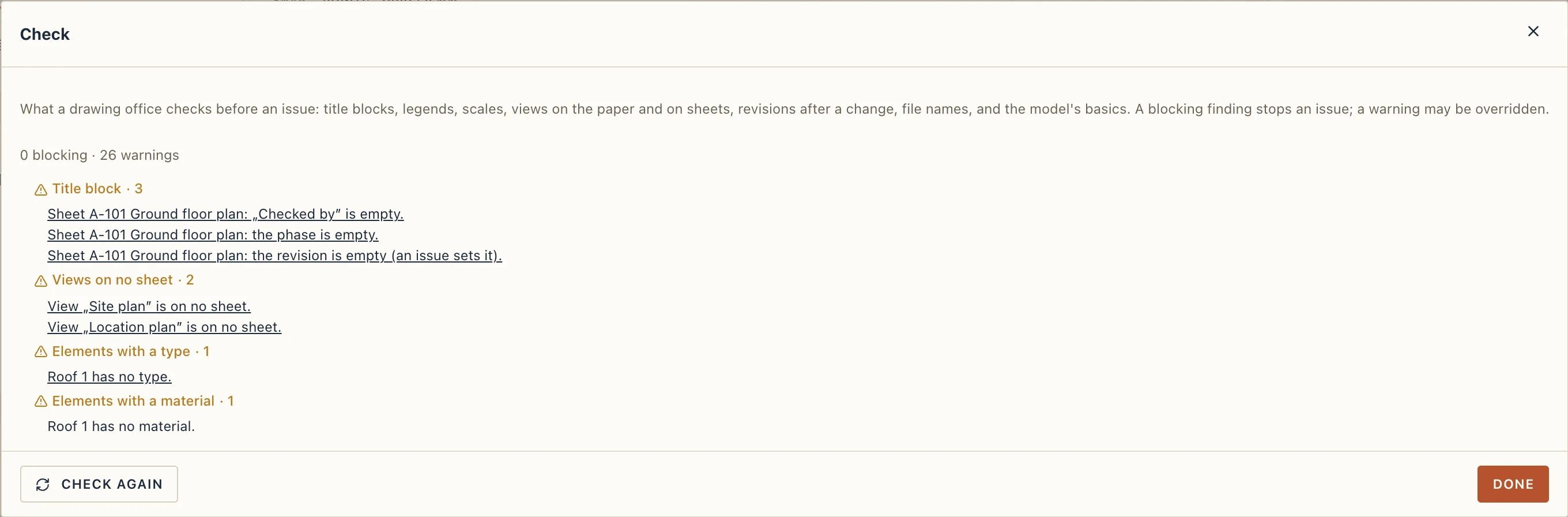
Blocking: a title block without a number, a title or who drew it; a view without a scale; a view outside the frame or over the title block; a sheet that changed since its last issue but is still at that revision; a sheet number that gives no file number. Warnings: who checked, the date and the phase left empty; a plan coloured by a room scheme, or with many hatches, without a legend; a plan, section or elevation on no sheet; a site plan without a north arrow; elements on no storey, without a type or a material; doors and windows without a tag; rooms without a number; the required IFC properties (IsExternal, LoadBearing, FireRating on doors) left empty; a layer whose thickness is not one of its material's catalogue thicknesses.
Issuing
Manage → Issue… makes an issue, kept in the project file and, when the project has a folder on this computer, written into its container too:
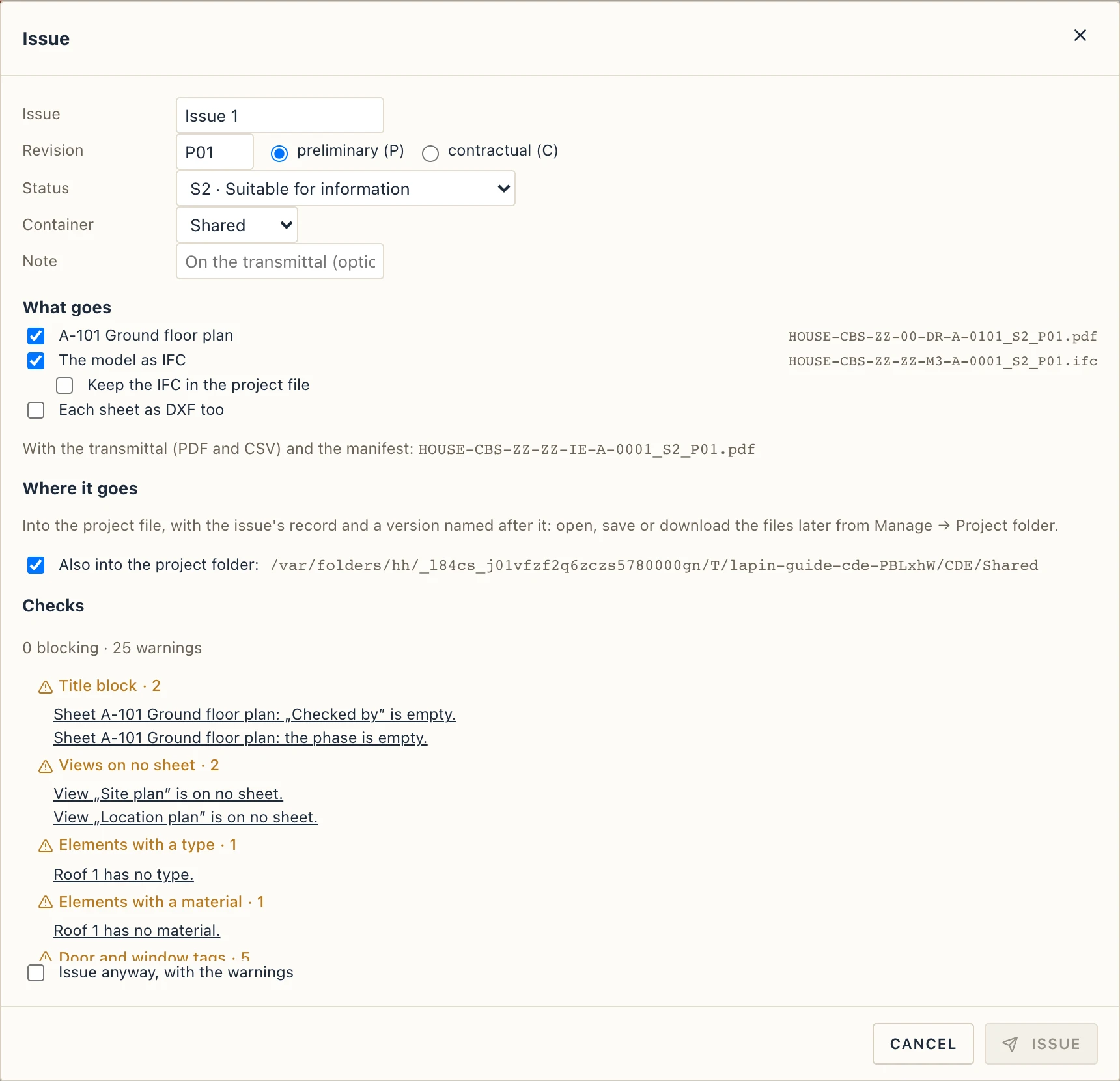
- Give the issue a name, its revision (
P01,P02… while preliminary,C01… once contractual; the next one is proposed from the last issue), its status (S0–S7,A1–A9,B1–B9,CR) and the container. - Tick the sheets that go, the model as IFC, each sheet as DXF too, or all the sheets in one PDF too. Each file's name is shown as it will be written. The IFC is kept in the project file only when you tick Keep the IFC in the project file (a large model is tens of MB an issue); left unticked, it goes to the project folder and the project file keeps its name and hash. Also into the project folder writes the files into the container as well (on by default when the project has a folder). The project's written documents go too, each as a PDF and on request as DOCX (see Documents).
- The checks run as you choose. With a blocking finding the issue cannot go; with warnings alone tick Issue anyway.
- Issue makes each sheet as a PDF, the IFC and the rest, named by the convention, hashes every file (SHA-256), makes the transmittal (a PDF and a CSV: project, issue, date, revision, status, the files) and a manifest (JSON, with every hash), keeps them all in the project file and records the issue in the project. Each printed sheet carries the issue's revision and status in its title block and the issue's row in its revision table, as issued.
- In the same step the project is saved as a version named after the issue (see Files, versions and recovery), so an issue can be reopened, restored or compared with the project as it is now, and the project is saved, not left with unsaved changes. The dialog then shows the issue as it went out — its name, revision and files, each one to open — until you close it or start a New issue.
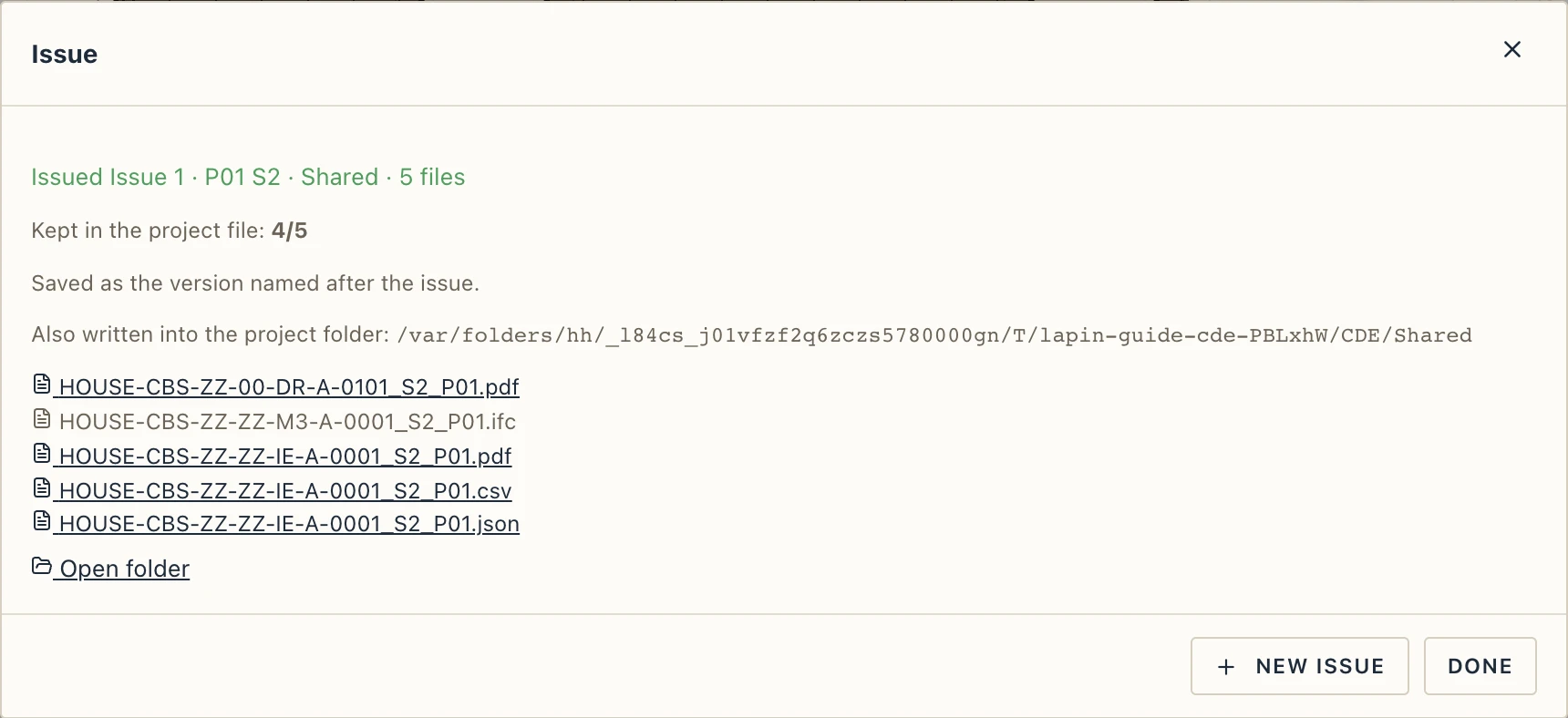
The issues in the project file
The issues are listed at the bottom of the Project folder dialog, with what they take in the project file (identical files are kept once, however many issues share them). Click an issue to see its files:
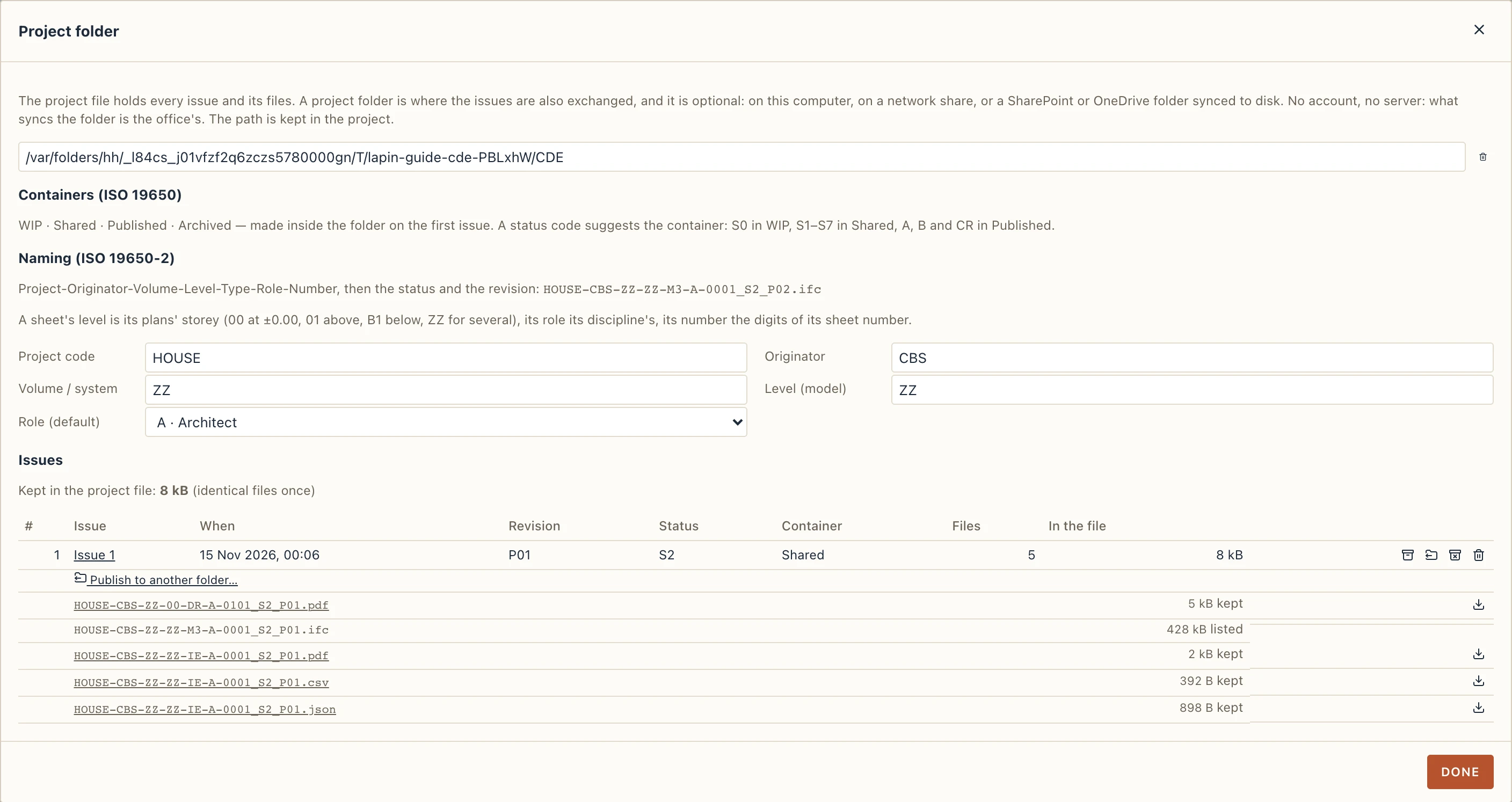
- click a file to open it from the project file (the desktop opens it with its program; the browser downloads it), or Save a copy…;
- Download as zip gives all of an issue's kept files in one zip, named after its transmittal: what you send when there is no shared folder;
- Publish to folder… (the desktop app) writes an issue made earlier into the project folder's container, or into any folder you pick: issue first, choose the folder later;
- Delete stored files lets an old issue's files go from the project file at the next save, to keep the file small; the issue's record, its file names and their hashes stay;
- Open folder shows the container the issue was written into.
In the browser
The CDE works in the browser too: Check, Issue, the issues' files (open, Download as zip) and both kinds of remarks. The project file holds everything, and comes back to you as the file you save. A project folder, publishing to it and scanning it need the desktop app.
Remarks (BCF)
Manage → Model remarks… keeps the remarks made on the model — yours and a reviewer's — as BCF topics (the BIM Collaboration Format BIMcollab, Solibri, Navisworks and Revit exchange), in the project, never in the IFC. A remark has a title, a description, a type, a status (Open, In progress, Resolved, Closed), a priority, who it is assigned to, a due date and labels; its comments; and its viewpoints — the 3D camera, the elements selected, the section box as clipping planes, and a snapshot.
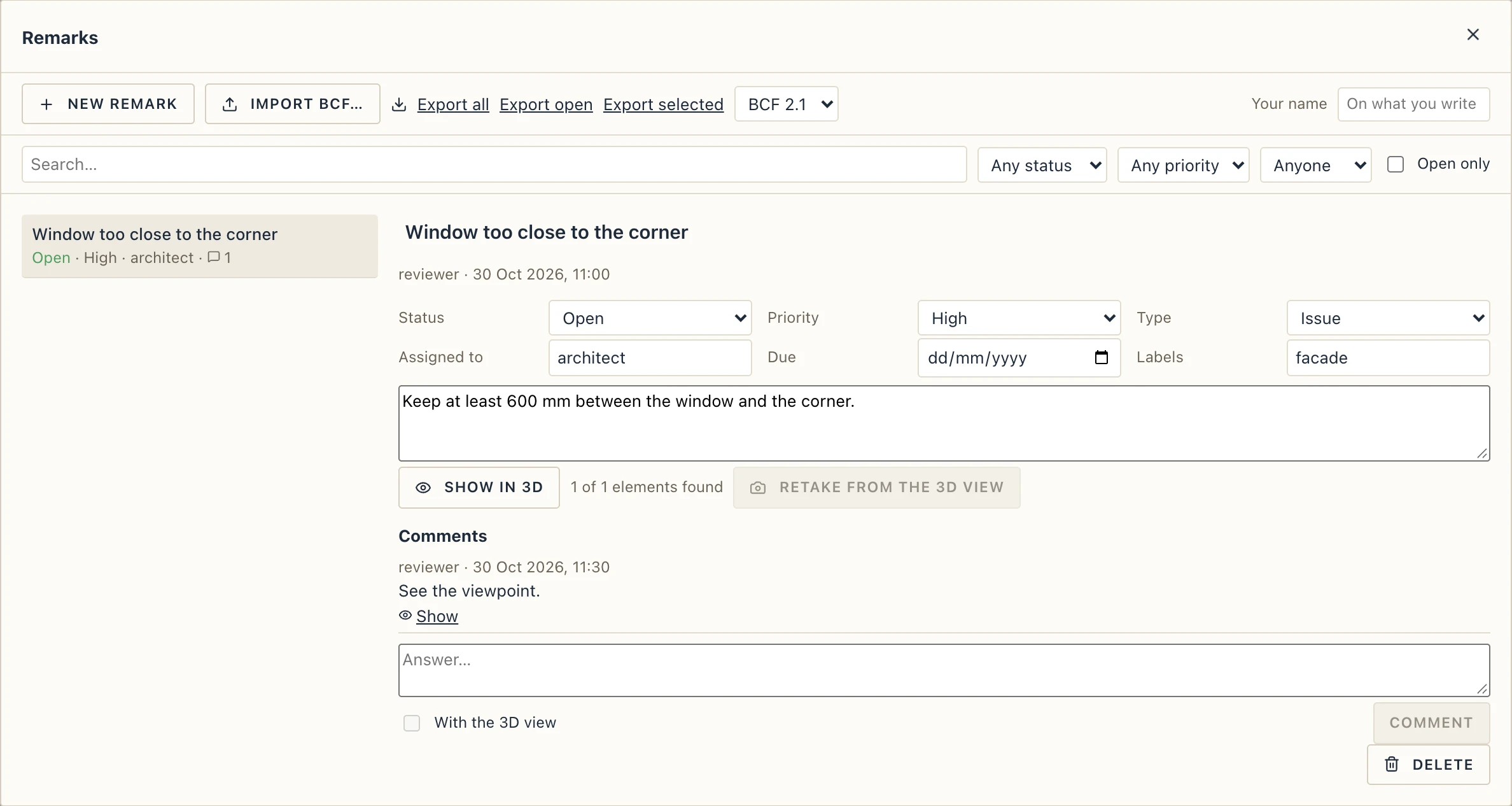
- New remark makes one from the 3D view in front: the camera as it is, the elements selected, the section box, and a picture taken from the view. Fill the fields and Create.
- The list is filtered by a text, a status, a priority, who it is assigned to, and Open only. Pick a remark to see and change its fields, read its comments, and answer in the box (Comment; tick With the 3D view to attach the view as it is to the answer).
- Show in 3D opens the remark's viewpoint: the 3D view goes to its camera, its elements are selected (those the project has, by their IFC GlobalId), and its clipping planes become the section box. A comment with a view of its own has Show beside it.
- Retake from the 3D view replaces the remark's viewpoint with the view as it is now.
- Import BCF… reads a
.bcfzip(BCF 2.1) or.bcf(BCF 3.0) file: a topic the project already has (the same GUID) is updated — the file's fields win, and the comments made here that the file lacks stay — the others are added. Export all, Export open or Export selected write a BCF file, 2.1 unless you pick 3.0, to hand to the reviewer or drop into the project folder's Shared container. The topics keep their GUIDs, so a round trip through another tool comes back to the same remarks.
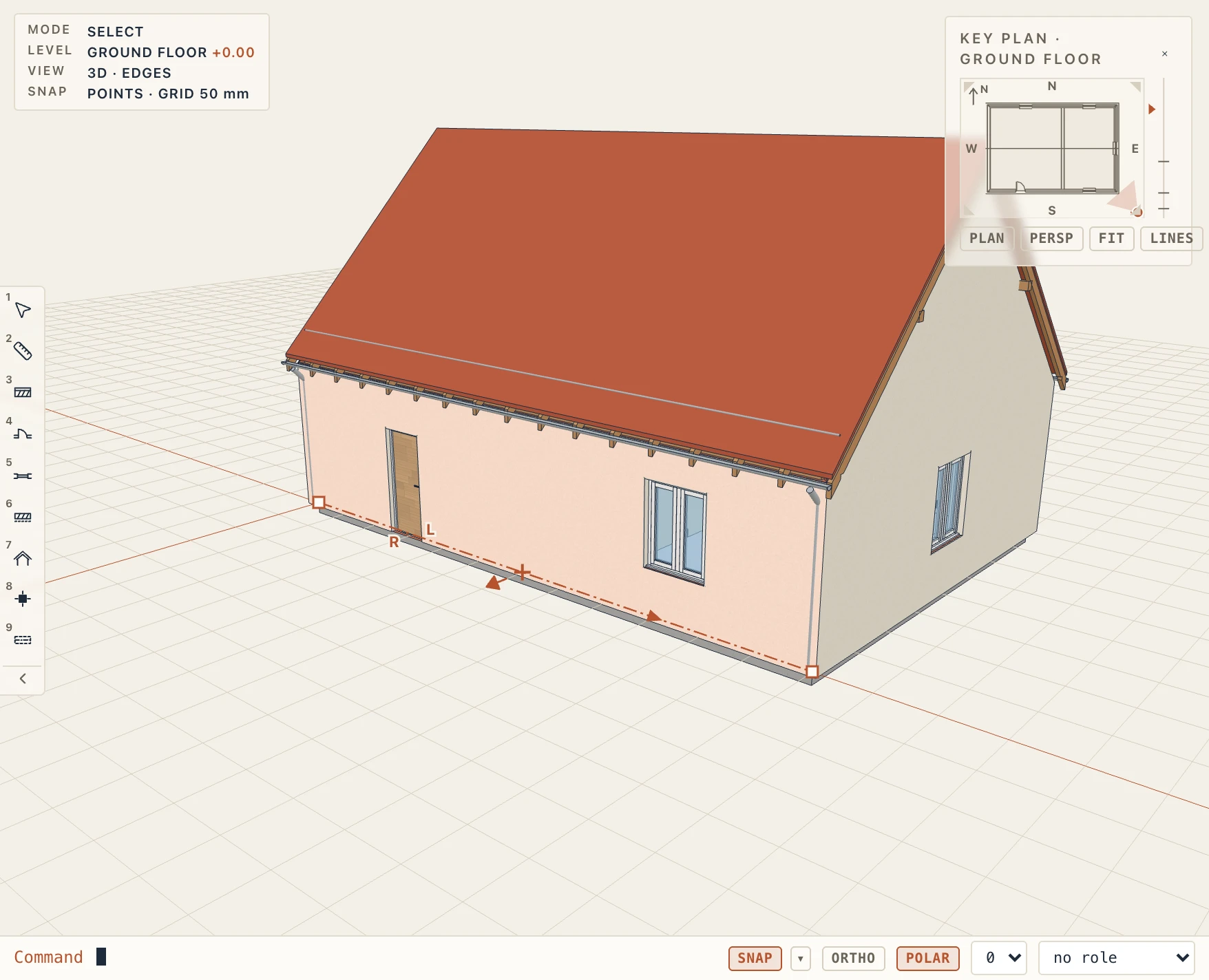
Your name on what you write is set in the dialog's Your name box (it is kept on this computer).
Remarks on sheets
A reviewer opens an issued PDF in Acrobat, Bluebeam, Preview or Drawboard and marks it: sticky notes, text, highlights and strike-outs, pen strokes, rectangles, circles, arrows, clouds, stamps, measurements, replies. Manage → Sheet remarks… reads those marks back into the project as remarks on the sheet:
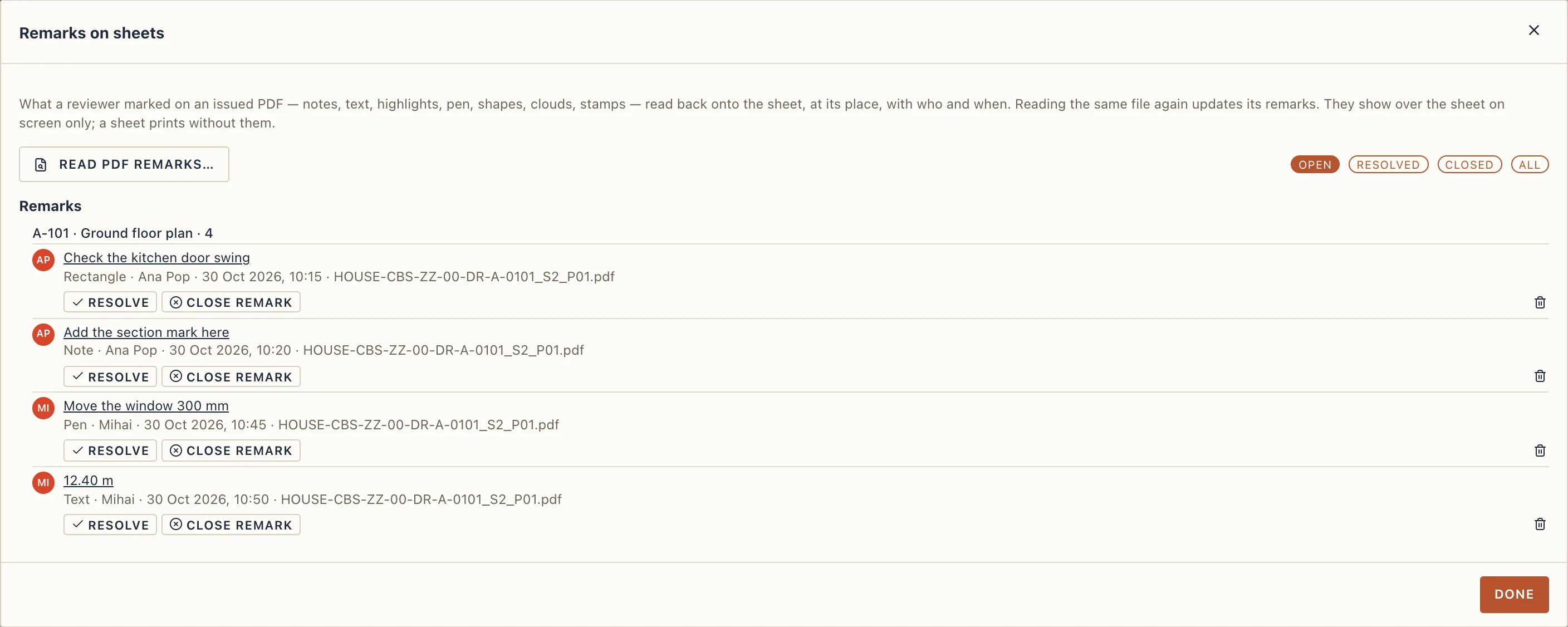
- Read PDF remarks… picks the file. The sheet it belongs to comes from the issue (the manifest beside the file, or the project's own record of its issues), else from the file name's convention; when nothing fits, you choose the sheet. The pages of a set PDF go to its sheets in order. What was found is shown — pages, annotations, how the sheet was matched, any warning — and Import brings the remarks in. Reading the same file again updates its remarks instead of doubling them; a remark you resolved stays resolved. A file renamed on the way is still matched: the issued bytes are where the reviewer's file begins.
- Scan the project folder (the desktop app) lists the issued PDFs in Shared and Published, which of them changed after their issue, and whether their remarks were read since.
- The list is grouped by sheet and filtered by status: open, resolved, closed. A click opens the sheet with the remark in front. Each remark can be resolved, closed, reopened or deleted; a reviewer's "Completed" or "Accepted" state arrives as resolved.
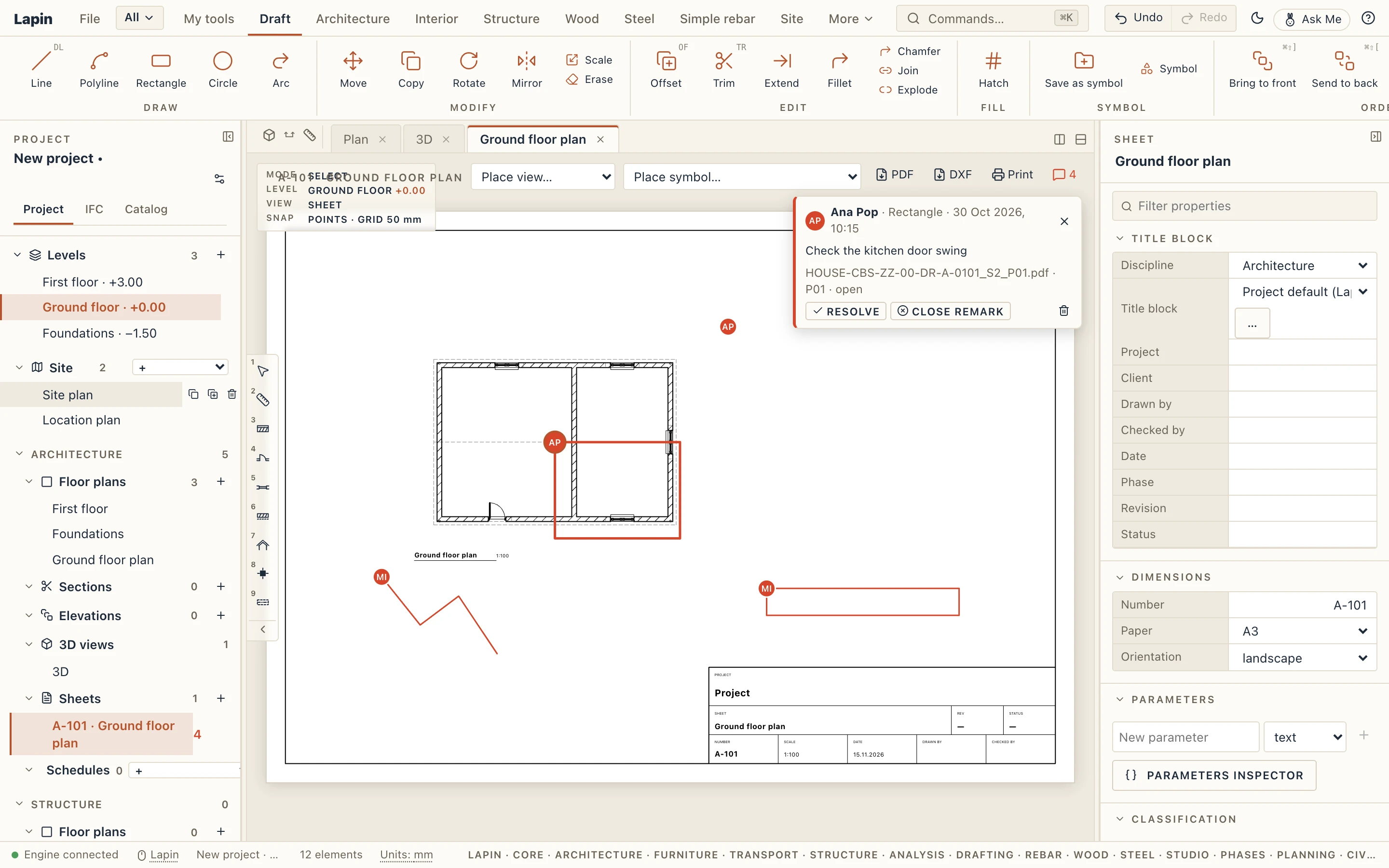
On the sheet the remarks are drawn over the paper at their place: the outline in the review colour, a marker with the author's initials, the text in a tooltip; the one in front has its card with the text, who and when, the replies and the status. The button in the sheet's toolbar hides or shows them, and the project browser counts the open ones beside the sheet. They are an overlay for the screen alone: a sheet prints and issues without its remarks.
Lapin reads the PDF itself, with no other program: classic files and those saved with cross-reference streams, incremental saves (what the reviewer's program appends), text in any encoding. A file it cannot read whole yields what it can, with a warning. Lapin never writes into the PDF.