User guide
Extensions
Add furniture, project templates, wall, door and window types, symbols, line types, drafting standards, rule packs, bar shapes, shared parameters, families (parts), profiles, hatch patterns, title blocks and price lists made by others from the Lapin Extensions catalogue, and remove them again.
The catalogue
Lapin Extensions is a free catalogue of things made for Lapin by its users and by us: furniture packs, project templates, profile libraries, hatch patterns, title blocks and price lists. Each one goes into the library Lapin already has for it, so you use it as if you had made it yourself.
Open File → Extensions…. Browse lists the catalogue: search it by name, tag or what an extension holds, or pick a category.
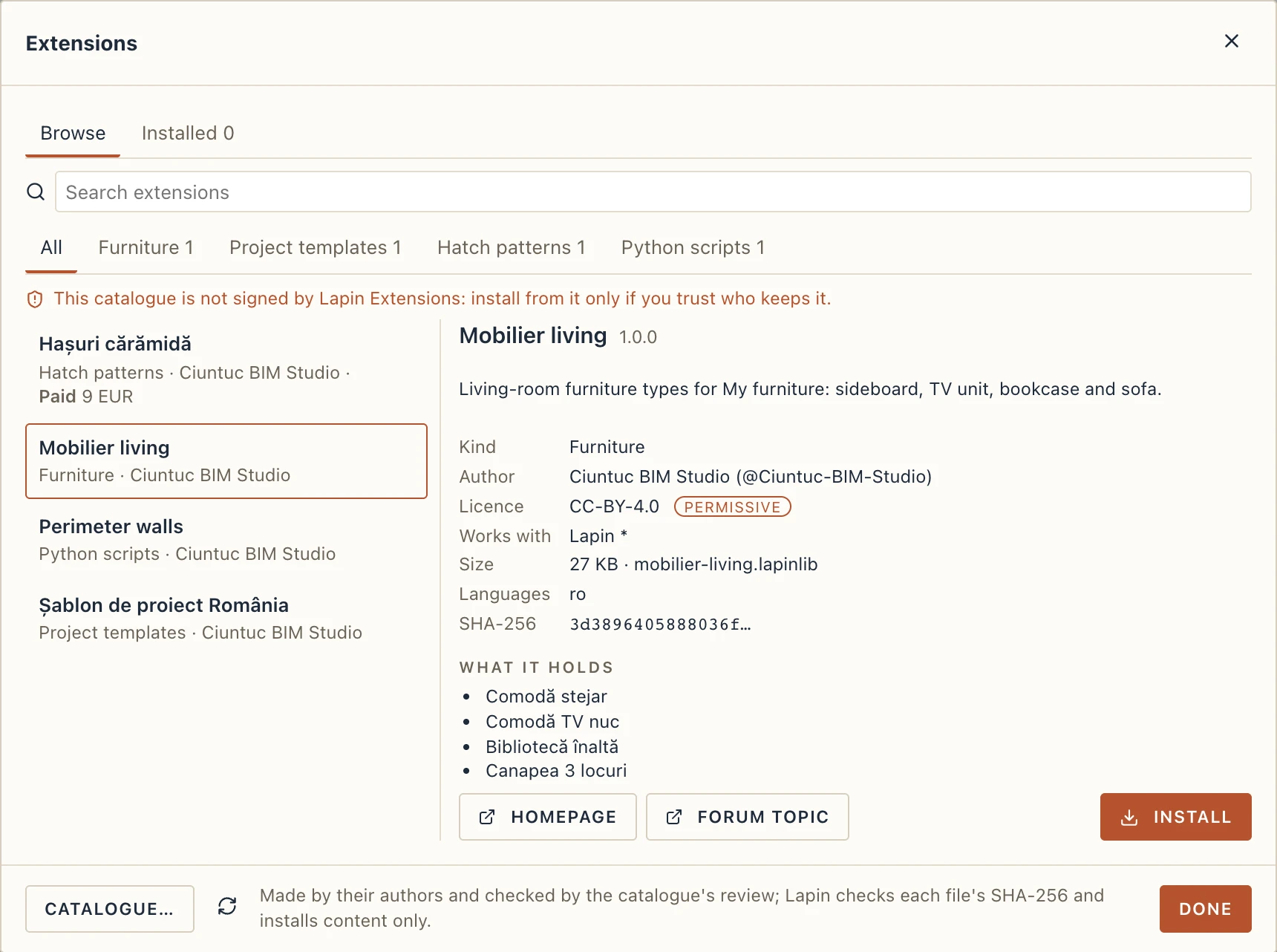
Click an extension to see its details before you install it:
- Author and Licence. Every extension has a licence, chosen by its author. A permissive one (MIT, CC-BY, CC0…) lets you use what it holds in any project; for another, read its terms first.
- Non-commercial: an extension whose licence forbids commercial use (CC-BY-NC, PolyForm Noncommercial…) is marked so in the list and in its details. You may install it and learn from it, but not use it in paid work.
- Works with: the Lapin versions it was made for. One that does not fit your Lapin says so instead of offering Install.
- Size, the file, and its SHA-256: the fingerprint of the file the catalogue reviewed.
- What it holds: its items, when its author lists them.
- Homepage and Forum topic: where to ask its author.
Install, update, uninstall
Click Install. Lapin downloads the file, checks that its size and SHA-256 are exactly those the catalogue lists (a file changed on the way is refused, and nothing is installed), then takes it into its library:
| Kind | Where it goes |
|---|---|
| Furniture | Interior → My furniture… |
| Project templates | File → New from template… |
| Profiles | the profile libraries on this computer |
| Hatch patterns | My patterns, offered by Manage → Materials |
| Title blocks | the title blocks on this computer |
| Price lists | Construction → Price lists…, marked indicative: the prices are the author's, check them against your own |
| Types | the project open when you install it, in one step to undo (Manage → Type packs… exports your own) |
| Symbols | Manage → Symbols…, in this computer's library; Add to this project in Installed brings them into the project open |
| Line types, Drafting standards, Bar shapes, Shared parameters, Families (parts) | kept on this computer; Add to this project in Installed (and the project browser's Catalog → From the libraries) brings them into the project open through the library's own import: line types into the project's line types, standards into Drafting standards, bar shapes into Bar shapes… (the edition needs the rebar module), parameters into Shared parameters, families into Studio's families (the studio module) |
| Rule packs | kept on this computer; Add to this project adds a rule pack of the project. Marked indicative: the values are the author's, check them against the norm in force |
| Table and layer mappings | remembered by Lapin, so Import table… finds the column mapping by the table's headings and Convert drafting to… the converter of each layer; uninstalling puts your earlier choices back |
If your library already has a price list, profile library or hatch file of the same name that differs, the Import preview offers to keep both (with (2) after its name), replace it or skip; for a project template of the same name, Lapin asks before replacing it. Nothing an extension brings is ever run: extensions are content.
Lapin's catalogue is also signed by Lapin Extensions: the catalogue and each of its files carry a signature that Lapin checks before it reads the list or installs a file, so a copy changed anywhere on the way is refused. A line above the list says Signed by Lapin Extensions when it is.
Installed lists what this computer has. Each row opens where it went (My furniture…, Project templates…), offers Update when the catalogue has a newer version, and Uninstall.
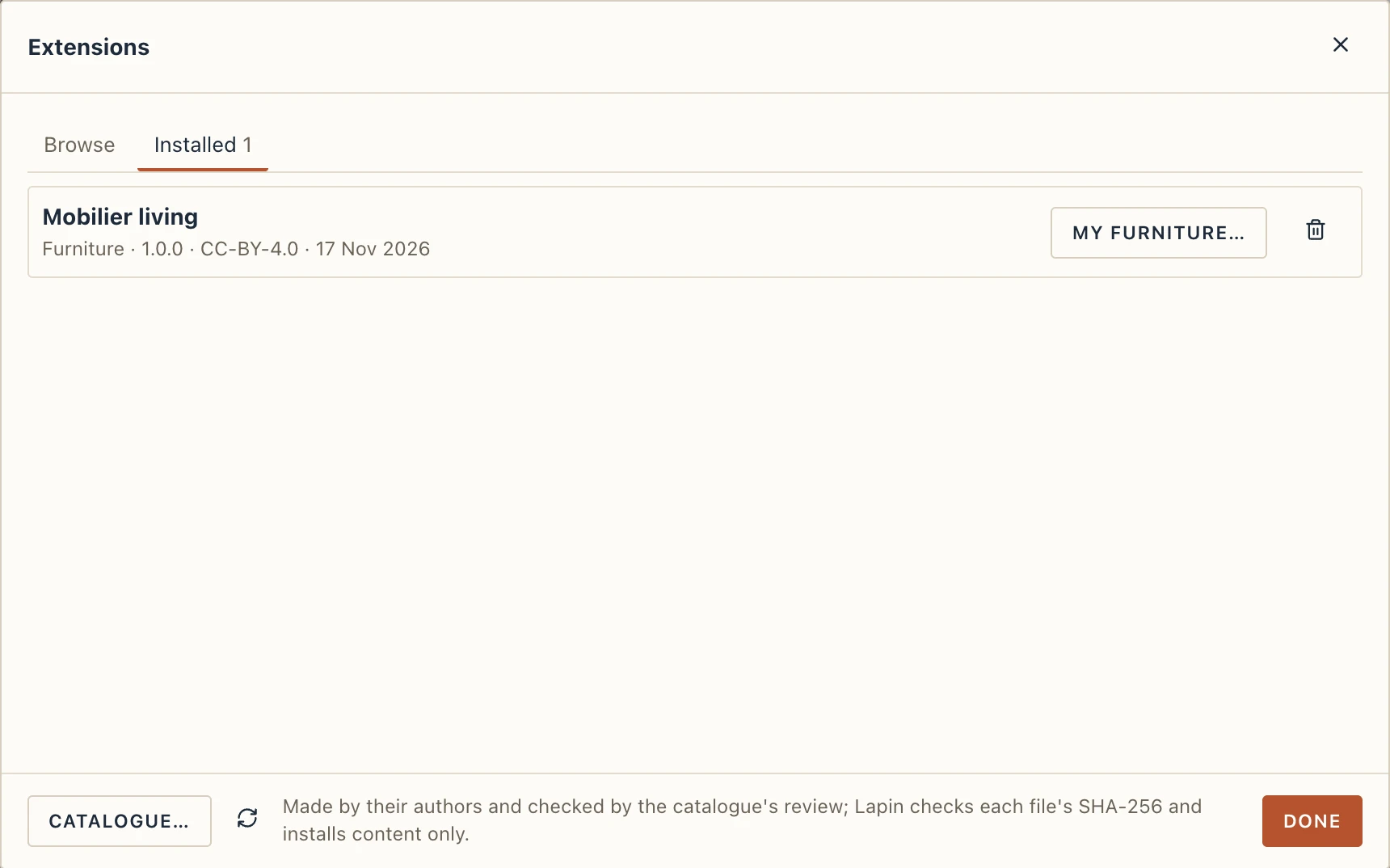
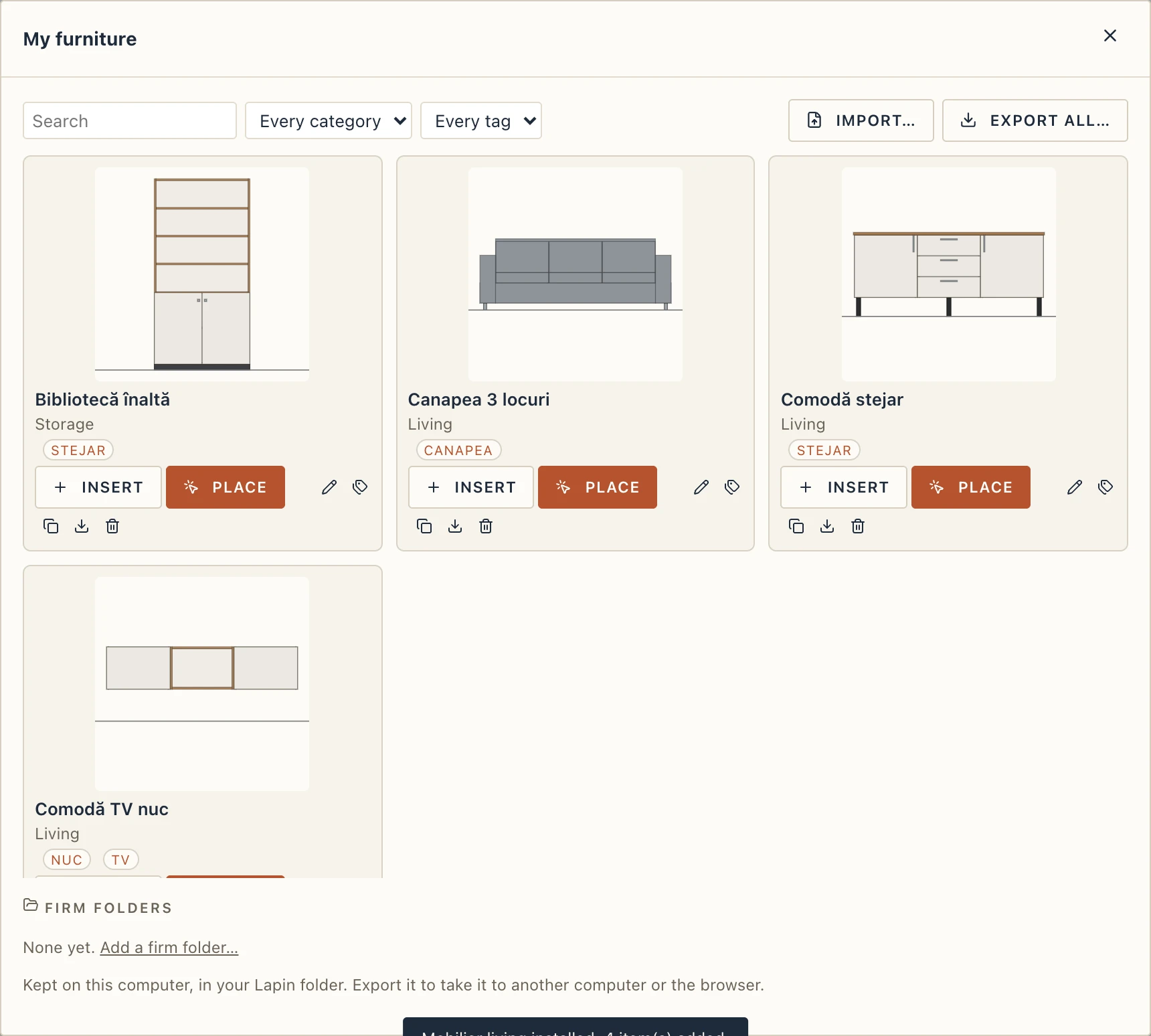
Uninstall takes away what the extension added to your libraries, and only that. What you already put in your projects stays in them: a furniture type inserted in a project, a project started from a template.
Types
A types extension brings wall, floor, door, window, column, beam or stair types with what they are made of: their layers, materials, profiles and parameters. Installed, its types go into the project open now, in one step to undo: a material of the same name already in the project is used, any other is made; a type already there exactly the same is reused, and one of the same name that differs is added beside it with (2) after its name. Installed → Add its types to this project brings them into another project.
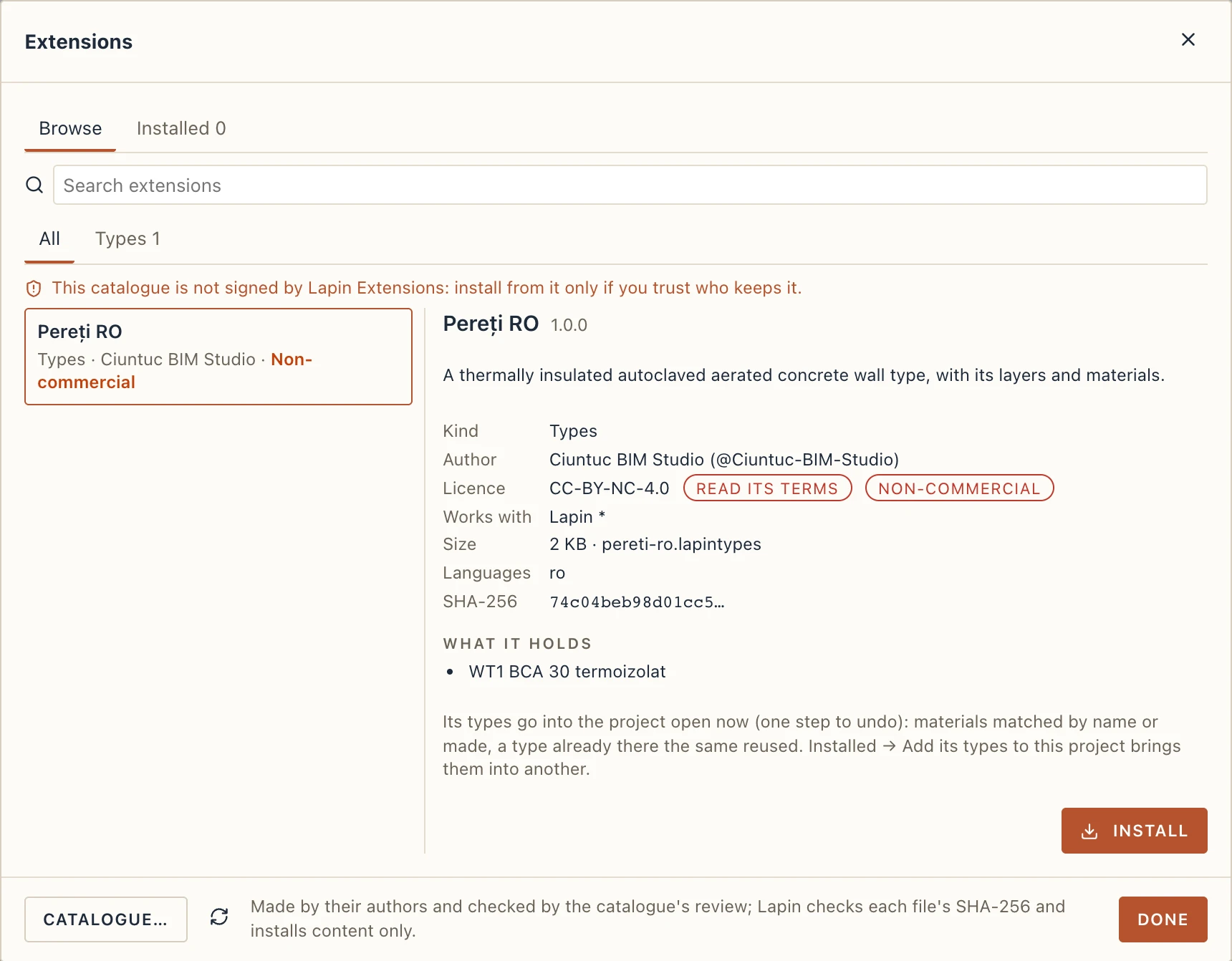
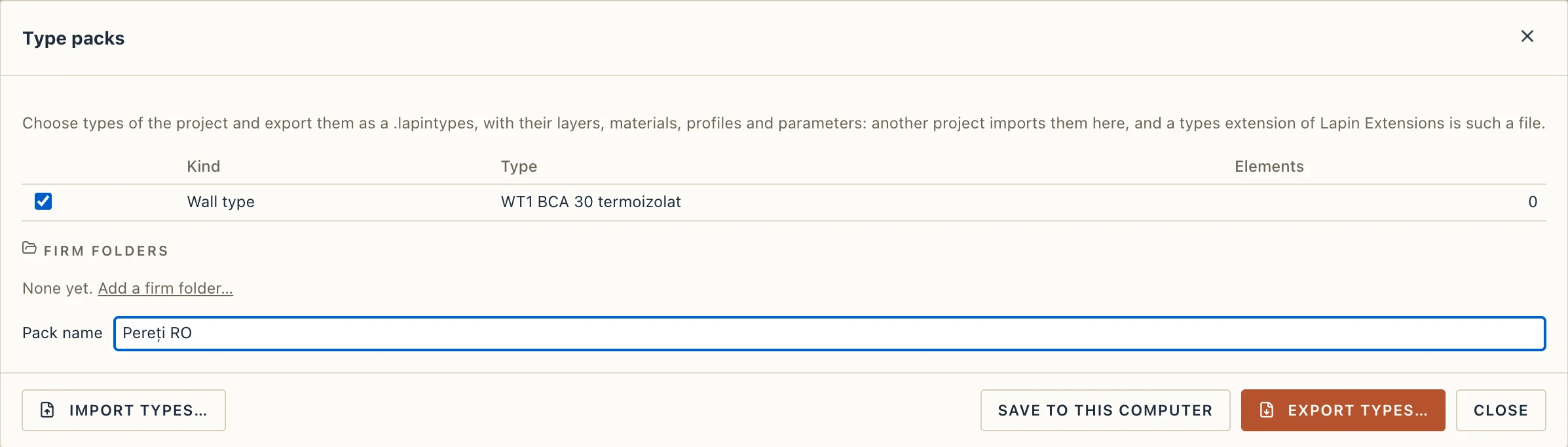
Your own types go into a pack from Manage → Type packs…: tick the types, give the pack a name, and Export types… saves a .lapintypes file. Import types… in the same dialog reads one, lets you choose its types and adds them the same way. A pack carries any kind of type with everything it is made of: layers, materials with their colours and hatches, profiles and parameters (IFC property sets with their names, kinds, values and units, instance defaults marked). Before adding them, the dialog lists the pack's materials and types that the project already has under the same name and defined otherwise, with what differs, and you choose for each, as when importing wall types: a material kept, updated from the pack in place, or kept beside as Name (2); a type kept beside (the default), updated in place (its elements follow) or skipped. What was made, reused, updated and skipped is listed afterwards. A failure to read a pack is always shown.
Types from another project
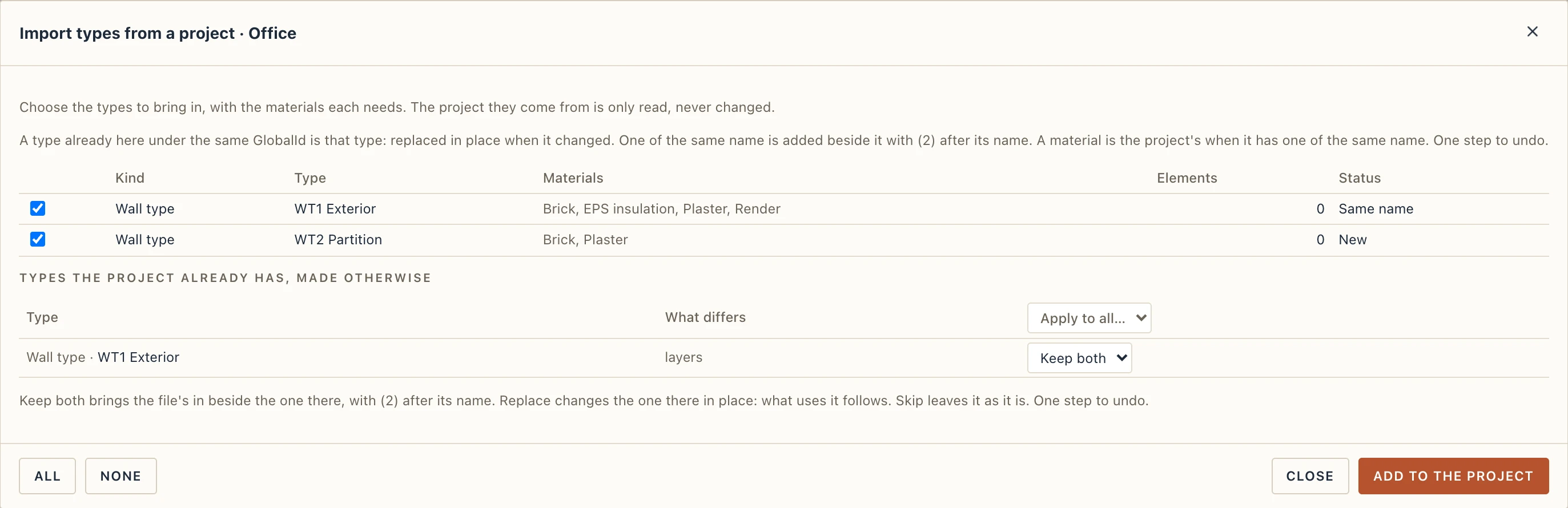
File → Import types from a project… takes types straight from another Lapin project, with no pack to export first. Choose its .lapin file: the dialog lists every type it has (walls, floors, roofs, doors, windows, columns, beams, stairs and the rest), with its kind, the materials it needs, how many elements use it there, and what it is to the project open now (New, The same, Same name, Same item, changed). Tick the types to bring in (All and None help) and click Add to the project: the chosen types come in with their layers, materials, profiles and parameters, in one step to undo. The other project is only read, never changed or saved, even when it was made by an older Lapin (it is brought up to date in memory, as opening it would).
The rules are those of a type pack. A material is the project's when it has one of the same name; a type of the same name that differs is added beside it as Name (2). A type keeps its GlobalId, so a type the project already has under the same GlobalId (both projects started from the same template, or the type came over before) is that very type: left as it is when nothing changed, replaced in place when it did (its elements follow), unless you choose Keep both or Skip. What differs is listed under the types, with the same choices as above. In a shared session only the host imports from a project; a guest can bring a .lapintypes instead.
Scripts
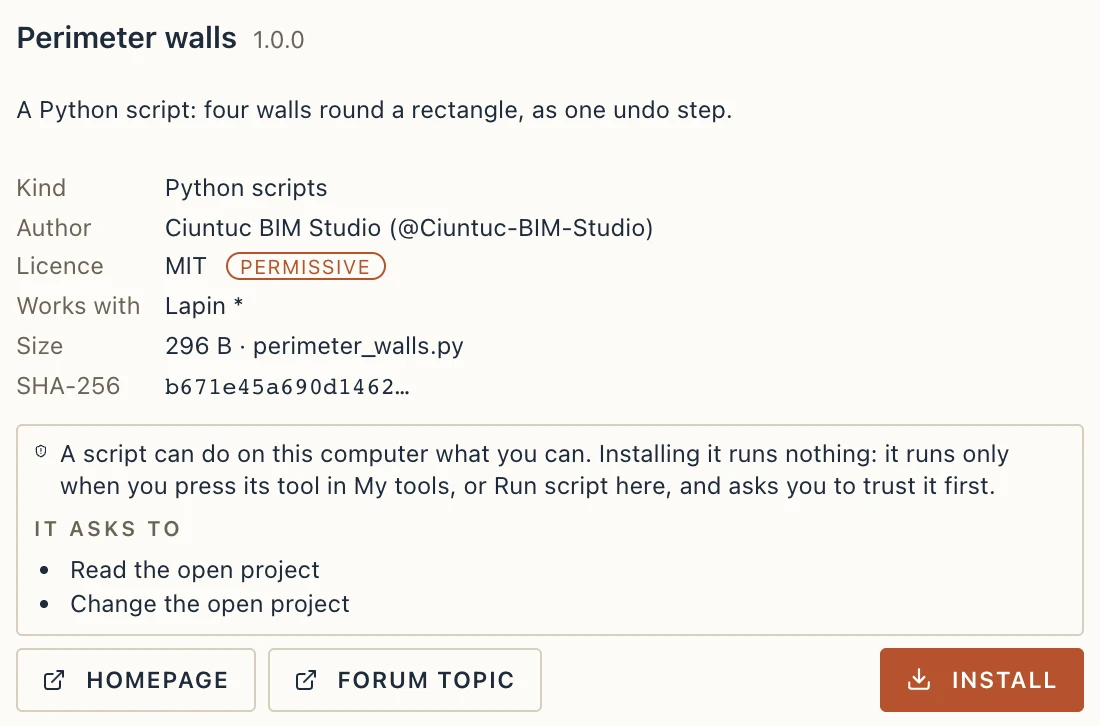
The catalogue also lists Python scripts. On the desktop you can install one now; it runs once Lapin has its Python console, and only when you run it. Before you install it, its details say what it asks for (to read or change the open project, to reach files or the internet). A script can do on your computer what you can, so install scripts from authors you trust. The browser takes content packs only.
Paid extensions
Some extensions are sold by their authors, through their own shop (today Gumroad). They are marked Paid in the list, with their price; the price is indicative: the one that counts is the seller's, at the checkout. Lapin Extensions takes no commission and is not part of the sale: the seller takes the payment, issues the invoice and handles refunds, under the terms that Seller's terms opens.
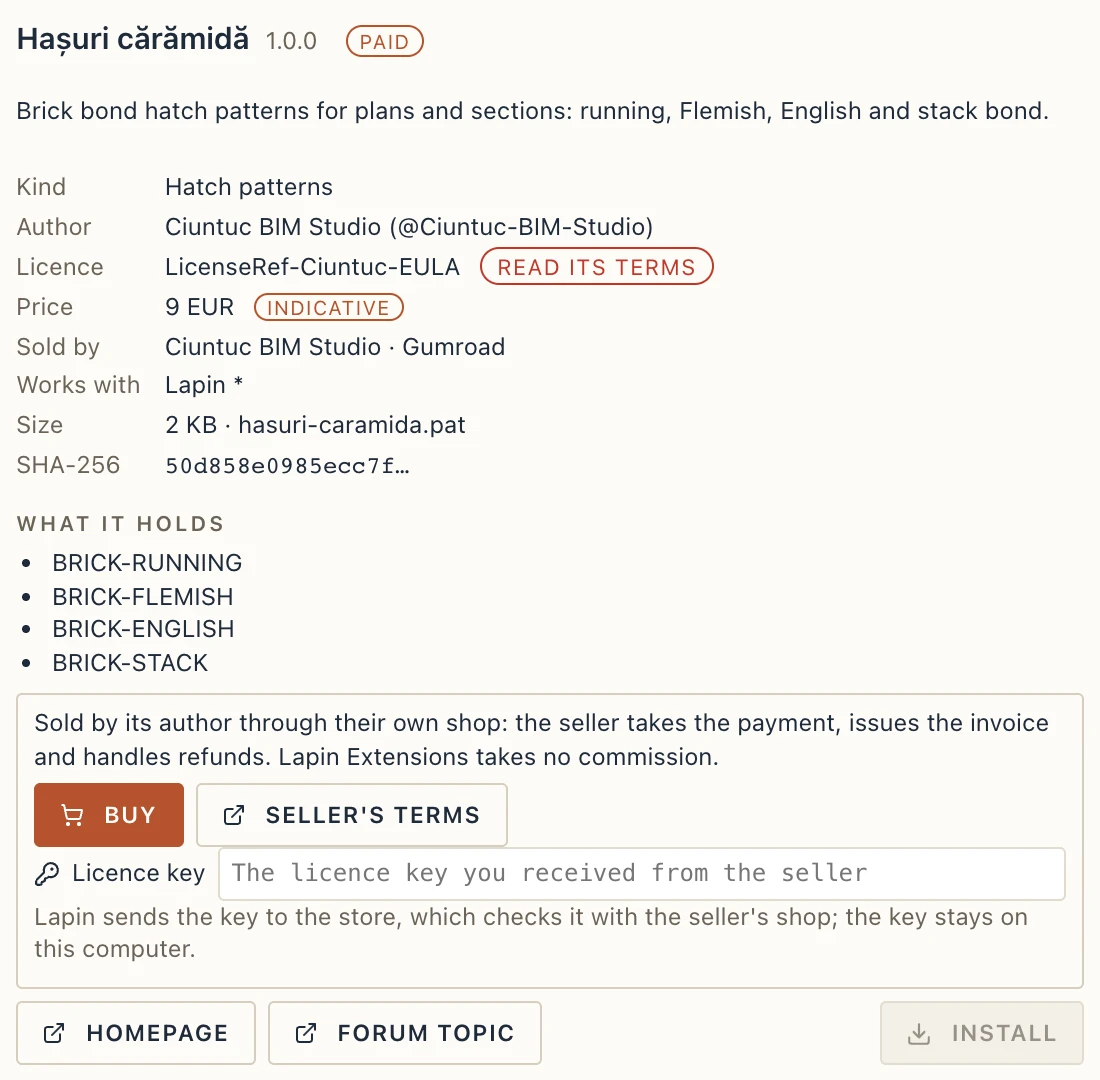
- Click Buy: the seller's checkout opens in your browser. After paying you receive a licence key (by e-mail, or on the receipt page).
- Back in File → Extensions…, paste the key into Licence key and click Install. Lapin sends the key to the store, which checks it with the seller's shop and then gives Lapin the file; Lapin checks its size, SHA-256 and signature like any other.
The key is kept on this computer (in Lapin's settings), so you type it once: updates use it. Lapin checks it again when an update is offered, or once a week; without an internet connection nothing is blocked, and what is installed keeps working.
If the seller refunds the purchase or disables the key, the extension gets no more updates and Installed says so; what is installed stays. Forget licence key in Installed removes the key kept for an extension (the next update asks for it again). A paid extension is installed in the browser too, from the store, with the same key.
Another catalogue
Catalogue… at the bottom of the dialog sets the catalogue's address: an https address, or the path of an index.json on this computer or a shared folder (a firm's own catalogue). Leave it empty for Lapin's own. The arrow beside it reads the catalogue again. A catalogue of your own need not be signed: Lapin then says above the list that it is not signed by Lapin Extensions, so install from it only if you trust who keeps it. A catalogue whose signature does not hold is never read.
Publishing your own
The catalogue has its own site, store.lapinbim.com: a page for each extension, with its pictures, versions, licence and downloads, and a page for each author.
Anyone can publish an extension. Export it from Lapin (My furniture → Export, Save as template…, a profile library, a title block), then:
- On the store: sign in at store.lapinbim.com with your forum account, open Your extensions, fill in the form and upload the file and a few screenshots. The store checks the file as Lapin will and sends it for review; your page shows the review and, once it is published, how many times it was downloaded. A new version goes the same way.
- On GitHub: attach the file to a release of a repository of yours and add its manifest by a pull request on Ciuntuc-BIM-Studio/lapin-extensions. Its README says how, and what the automatic checks look at.
To sell an extension, set up the product with licence keys at your own Gumroad shop, then fill in Sold through your own shop in the store's form (the provider, the product's id, the checkout page, your terms of sale and refunds, and a price to show). You are the seller: the store lists it, keeps its file privately and gives it only to a valid key; it takes no commission (author terms, section 5).
A types pack comes from Manage → Type packs… → Export types… (or Save to library at a type configurator); a symbol, line type, standards, rule pack, bar shapes or parameters file from the Export of its own dialog (Manage → Symbols…, Drafting standards, Rules…, Bar shapes…, Shared parameters; line types as a .lin); a price list from Price lists…, with the export button of a list on this computer (a .lapinprices file, its prices marked indicative).