Guía del usuario
Import tables
Bring loads, load cases, property values and classification codes in from a spreadsheet or from cells you paste, with the columns guessed, the units read, a preview row by row and one step to undo.
A spreadsheet is often where the data already is: the loads of a structural engineer's calculation, the fire ratings of a door schedule, a classification system. Manage → Documents → Import table… reads a CSV or Excel file (or cells copied from a spreadsheet) into what Lapin keeps: loads, load cases, parameters on elements, classification items and codes. Nothing changes until you press Import, and the whole import is one step to undo.

The same dialog opens, already on its table, from where the data belongs:
- Import property values…, next to Import table…, and in Schedules… at the foot of the dialog.
- Import loads… and Import load cases… in the Loads group of the Structure tab, and in the Loads dialog (Loads).
- Import items from table… and Classify elements from table… in Manage → Classifications…, for the classification system you have chosen there.
The steps
- Table says what the file is. Choose it, unless the tool you came from has chosen it. Download template saves a CSV with that table's columns and a few example rows, to fill in and import.
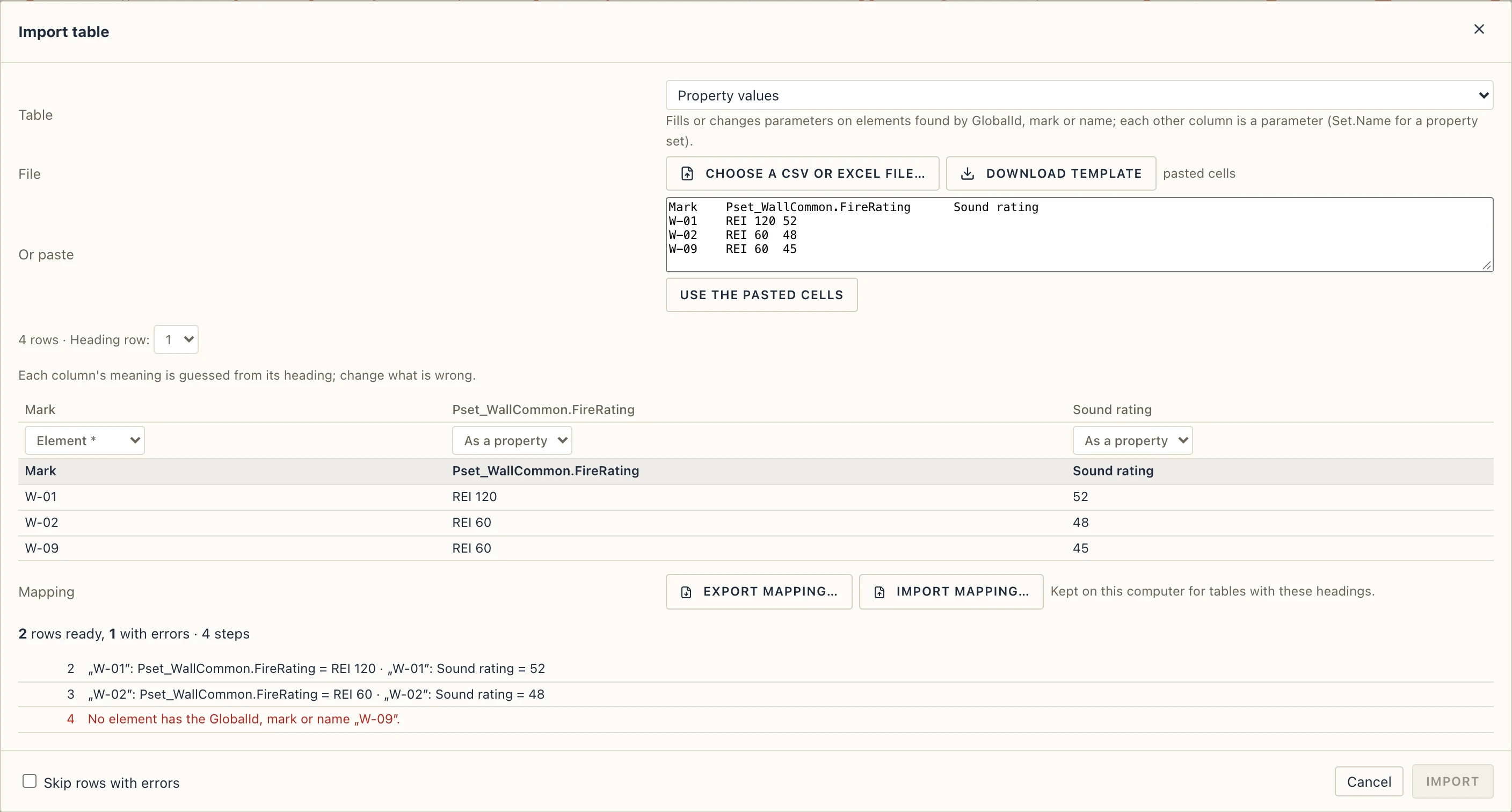
- Choose a CSV or Excel file…, or paste cells copied from a spreadsheet, headings first, into Or paste and press Use the pasted cells. Excel's semicolons and decimal commas are read too; a number may have its thousands grouped.
- The first rows of the file are shown. Heading row says which row holds the headings, when the file starts with a title or blank lines.
- Lapin guesses what each column is from its heading, in English, Romanian, German, French and other languages (Value, Valoare, Wert, Q, Load case, Caz…). Under each heading is a list: change what is wrong, or choose (leave out) for a column you do not need. A column can be given to one meaning only, so choosing it for another column takes it from the first. A required column is marked with an asterisk, and Still to map lists those no column has yet.
- Where a column carries a number, a second list gives its unit. Leave it on (unit from the heading or the row) and Lapin reads the unit where the file writes it: in the cell itself (4.5 kN/m, 250 mm), in a Unit column on each row (kN/m, kPa) or in the heading (Width (cm)). A unit written in the cell wins over the row's Unit and the heading's. Lengths may be in m, cm, mm, ft or in; forces in kN, N, daN, kgf, tf or kip, per metre or per square metre (kN/m², kPa, psf…).
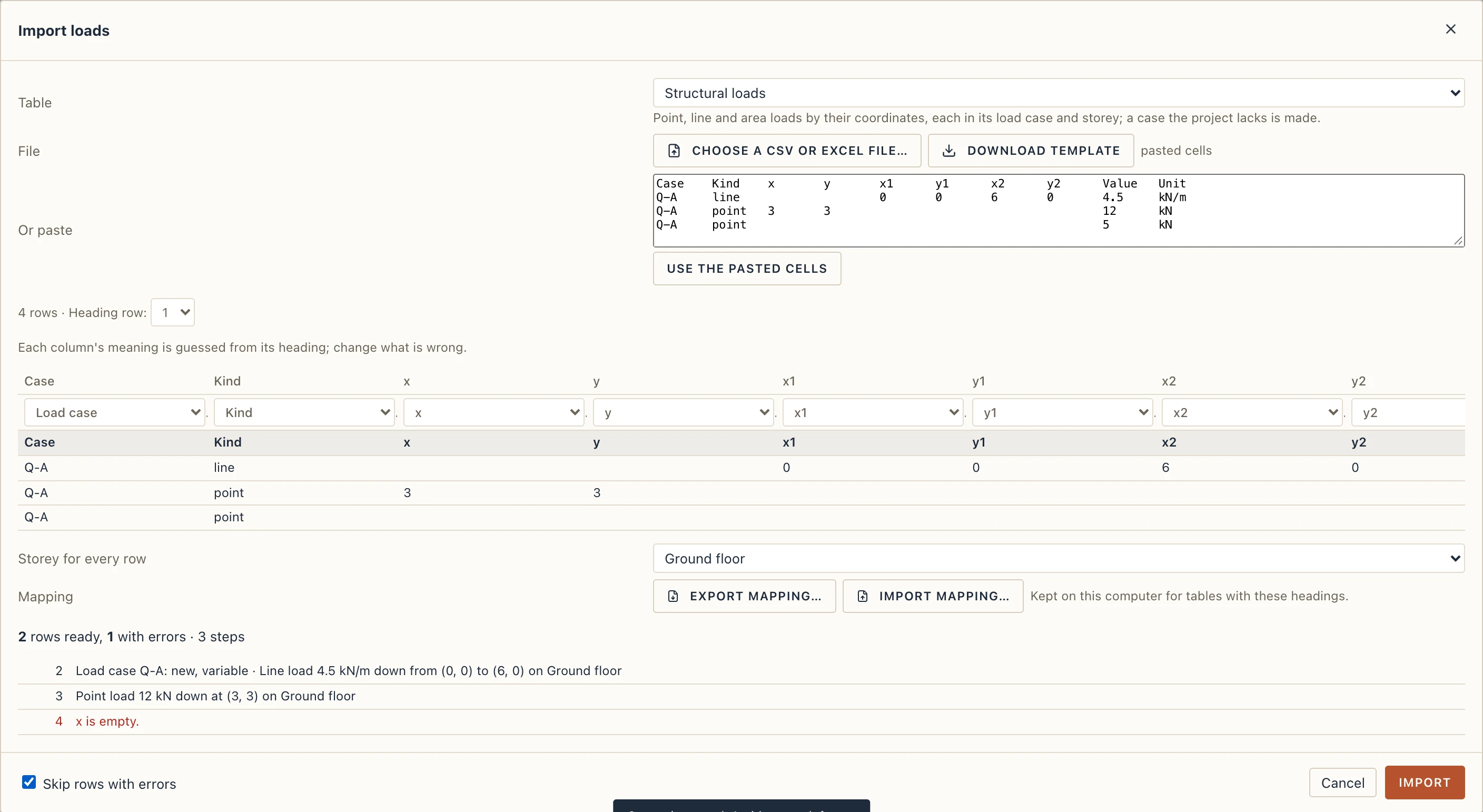
- What the file lacks and the table needs, the dialog asks for: a Storey for every row when the loads have no storey column.
- The preview counts the rows that are ready and those with errors, and lists each row in words, Line load 4.5 kN/m … on Ground floor, or why it cannot be read. It follows every change you make to the columns.
- Import makes it so. A row with an error stops the import, so that nothing is half done; tick Skip rows with errors to leave those rows out and import the others. The message tells how many rows came in and how many were left out.
Lapin remembers, on this computer, how you mapped a table's columns. The next table with the same headings, in any order, comes with the same mapping and units.
Mappings in a file
Export mapping… saves the mapping as a .lapinmapping file, and Import mapping… applies one to the table in the dialog. It matches by heading, not by column number, so a colleague's file with the same headings in another order maps as yours did, and only the headings it finds are mapped. A .lapinmapping file also keeps the layer map of Convert layers… (Drafting); a mapping made for another table is refused, with a sentence that says so.
The tables
Loads
One row a load. Value is the only column that must be there.
| Column | What it holds |
|---|---|
| Kind | area, line or point, in any language. Left out, it is read from the coordinates: one point is a point load, two a line load, an outline an area load. |
| Load case | The case by code or name. A case the project does not have is made once for the whole table, as permanent, variable or extraordinary by Case action (variable when the column is missing). |
| Storey | By name. Without the column, Storey for every row gives it. |
| x, y, x1, y1, x2, y2 | A point load's place, or a line load's two ends, in metres by default. |
| Outline points | An area load's corners, written x y; x y; … in one cell. |
| Value, Unit | The magnitude, with its unit in the cell (4.5 kN/m), in the heading or in the Unit column. A negative value acts the other way. |
| Direction | The direction the load acts in: down (when empty), up, +x, −x, +y or −y. |
| Height above the storey | The load's height above the floor. |
Load cases
Load case (its code or name) is required. Description, Action (permanent, variable or extraordinary), Source (dead, completion, live, snow, wind, earthquake or user) and Category of use are optional. A case that exists is changed; any other is made.
Property values
Fills or changes parameters on elements. The first column, Element, finds them by their GlobalId, their mark, or their name (every element of that name). Each other column is a parameter, taken by its heading: choose As a property for it. A heading written Pset_WallCommon.FireRating (a set, a dot, a property) puts the value in that property set, and any other heading is a parameter of your own, its kind (text, number, yes or no) read from the values. A column mapped to Name renames the elements. A row whose element is not in the model is an error in the preview.
The values you import are the ones Properties shows, and a formula parameter is worked out from them (Parameters worked out by formulas).
Classification items and codes
Import items from table… (in Manage → Classifications…) brings a system's table: a Code and a Title, a Parent code to build the tree, and the Classification system when the file holds several. Classify elements from table… puts those codes on elements: an Element (GlobalId, mark or name; a type's name too), its Code, and the Classification. When the column is missing, the system chosen in the dialog is used.
When something does not read
The preview says why a row fails (a unit Lapin does not know, a number that is not one, a storey or an element that is not there). Correct the cell in the file and choose it again, or change the column's unit in the dialog; Skip rows with errors imports the rest. If the whole file fails to read, the dialog says so under the choice of file.