Brugervejledning
Families
Families are parts now — objects of your own with parameters, a table, a cabinet, a bench — managed in Studio → Parts…, placed like any element and exported as the IFC class you choose.
Families are parts now
What used to be a family is a part. A project saved with families opens them as parts with the same names, values and ids, and the objects placed from them stay where they were. Each corner that was a formula of the parameters is a sketch of the part's own, with its dimensions as constraints, so a part is edited in place: select an object of it and press Tab (see the Parts page). Older .lapinfamily files are still read and come in as parts.
A part is an object you define once and place as many times as you need. It has parameters (a width, a height, a yes/no for a shelf) and bodies, each a closed sketch pushed to a depth, and it may also hold elements such as walls or furniture (see Parts). Each object placed keeps its own values and follows the part when you change it. A part belongs to the project; to use it in other projects, keep it in a library (below).
Studio → Parts…
Studio → Parts… opens the Place catalogue on the parts, to place one; its Parts… button opens the manager: the parts of the project, each with the number of objects that use it.
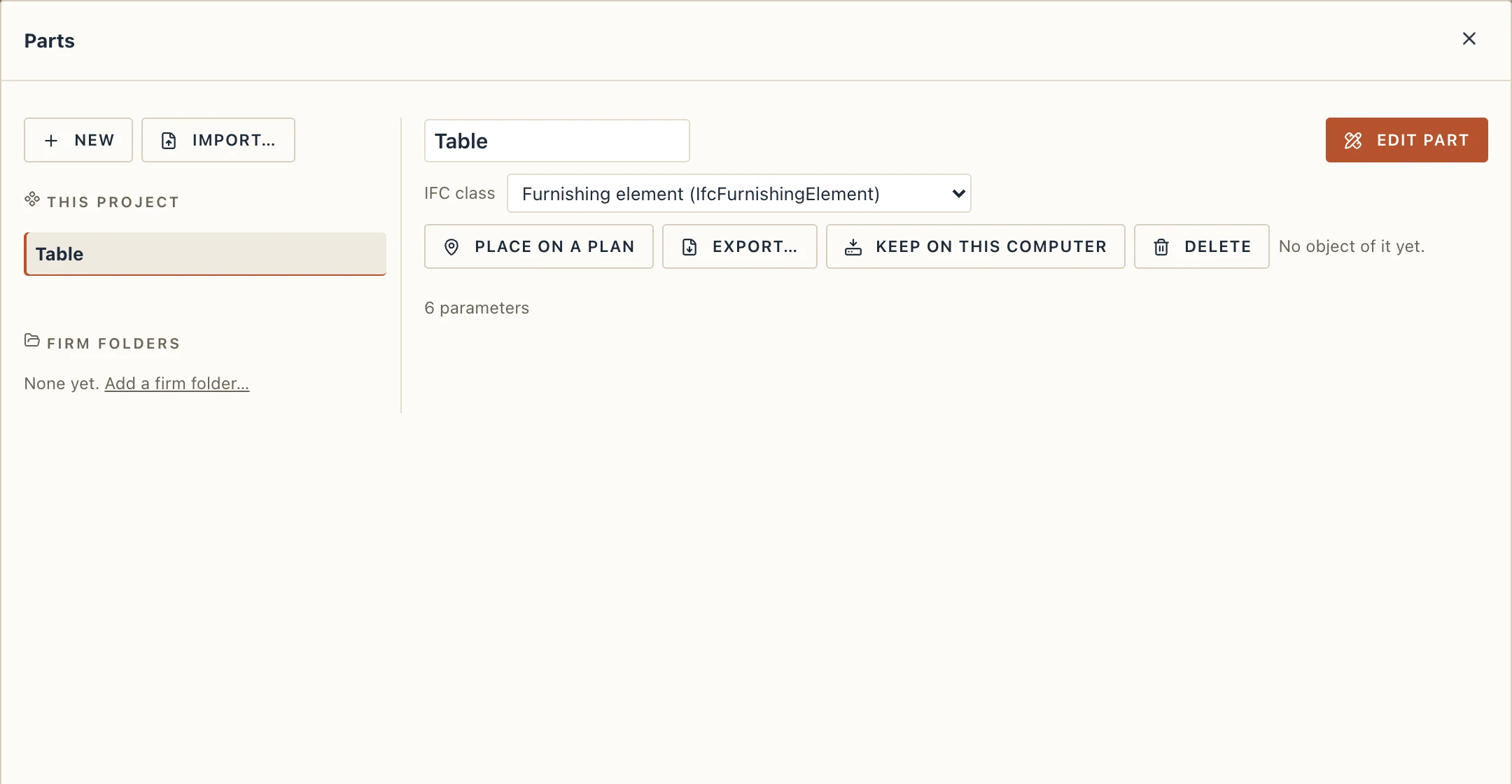
- New starts a box with the parameters W, H and D, ready to edit.
- Name: type a new one and press Enter. IFC class is what the object is exported as: Building element proxy (the default), Furnishing element, Column, Beam, Member, Plate, Slab, Wall, Flow terminal and others. The rest of the definition is kept.
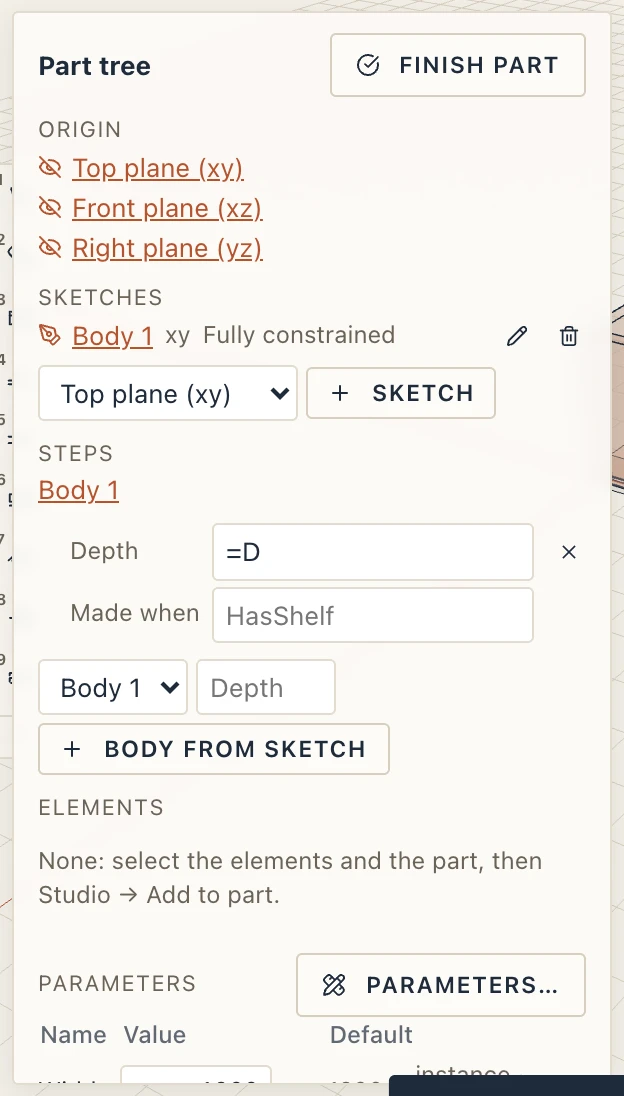
- Edit part closes the dialog, turns to 3D and opens the part's edit mode on a placed object, where its sketches, steps, parameters and elements are edited. When the part has no object yet, one is placed at the origin of the active storey, and a notice says so.
- Place on a plan, Export…, Keep on this computer and Delete are below; delete is refused while objects of the part stand in the project.
- Import… reads a
.lapinpartor an older.lapinfamilyfile through the import preview.
The parameters, the bodies and their formulas are no longer edited in a table here: they are the part's tree in its edit mode (see Parts). A cell is still a number or a formula of the parameters, such as W - 0.04, H / 2 or 2 * T, and a body's Made when condition still switches it off (HasShelf, or a comparison such as W > 1.2).
Placing objects
Studio → Part places an object: choose the part in the bar, click on the plan. R turns it a quarter, M mirrors it, and the bar's buttons do the same. A ghost of the object, drawn as lines, follows the cursor on the plan, turned and mirrored as the bar says and as wide as the values in the bar make it. The bar also has one field per parameter: type a value for the next object, or leave it empty for the part's own. Edit… opens the part in the manager. Place on a plan in the manager starts the same tool.
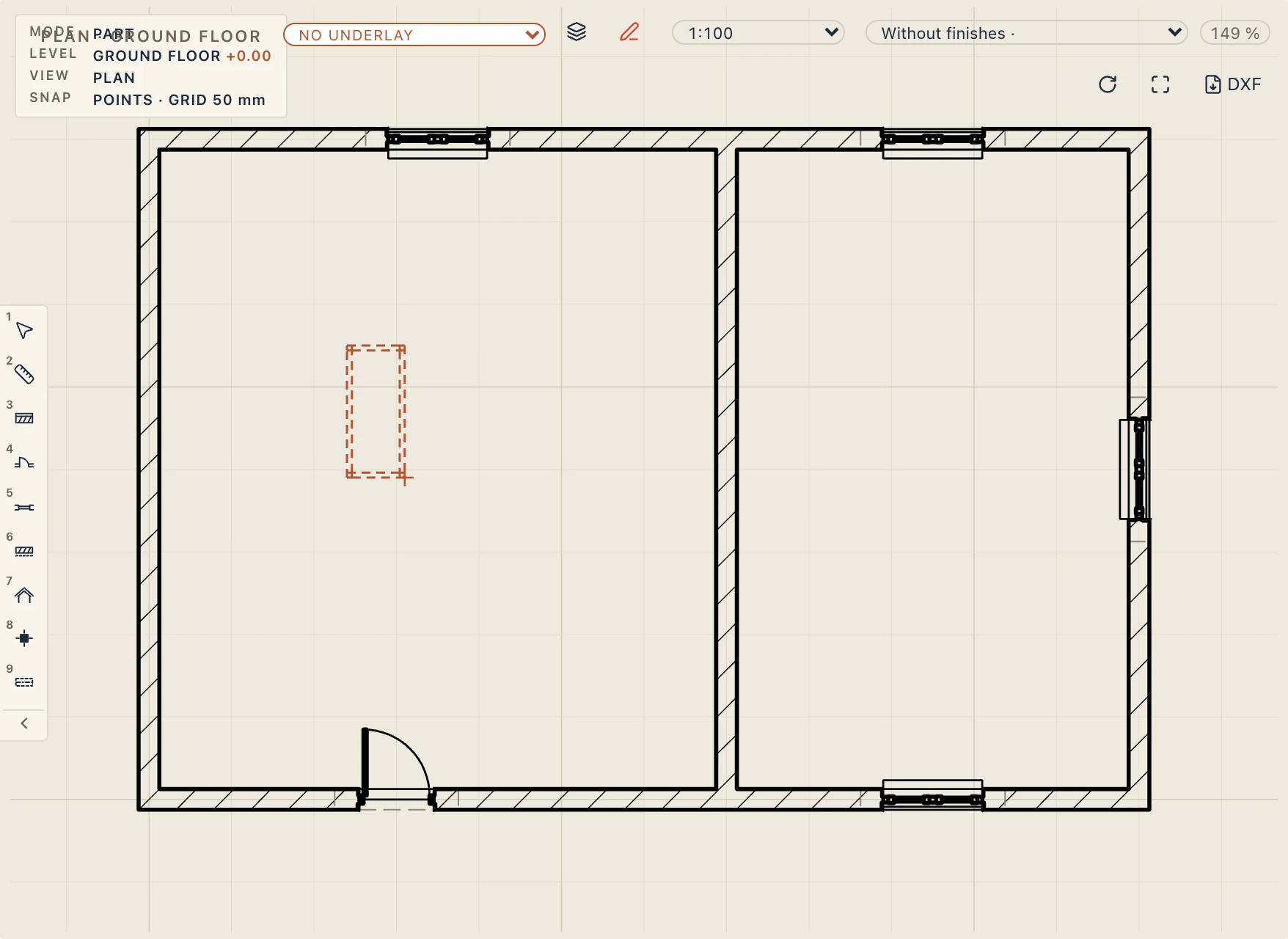

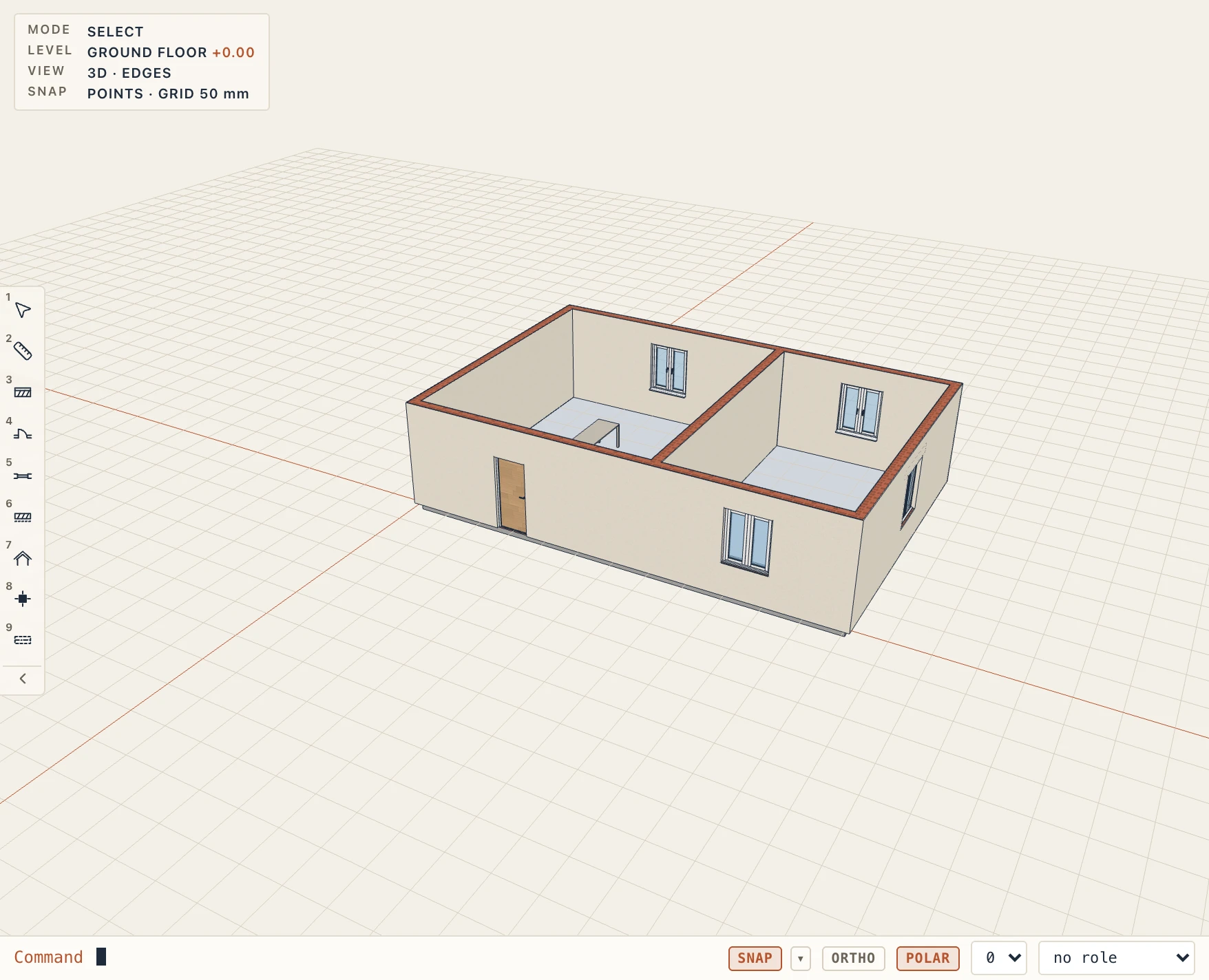
An object is moved, turned, mirrored, copied and deleted like any element. It is stored on the storey where you placed it. The old tool names (Family, Families…) still work in shortcuts, quick tools and saved interfaces.
An object's properties
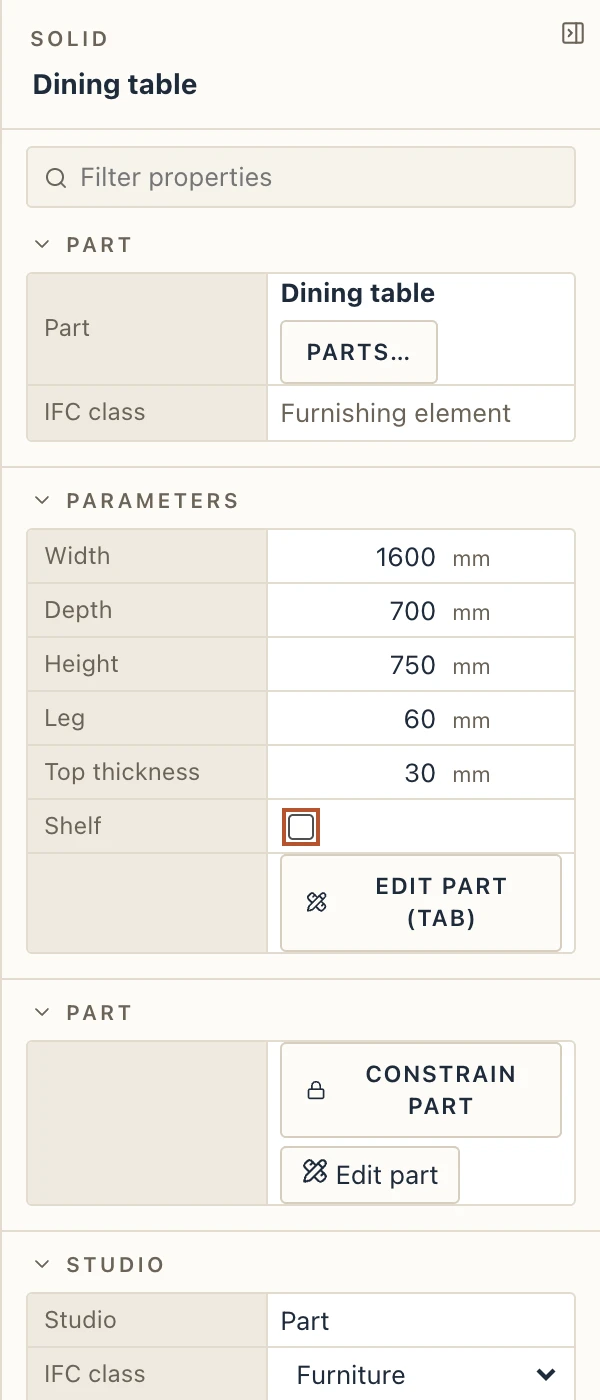
Select an object to see its Part section in the properties. It shows the part and its IFC class, and Parts… opens the manager on it; the Edit part button below (or Tab) enters the edit mode. Under it, the Parameters section lists only the parameters the part publishes: an instance parameter is a field for this object (an empty field is the part's value; type a value to give this object its own, clear it to go back), a type parameter is read-only, a derived one shows its formula. With several objects of a part selected, a value is set on all of them. See Parts for setting the parameters up. Under it, Rotation, Height above the storey and Mirrored are the object's own fields.
A part cannot be deleted while objects of it stand in the project: delete the objects first.
Make part from sketch
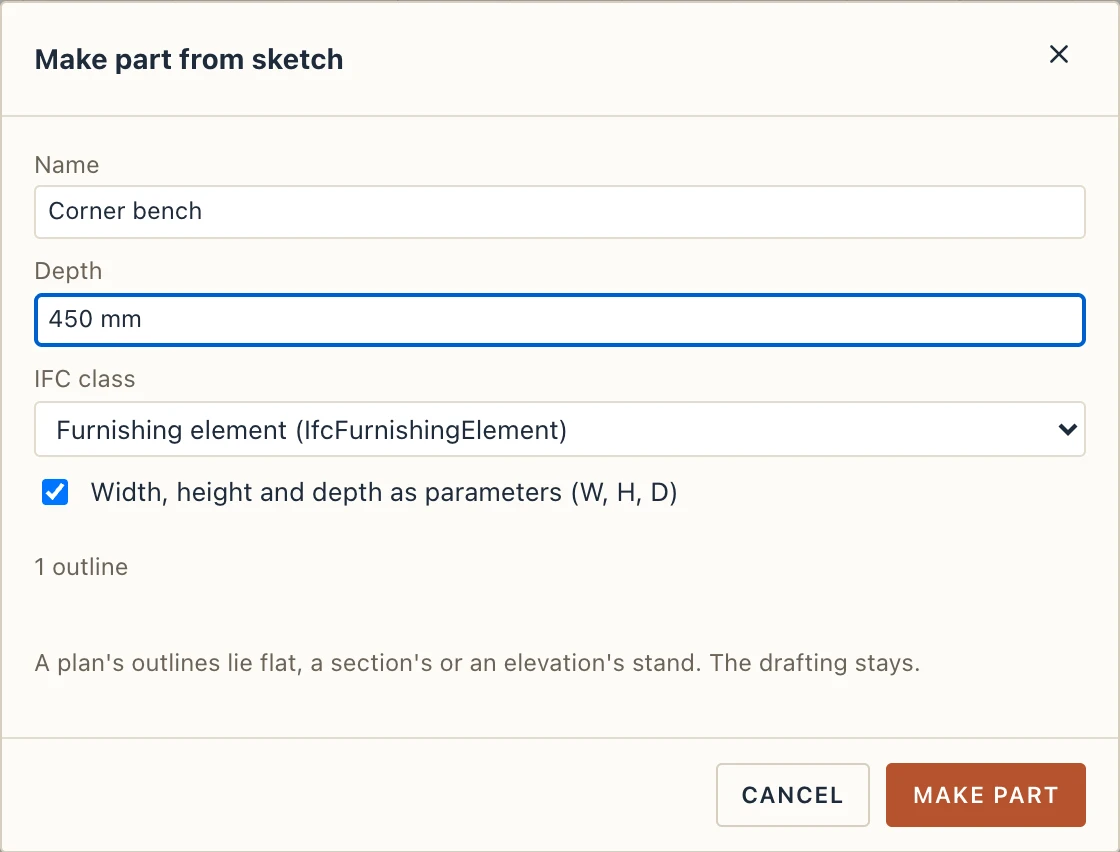
Draw closed outlines on a plan, a section or an elevation with the Draft tools (closed polylines, rectangles and circles), select them and choose Make part from sketch…, in the Part group of the Draft tab or with a right-click. The dialog asks the name, the depth and the IFC class. A plan's outlines lie flat and a section's or an elevation's stand. With Width, height and depth as parameters on, the part has the parameters W, H and D, and the outline's right and top corners follow W and H, so it stretches. The drafting stays where it was. The new part is chosen in the manager; Edit part opens its sketch, drawn from your outline and constrained.
Files and libraries
A part is exported as a .lapinpart file (Export…) and read back with Import…; a .lapinfamily file made by an older version is read too. Keep on this computer keeps a copy that the Catalog offers in every project. In the desktop app, Firm folders in the dialog lists the parts in your firm's folders; a click adds one to the project, and Save to firm folder… writes the chosen part into a writable folder. See Firm folders in the library dialogs in the Interface page.